Overview
Turbo360 uses Microsoft Entra ID as its authentication provider for two purposes:
- Authentication: users are authenticated against Microsoft Entra ID and issued a token that grants access to Turbo360.
- Authorization: users and groups are pulled from Microsoft Entra ID and associated with roles in Turbo360 for role-based access control (RBAC).
The latest version of Turbo360 migrates its Microsoft Entra ID integration from the ADAL (Azure Active Directory Authentication Library) to the MSAL (Microsoft Authentication Library). ADAL is deprecated; MSAL is the current supported library for Microsoft identity platform authentication.
This article explains the ADAL-to-MSAL migration, how the login flow works in the new architecture, and the two one-time setup steps required for privately hosted (PH) instances.
Business value
The move to MSAL aligns Turbo360 with the current Microsoft identity platform standards. It enables a single deployment package to support all PH customers using the multi-tenant app registration pattern: the same approach used by the SaaS version of Turbo360 and most modern single-page applications built on Microsoft Entra ID.
Prerequisites
- You are a Turbo360 administrator.
- You have an active Microsoft Entra ID tenant.
- For privately hosted instances: you have already upgraded your PH instance of Turbo360 to the latest version.
Required permissions
- Turbo360 administrator role on your PH instance.
- Permission to grant API consent on your Microsoft Entra ID tenant (typically a Global Administrator or Application Administrator role in Microsoft Entra ID).
Dependencies
- Turbo360 team must register your PH instance URL as a redirect URL on the Kovai multi-tenant App Registration before the first login attempt.
- Your Microsoft Entra ID tenant must allow the consent grant for the Turbo360 App Registration.
How it works
Authentication architecture
When a user logs into the Turbo360 Portal, the login flow proceeds as follows:
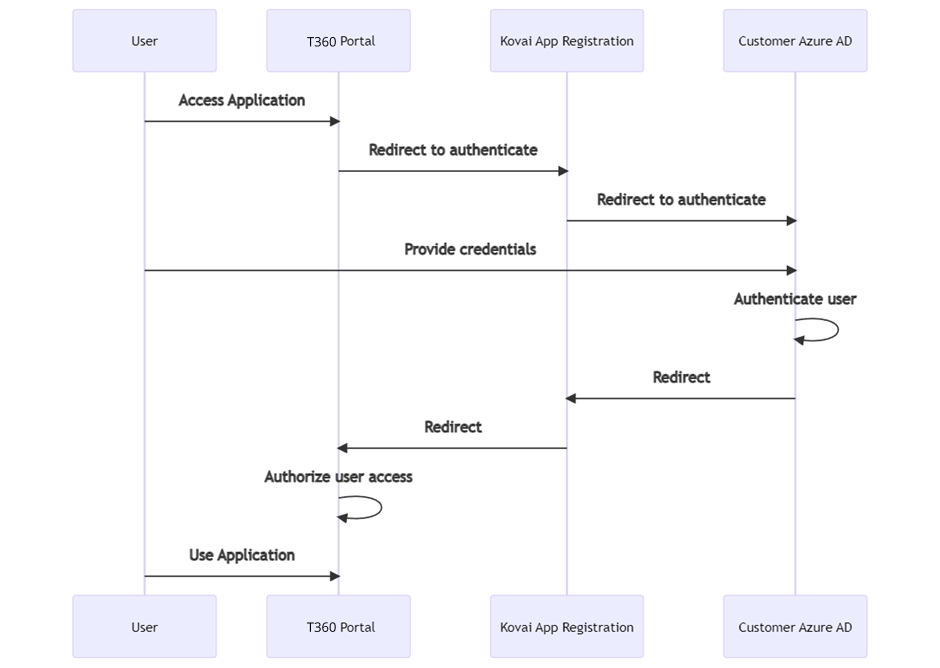
The diagram below shows the component view of the authentication architecture.
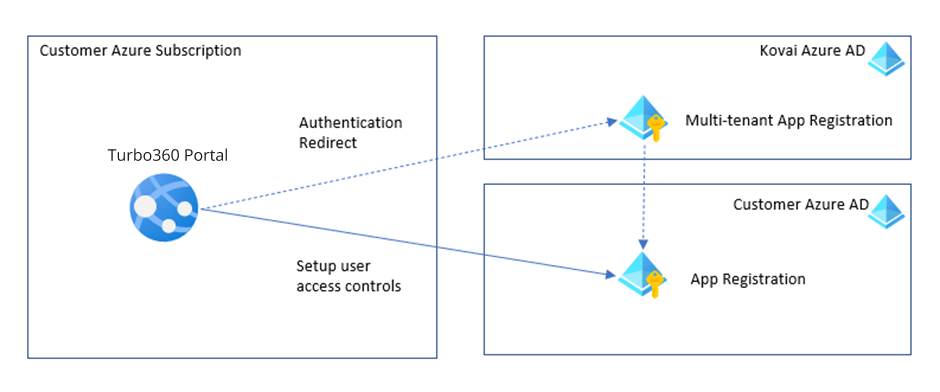
- The login request is sent to the Kovai multi-tenant App Registration.
- The App Registration verifies that the request originates from a whitelisted redirect URL.
- You are redirected to your home Microsoft Entra ID tenant to authenticate.
- A token is returned to the application.
- Your Turbo360 administrator account is validated using RBAC. The administrator can then add users and groups from your Microsoft Entra ID tenant to your PH instance.
The Kovai App Registration requires the URL of your privately hosted Turbo360 instance to whitelist your deployment. All actual authentication and user or group retrieval against your Microsoft Entra ID tenant is handled exclusively by the Enterprise App Registration in your own tenant.
Why the architecture changed
Under ADAL, Turbo360 could dynamically configure the authentication library to authenticate directly against each customer's Microsoft Entra ID tenant, bypassing the Kovai Microsoft Entra ID instance entirely.
MSAL does not support this dynamic tenant/client ID configuration out of the box. Rather than producing a separate installation package per customer, Turbo360 now follows the multi-tenant app registration pattern used by SaaS applications. The application points to the Kovai Microsoft Entra ID App Registration, which redirects users to their home tenant for authentication. This is consistent with how the SaaS version of Turbo360 has always operated.
Steps
The two one-time setup steps are required when you set up a new PH instance of Turbo360, or when upgrading an existing PH instance from the ADAL-based version.
Step 1: Kovai registers your redirect URL
Kovai registers the URL of your PH Turbo360 installation as a redirect URL on the Kovai multi-tenant App Registration. This allows your instance to use the App Registration for authentication.
Contact Turbo360 support to initiate this step before your first login attempt on the upgraded instance.
Step 2: Admin grants API consent
When your Turbo360 administrator logs in for the first time on the upgraded instance, they are prompted to grant consent on your home Microsoft Entra ID tenant.
This consent allows the application to retrieve users and groups from your Microsoft Entra ID for RBAC configuration within Turbo360. This is the standard approach for registering a multi-tenant application against a Microsoft Entra ID tenant.
Configuration
| Item | Details |
|---|---|
| App Registration type | Kovai multi-tenant App Registration |
| Redirect URL | Your PH Turbo360 instance URL (registered by Turbo360) |
| Consent grant | Required on first admin login; performed on your Microsoft Entra ID tenant |
| Authentication library | MSAL (replaces deprecated ADAL) |
| Token target | Turbo360 application |
| User/group retrieval | Via Enterprise App Registration in your Microsoft Entra ID tenant |
Permission behavior
With administrator access:
Your Turbo360 administrator can log in, complete the consent grant, and manage user and group assignments from Microsoft Entra ID within Turbo360.
Without administrator access:
Non-administrator users cannot complete the API consent step. If consent has not yet been granted by an administrator, authentication will succeed but RBAC configuration will not be available.
Example scenario
A customer upgrades their privately hosted Turbo360 instance to the latest version. Before the first login, they contact Turbo360 support to register their PH URL (https://turbo360.contoso.com) as a redirect URL on the Kovai App Registration.
The customer's Turbo360 administrator then logs in. They are redirected to their Microsoft Entra ID tenant and prompted to grant API consent for the Turbo360 App Registration. After granting consent, the administrator can add their organization's Microsoft Entra ID users and groups to Turbo360 roles. Subsequent logins by those users proceed through the standard multi-tenant login flow without additional setup.
Limitations
- MSAL does not natively support dynamic configuration of the tenant or client ID at runtime. Turbo360 monitors the MSAL roadmap for this capability and will evaluate it as an option when Microsoft provides support for it.
- The redirect URL registration by Kovai is a manual step; it must be completed before the first login attempt on a new or upgraded PH instance.
- The API consent grant must be performed by a user with sufficient permissions on the customer's Microsoft Entra ID tenant (typically Global Administrator or Application Administrator).
- This architecture applies to privately hosted instances only. SaaS-hosted Turbo360 customers are not affected.
Troubleshooting
-
Login fails with a redirect URI mismatch error.
Cause: Your PH instance URL has not been registered as a redirect URL on the Kovai App Registration.
Fix: Contact Turbo360 support and provide your PH instance URL. Do not attempt to log in until Turbo360 team confirms the URL has been registered. -
Admin cannot complete the consent grant.
Cause: The logged-in user does not have the required Microsoft Entra ID role (Global Administrator or Application Administrator) to grant tenant-wide consent.
Fix: Have a user with the required role log in and complete the consent step, or ask your Microsoft Entra ID administrator to grant admin consent on behalf of the organization. -
Users and groups do not appear in Turbo360 RBAC configuration.
Cause: The API consent grant has not been completed, or the Enterprise App Registration in your tenant does not have the required permissions.
Fix: Confirm that the consent grant was completed successfully. If the issue persists, verify the Enterprise App Registration permissions in your Microsoft Entra ID tenant. -
Authentication succeeds but access is denied in Turbo360.
Cause: The authenticated user has not been assigned a role in Turbo360 RBAC.
Fix: Ask your Turbo360 Account owner to assign the user or their Microsoft Entra ID group to the appropriate Turbo360 role. -
Upgrading from the ADAL-based version fails at login.
Cause: The instance was upgraded without completing the pre-login redirect URL registration with Kovai App.
Fix: Contact Turbo360 support to register the redirect URL before retrying the login.
FAQs
-
Does this change affect SaaS-hosted Turbo360 customers?
No. The multi-tenant app registration pattern has always been used by the SaaS version of Turbo360. Only privately hosted customers upgrading from the ADAL-based version are affected. -
Is the consent grant required on every login?
No. The consent grant is a one-time step performed by the Turbo360 Account owner on the first login after the upgrade. Subsequent logins by all users proceed through the standard authentication flow. -
Will Turbo360 ever support dynamic tenant configuration with MSAL?
Turbo360 is monitoring the MSAL roadmap for this capability. If Microsoft adds native support for dynamically setting the tenant at runtime, Turbo360 will evaluate it as an additional option for PH customers.