Overview
Turbo360 supports two authentication methods: email/password and Entra ID single sign-on (SSO). This article explains how Entra ID SSO works, what gets created in your Entra ID tenant, and what your Entra ID admin can do after SSO is configured.
Business value
Using Entra ID SSO lets your organization centralize authentication for Turbo360 through your existing Microsoft identity infrastructure. You can enforce conditional access policies, monitor sign-in activity through Entra ID logs, and manage user access without maintaining separate credentials.
Prerequisites
- Turbo360 account (SaaS or private hosted)
- Access to an Azure Entra ID tenant
- A user with Global Administrator permissions on the Entra ID tenant to provide admin consent during initial setup
Required permissions
Admin consent for the following Microsoft Graph permissions is required during setup:
| Permission | Type | Purpose |
|---|---|---|
User.Read |
Delegated | Read the signed-in user's profile |
User.ReadBasic.All |
Delegated | Search for users to add to Turbo360 |
Group.Read.All |
Delegated | Search for groups to add to Turbo360 |
Dependencies
- Turbo360 must be configured to use Entra ID SSO.
- For private hosted instances, the private hosting URL may need to be registered with the Turbo360 team before SSO can be configured.
How it works
Authentication flow
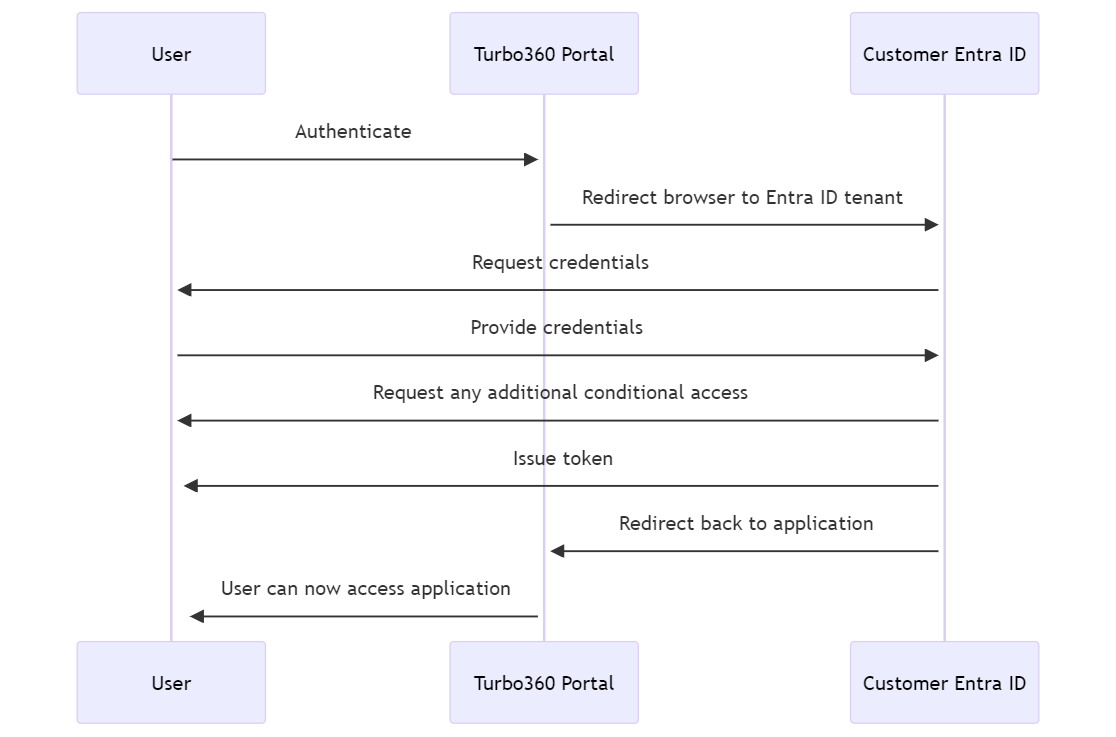
When you sign in to Turbo360 using Entra ID, the following flow occurs:
- Turbo360 redirects your browser to your Entra ID tenant.
- You enter your credentials in Entra ID.
- Entra ID issues a token and redirects your browser back to Turbo360.
- Turbo360 validates the token and grants access.
What gets created in your Entra ID tenant
Turbo360 is a multi-tenant application published by Kovai. When you configure Turbo360 to use Entra ID SSO, Turbo360 redirects you to your local Entra ID tenant and asks for admin consent. The person performing this step must have sufficient permissions on the Entra ID tenant; in most cases, a Global Administrator.
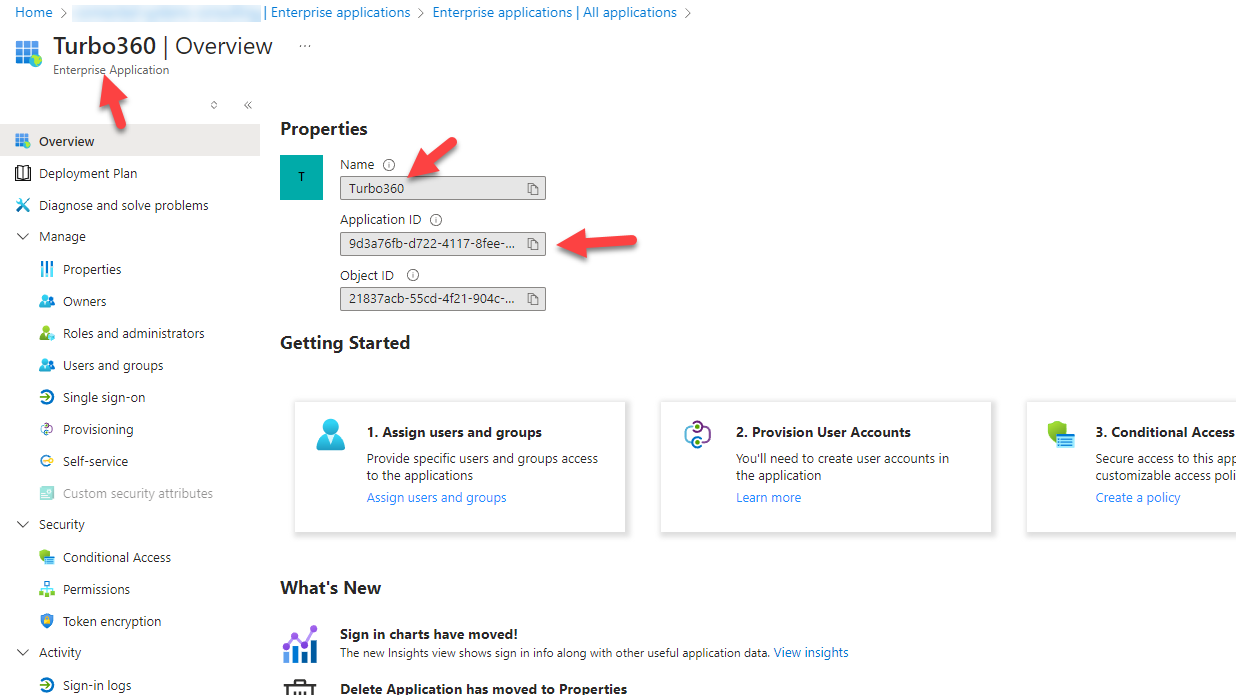
When consent is granted, Entra ID creates an Enterprise Application in your tenant that corresponds to the Turbo360 application published by Kovai.
You can view the permissions that were consented to under the Permissions blade of the Enterprise Application.
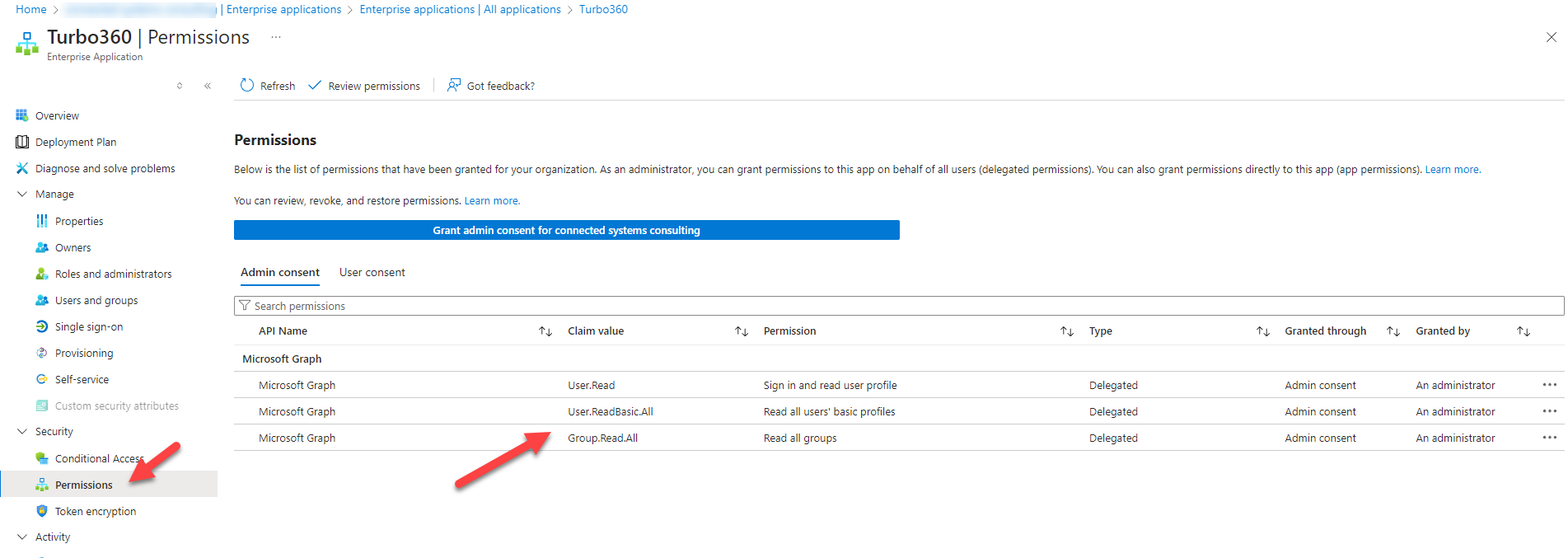
Turbo360 uses these permissions when you add users or groups from Entra ID to control access to modules. All other Enterprise Application settings remain at their defaults.
Steps
Use the appropriate guide below to set up Entra ID SSO, or follow the admin consent steps if your organization separates Entra ID and Turbo360 administration.
How to set up Entra ID SSO
Use the appropriate guide depending on your situation:
- New account: Microsoft Entra ID sign-up
- Existing account switching from email/password: Switch from Email to Entra ID
Performing Entra ID consent outside of Turbo360
If your organization separates Entra ID administration from Turbo360 administration, you can have your Entra ID admin perform the consent step independently, without needing to be a user in Turbo360.
Entra ID admin steps
- Copy the URL below and replace
{{Your-Tenant-ID}}with the GUID for your Entra ID tenant.
https://login.microsoftonline.com/{{Your-Tenant-ID}}/v2.0/adminconsent?client_id=9d3a76fb-d722-4117-8fee-3e95077a8c3f&scope=https://graph.microsoft.com/User.Read https://graph.microsoft.com/User.ReadBasic.All https://graph.microsoft.com/Group.Read.All &redirect_uri=https://portal.azure.com
The client_id in this URL matches the GUID for the Turbo360 multi-tenant application published by Kovai. After consent, the admin is redirected to the Azure Portal.
- Open the URL in a browser. Entra ID will prompt for consent.
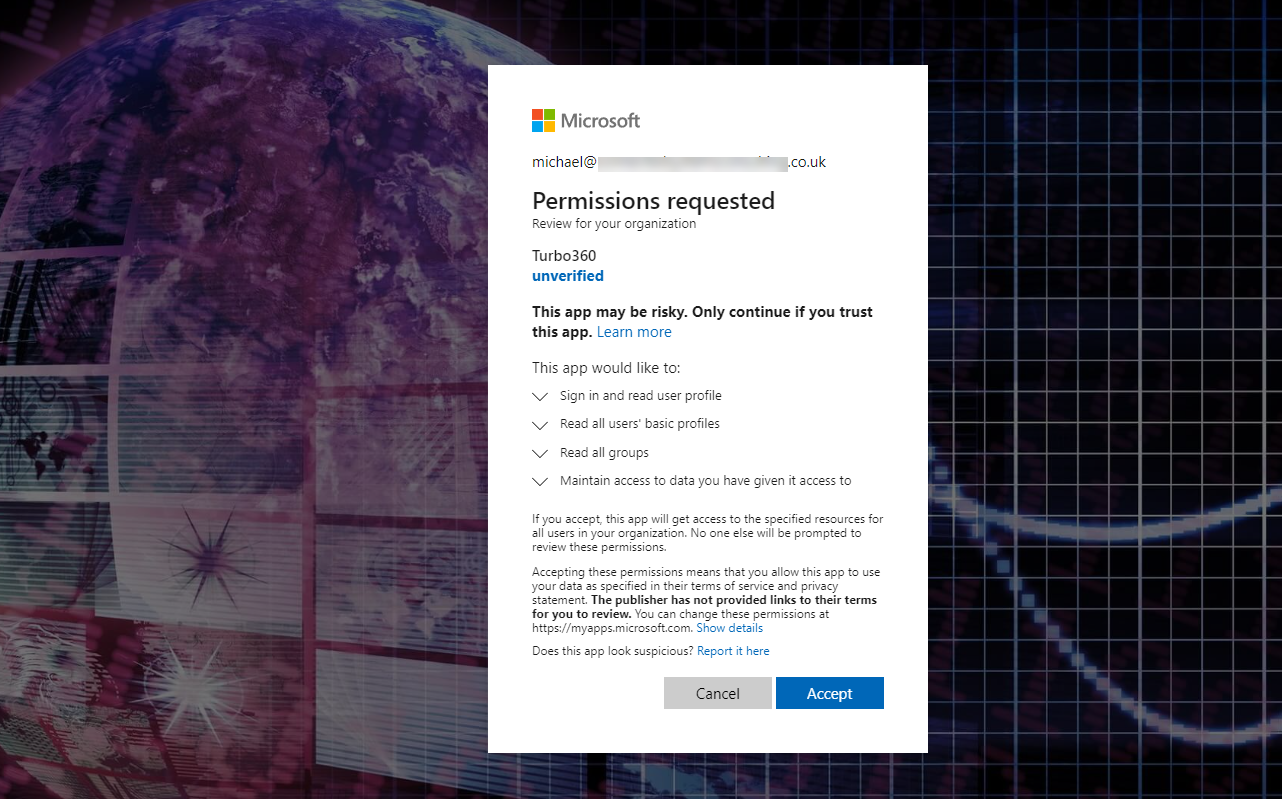
- Click Accept. The Enterprise Application is created in your tenant with the permissions described above.
The Entra ID admin's tasks are now complete. Hand off to the Turbo360 user to complete the remaining steps.
Turbo360 user steps
After the Entra ID admin has completed consent, complete the setup using the appropriate guide above. You do not need Global Administrator permissions on Entra ID; you only need to be an Owner in Turbo360.
When redirected to Entra ID, you will not be prompted for consent because the admin already provided it.
If you are a private hosting customer performing this split setup, contact the Turbo360 team before proceeding. Your private hosting URL may need to be registered for SSO.
Configuration
| Setting | Description |
|---|---|
| Authentication method | Choose between email/password and Entra ID SSO in your Turbo360 account settings |
| Admin consent URL | Used by the Entra ID admin to grant consent without accessing Turbo360 |
| Enterprise Application permissions | User.Read, User.ReadBasic.All, Group.Read.All, set at consent time |
Permission behavior
With Entra ID SSO configured: Users sign in via Entra ID. Turbo360 can search your Entra ID directory to find users and groups when assigning module access permissions.
Without Entra ID SSO configured: Users authenticate with email/password. Entra ID directory lookup is not available. You cannot assign Entra ID groups to Turbo360 module permissions.
Why a Global Admin is required: Admin consent on the Entra ID side requires tenant-level permissions. For a first-time setup, the Global Admin can register the Turbo360 account. When switching from email/password to Entra ID SSO, add the Global Admin as an Owner in Turbo360 so they can perform the switch.
Example scenario
Your organization has separate Azure and Turbo360 administrators. Your Azure admin uses the consent URL to register the Turbo360 Enterprise Application in your Entra ID tenant. Once consent is granted, your Turbo360 admin signs in to Turbo360 and completes the switch from email/password to Entra ID SSO without needing any Entra ID permissions. Going forward, all users authenticate through Entra ID, and your Azure admin can apply conditional access policies to Turbo360 just like any other enterprise application.
Limitations
- Admin consent requires a Global Administrator on the Entra ID tenant. Delegating this to a non-admin user is not supported.
- Private hosting customers must contact the Turbo360 team to register their URL before performing a split setup.
- Entra ID SSO is configured at the account level. Per-module or per-user authentication method overrides are not supported.
Troubleshooting
-
Admin consent prompt does not appear when setting up SSO.
Cause: The user performing setup does not have sufficient permissions on the Entra ID tenant.
Fix: Have a Global Administrator perform the consent step, either through the Turbo360 setup flow or using the standalone consent URL. -
Enterprise Application is not created in the Entra ID tenant after consent.
Cause: The consent flow was interrupted or the user dismissed the consent prompt.
Fix: Repeat the consent step. If using the standalone URL, ensure the full URL is entered correctly with the correct tenant GUID. -
Users cannot be found when adding them to Turbo360 after SSO is configured.
Cause: TheUser.ReadBasic.AllorGroup.Read.Allpermissions were not consented to, or were revoked after setup.
Fix: Verify that all three permissions (User.Read,User.ReadBasic.All,Group.Read.All) are present under the Permissions blade of the Enterprise Application. Re-run the consent step if permissions are missing. -
Private hosting customer cannot complete SSO setup after admin consent.
Cause: The private hosting URL has not been registered with the Turbo360 team.
Fix: Contact the Turbo360 team to register your private hosting URL before completing the setup. -
Conditional access policies are not being applied to Turbo360.
Cause: The policy has not been scoped to include the Turbo360 Enterprise Application.
Fix: In your Entra ID tenant, navigate to Conditional Access and add the Turbo360 Enterprise Application to the relevant policy's target resources.
FAQs
-
Do I need a Global Admin account to use Entra ID SSO in Turbo360?
A Global Administrator is required only to provide admin consent during the initial setup. After consent is granted, day-to-day Turbo360 administration does not require Global Admin permissions; you only need to be an Owner in Turbo360. -
Can my Entra ID admin perform the consent step without accessing Turbo360?
Yes. Use the standalone consent URL provided in this article. The Entra ID admin replaces{{Your-Tenant-ID}}with their tenant GUID and opens the URL in a browser. No Turbo360 account is required for this step. -
What Entra ID features can I use after configuring SSO?
Once Turbo360 uses your Enterprise Application for authentication, you can apply conditional access policies (such as enforcing MFA, restricting sign-ins to safe locations, or limiting risky user access) and monitor authentication activity through Entra ID sign-in logs or a SIEM integration.