Overview
This article explains how to sign up for a Turbo360 account using Microsoft Entra ID as your authentication method. Entra ID enables single sign-on (SSO) for users in your organization, letting them authenticate with their existing organizational identity instead of a separate Turbo360 password.
Microsoft Entra ID sign-up is supported only for Private Hosting instances. This option is not available for SaaS platform users.
Business value
Connecting Turbo360 to Microsoft Entra ID eliminates the need for separate credentials. Users sign in with their existing organisational identity, reducing password management overhead and enabling centralised access control through your Entra ID tenant.
Prerequisites
- A valid Microsoft Entra ID user principal name (UPN) and domain name.
- Access to a Microsoft Entra ID Administrator who can grant admin consent for the Turbo360 application in your tenant.
Required permissions
- User: Must have a valid Entra ID UPN in the organisation's tenant.
- Admin: Must have Global Administrator or Application Administrator rights in Microsoft Entra ID to grant tenant-wide admin consent.
Dependencies
- Microsoft Entra ID tenant with an active subscription.
- The Entra ID administrator must be available to approve the consent prompt during the first sign-up.
How it works
When a user signs up for Turbo360 using Microsoft Entra ID, the following occurs:
- The user provides their Entra ID UPN and domain name on the Turbo360 sign-up page.
- Turbo360 redirects the user to Microsoft's authentication flow.
- On the first sign-in from the tenant, a Microsoft admin consent prompt is displayed. The tenant's Entra ID Administrator must approve this consent.
- Upon approval, Microsoft Entra ID creates an Enterprise Application in your tenant and applies the required permissions.
- The user is redirected back to Turbo360 and can now authenticate using their Entra ID credentials.
Admin consent is a one-time requirement per tenant. Subsequent users from the same tenant can sign in without requiring admin approval again.
Steps
-
Navigate to the Turbo360 sign-up page.
-
Enter your Microsoft Entra ID user principal name and domain name.
-
Select Sign up with Microsoft Entra ID. You are redirected to the Microsoft authentication flow.
-
Sign in using your UPN and password.
-
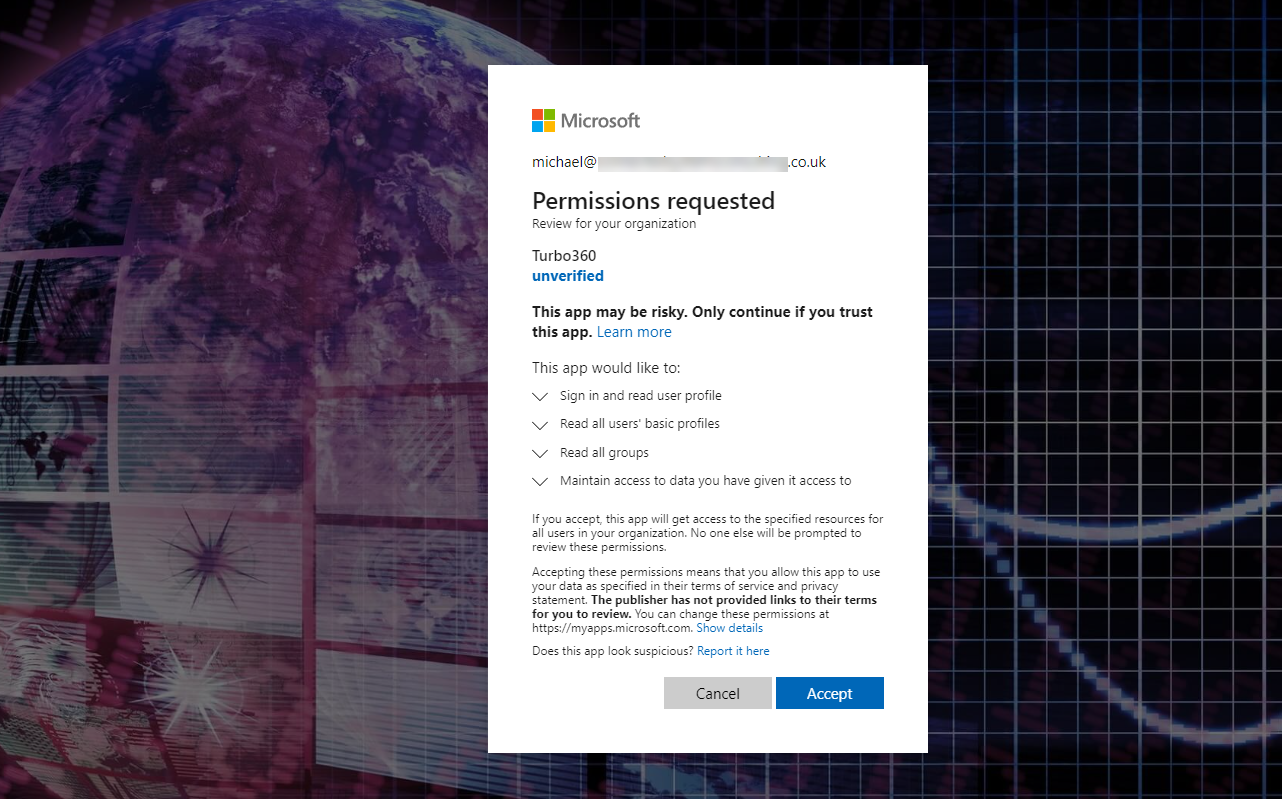
If this is the first sign-in from your tenant, the admin consent prompt will appear. Your Entra ID Administrator must review and approve the requested permissions.
Admin consentThe image below shows the admin consent prompt that your Entra ID Administrator must approve for Turbo360 to access your tenant.
-
Once the administrator approves, the following actions occur automatically:
- An Enterprise Application is created in your Entra ID tenant.
- The required permissions shown in the consent prompt are applied.
-
You are redirected back to Turbo360 and can now sign in using Microsoft Entra ID.
Configuration
| Option | Type | Description |
|---|---|---|
| User principal name (UPN) | String | The Entra ID user's UPN (e.g., user@organisation.com). |
| Domain name | String | Your organisation's Entra ID domain name. |
Permission behavior
With admin consent granted:
Users from the tenant can sign in to Turbo360 using their Entra ID credentials. An Enterprise Application is created and maintained in the tenant.
Without admin consent:
The sign-up flow cannot be completed. Users are blocked at the consent prompt and cannot authenticate until an Entra ID Administrator approves the request.
Example scenario
A platform administrator at Contoso wants to onboard their team to Turbo360 using Microsoft Entra ID SSO. They navigate to the Turbo360 sign-up page, enter their UPN (admin@contoso.com) and domain name, and proceed through the Microsoft authentication flow. The admin consent prompt appears, and the Entra ID Administrator approves it. An Enterprise Application is created in the Contoso tenant, and the administrator is redirected to Turbo360 where they can now sign in. All subsequent Contoso users can sign in with their Entra ID credentials without needing admin approval again.
Limitations
- Admin consent is required from the Entra ID tenant on the first sign-up. The sign-up cannot be completed without it.
Troubleshooting
-
Admin consent prompt is not appearing.
Cause: Admin consent may have already been granted for the tenant, or the user's Entra ID account does not require tenant-level consent.
Fix: Check the Enterprise Applications list in your Entra ID tenant to confirm whether Turbo360 is already registered. If not, contact your Entra ID Administrator. -
Sign-up fails after entering UPN and domain name.
Cause: The UPN or domain name entered may be incorrect, or the account may not exist in the specified tenant.
Fix: Verify the UPN format (user@domain.com) and confirm the domain name matches your organisation's Entra ID tenant. -
Admin consent was approved but the user is not redirected to Turbo360.
Cause: A browser or network issue may have interrupted the redirect after consent was granted.
Fix: Close the browser tab and attempt to sign in again from the Turbo360 sign-in page using the Entra ID option. -
Enterprise Application is not visible in Entra ID after sign-up.
Cause: The consent approval may not have completed fully, or permissions to view Enterprise Applications in the tenant may be restricted.
Fix: Ask your Entra ID Administrator to check the Enterprise Applications list and confirm that consent was recorded. -
User from the same tenant cannot sign in after initial setup.
Cause: The user's Entra ID account may be disabled, or their access to the Enterprise Application may be restricted in the tenant.
Fix: Verify that the user's Entra ID account is active and that the Enterprise Application in the tenant is configured to allow the user's account.
FAQs
-
Is admin consent required every time a new user signs up from the same tenant?
No. Admin consent is a one-time requirement per tenant. Once the Entra ID Administrator approves consent for the first sign-up, all subsequent users from the same tenant can authenticate without repeating the process. -
Can I switch from email authentication to Entra ID authentication on an existing Turbo360 account?
Yes. You can switch from email authentication to Entra ID authentication using the Switch authentication mode option in the General settings page.