Overview
The switch authentication mode feature lets you change the authentication method for your Turbo360 account between email/password and Microsoft Entra ID (formerly Azure Active Directory). You can switch in either direction at any time from the General settings page.
Business value
Switching to Microsoft Entra ID enables single sign-on (SSO) for your account, reducing credential management overhead and aligning Turbo360 access with your existing identity provider. Switching back to email/password is available if your SSO configuration needs to be revised or replaced.
Prerequisites
- You must be an Account owner in Turbo360.
- To switch to Microsoft Entra ID: you must have an active Microsoft Entra ID tenant and the ability to grant admin consent for enterprise applications.
- To switch back to email/password: you must have a valid contact email address ready.
Required permissions
- Only Account owner can switch the authentication modes from the General settings page.
Dependencies
- Microsoft Entra ID tenant (required for Entra ID authentication direction only)
- Admin consent rights in the Entra ID tenant to create an Enterprise Application and approve permissions
How it works
Turbo360 stores the authentication mode at the account level. When you switch authentication modes, Turbo360 updates this setting and redirects you through the relevant configuration or consent flow.
Switching to Microsoft Entra ID: Turbo360 redirects you to your Entra ID tenant to grant admin consent. This creates an Enterprise Application in your tenant and approves the required permissions. After consent is granted, Turbo360 completes the configuration change and all users in your account must sign in using Entra ID.
Switching to email/password: Turbo360 decouples the Entra ID integration and re-enables credential-based login. You provide a contact name and email address to complete the transition.
Steps
Use the following steps to switch your Turbo360 account between authentication modes. Navigate to Settings > General Settings to get started.
Switch to Microsoft Entra ID
Switching to Microsoft Entra ID replaces email/password login with Entra ID SSO for all users in your account.
- Click Switch authentication mode.
- Click Continue.
- Enter your contact email address and your Microsoft Entra ID domain name.
- Click Save configuration.
You are redirected to your Entra ID tenant. A consent prompt appears.
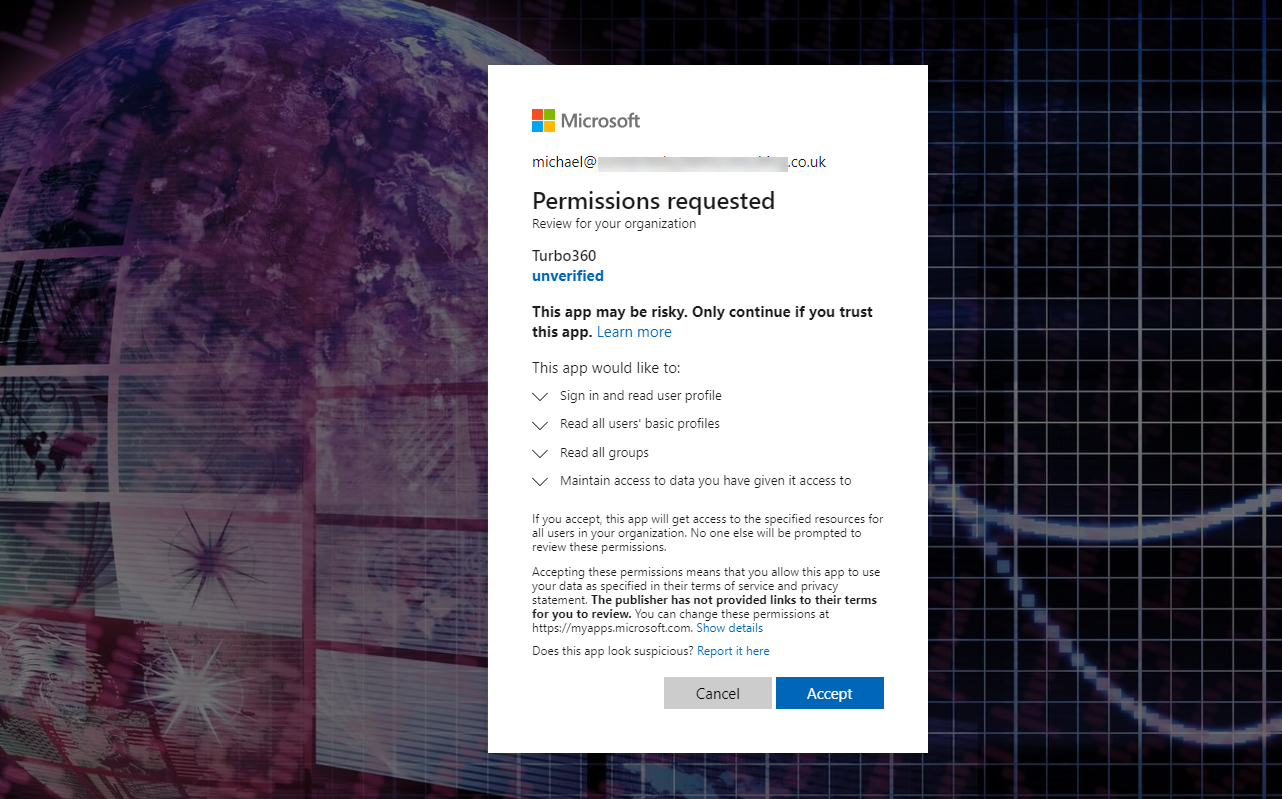
- Grant admin consent. Entra ID creates an Enterprise Application and approves the required permissions on your behalf.
- Entra ID redirects you back to Turbo360. The authentication mode change is complete and you can now sign in with Microsoft Entra ID.
For detailed Microsoft Entra ID configuration steps, see Entra ID SSO overview.
Switch back to email/password
Switching back to email/password re-enables credential-based login and removes the Entra ID integration for all users in your account.
- Click Switch authentication mode.
- Enter your name and email address.
- Click Save configuration to complete the switch.
Configuration
| Field | Required | Description |
|---|---|---|
| Contact email address | Yes | The email address associated with your Turbo360 organization account. Used during both switch directions. |
| Microsoft Entra ID domain name | Yes (Entra ID direction only) | The domain name of your Microsoft Entra ID tenant (e.g. contoso.onmicrosoft.com). |
| Name | Yes (email direction only) | The administrator name entered when switching back to email/password authentication. |
Permission behavior
With required permissions: The Switch authentication mode button is visible and active on the General Settings page. You can initiate the switch in either direction.
Without required permissions: You'll not have access to the General settings.
Example scenario
Your Turbo360 account currently uses email/password authentication. You want to enforce SSO via your company's Microsoft Entra ID tenant. You navigate to Settings > General settings, click Switch authentication mode, and complete the Entra ID configuration by providing your contact email and domain name. After granting admin consent in your Entra ID tenant, Turbo360 creates the Enterprise Application and completes the switch. All users in your account now sign in using their Entra ID credentials.
Limitations
- Switching authentication modes affects all users in the Turbo360 account simultaneously. Individual users cannot retain a different authentication method after the switch.
- Admin consent must be granted by a user with sufficient permissions in the Microsoft Entra ID tenant. If consent is denied, the switch does not complete.
Troubleshooting
-
Admin consent prompt does not appear after clicking Save configuration.
Cause: The browser may have blocked the redirect to the Entra ID tenant.
Fix: Ensure pop-ups and redirects are not blocked for the Turbo360 portal domain. Try again in a different browser or in an incognito window. -
Authentication switch fails with a permissions error in Entra ID.
Cause: The user granting consent does not have Global Administrator or Application Administrator rights in the Entra ID tenant.
Fix: Ask a user with the required Entra ID admin role to complete the consent step. -
Users cannot sign in after switching to Microsoft Entra ID.
Cause: The Enterprise Application may not have been created correctly, or the Entra ID domain name entered was incorrect.
Fix: Verify the domain name in Settings > General settings. If the issue persists, contact Turbo360 support to review the Enterprise Application configuration. -
Switch back to email/password does not complete.
Cause: The name or email address entered during the switch-back flow may be invalid or missing.
Fix: Ensure both fields are filled in correctly and retry. The email address must match an existing user account in Turbo360. -
General settings page does not show the Switch authentication mode button.
Cause: Your account may not have the required administrator role in Turbo360.
Fix: Contact your Turbo360 Account owner to verify your role and permissions.
FAQs
-
Does switching authentication mode sign out all current users immediately?
Yes. When you switch between email and Entra ID authentication, Turbo360 sends a notification email to the contact address listing all users removed due to the change. Any removed users who are currently logged in will be signed out and shown an unauthorized access message. -
Can I switch authentication modes more than once?
Turbo360 supports switching in either direction. You can switch back to email/password after enabling Entra ID, and switch to Entra ID again if needed.