Overview
The Turbo360 Partner API enables CSP and MSP partners who manage multiple Turbo360 accounts to administer those accounts programmatically at scale. You can use the API to provision new child accounts, connect Azure subscriptions, trigger cost imports, and query usage data, all without logging into each account manually.
Before you can call the Partner API, you must register an application in Microsoft Entra ID, grant admin consent to the Turbo360 Partner App, and configure OAuth in Turbo360.
Business value
Partners managing large customer bases can integrate the Partner API into their own marketplace or provisioning pipeline, reducing the manual effort of onboarding new customers and keeping account data consistent across environments. API access also lets partners automate account onboarding, query account status, and integrate Turbo360 partner management into existing operational workflows, improving visibility at scale.
Prerequisites
- You must have an active Turbo360 Management account.
- You must have access to the Azure portal or Microsoft Entra admin center with sufficient permissions to register applications and grant admin consent.
- Global Administrator or Privileged Role Administrator role is required in Microsoft Entra ID to grant tenant-wide admin consent.
Required permissions
- Microsoft Entra ID: permission to create App Registrations and grant admin consent.
- Turbo360: access to the Manage accounts screen from a Partner (Management) account.
Dependencies
- Management account must be active before API configuration is available.
- Admin consent for the Turbo360 Partner App (
client_id: 3ff33167-ae34-4bb3-b86d-109c22d28fc8) must be granted in the customer's tenant before API calls can be made.
How it works
Partner API access in Turbo360 uses OAuth 2.0 with a Single-Tenant application registered in Microsoft Entra ID. The registered application authenticates against the Turbo360 Partner API using application permissions (Read and Write). Once configured, an OAuth token is generated using the application credentials and used to authenticate API requests.
All API calls target portal.turbo360.com and use Bearer token authentication. Tokens are acquired from the Microsoft identity platform using the client credentials flow before making any API request.
The full setup involves four phases:
- Entra ID app registration: register a Single-Tenant application, configure supported account types, and generate a client secret.
- Admin consent: grant the Turbo360 Partner App permission to operate in the customer's tenant.
- API permissions: add Read and Write application permissions for the Turbo360 Partner API.
- OAuth configuration in Turbo360: provide the Tenant ID and Client ID to Turbo360 to complete the OAuth setup and enable token generation.
Steps
Use the following steps to register an application, grant consent, and complete OAuth configuration in Turbo360. Navigate to the Azure portal or Microsoft Entra admin center to get started.
Phase 1: Register a Single-Tenant application in Microsoft Entra ID
Registering the application creates the identity that Turbo360 uses to validate all inbound API tokens.
- Sign in to the Azure portal or Microsoft Entra admin center.
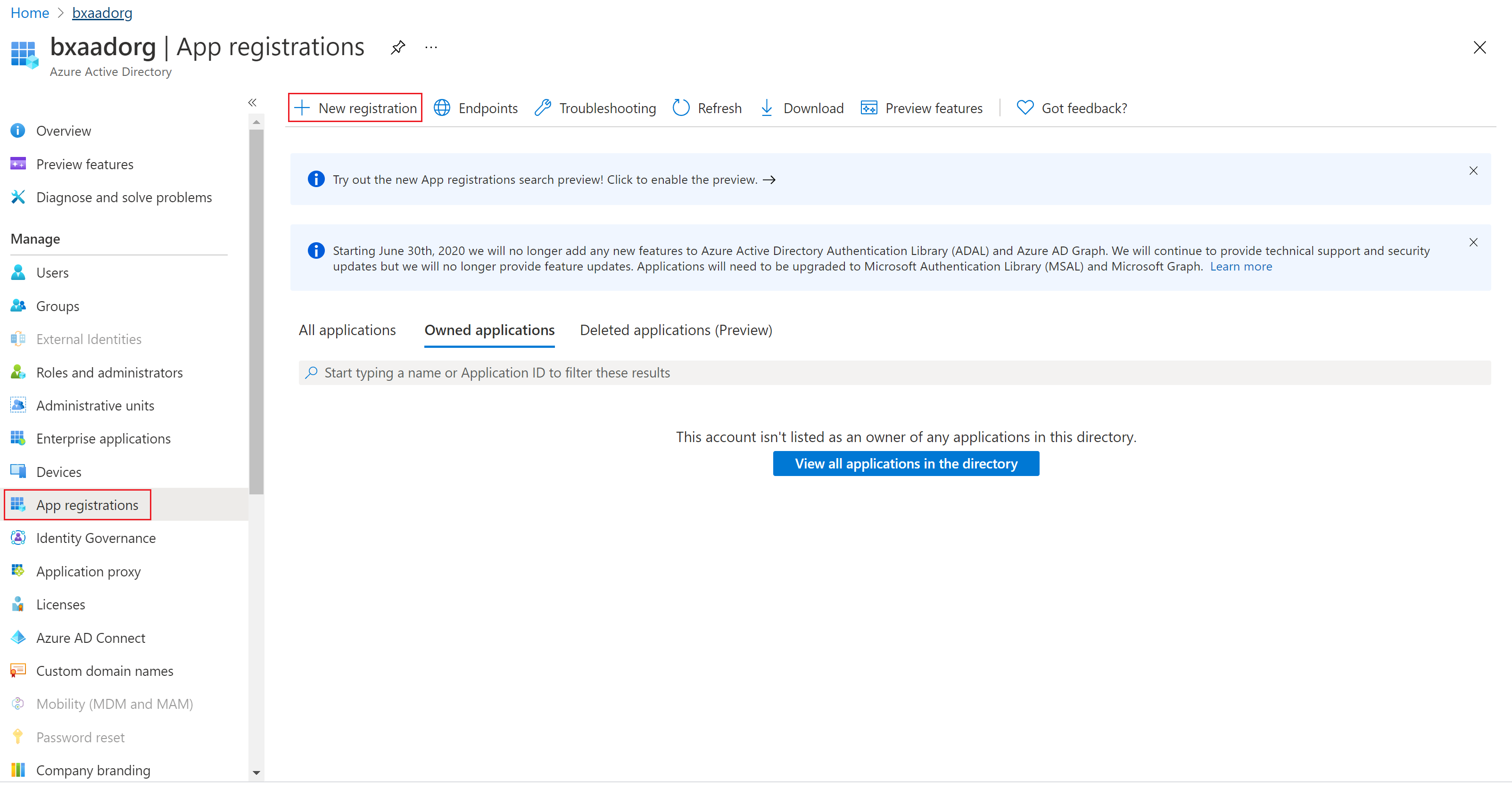
- Navigate to Microsoft Entra ID > App registrations.
- Select + New registration.
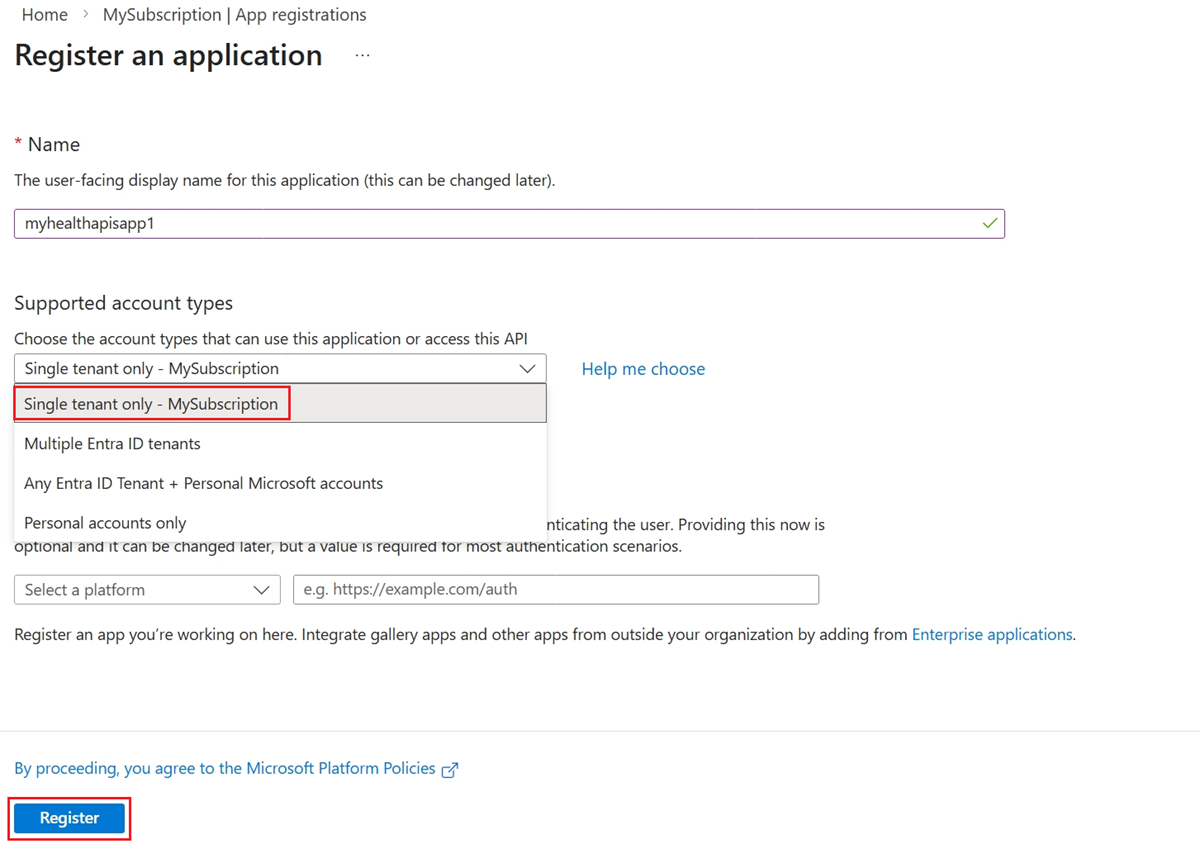
- Configure the following settings:
- Name: enter the application name.
- Supported account types: select Accounts in this organizational directory only (Single tenant).
- Select Register.
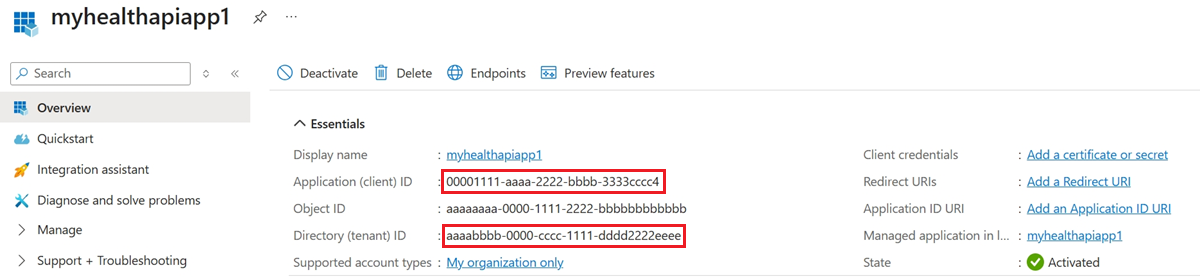
- From the application overview page, copy the Application (client) ID and Directory (tenant) ID.
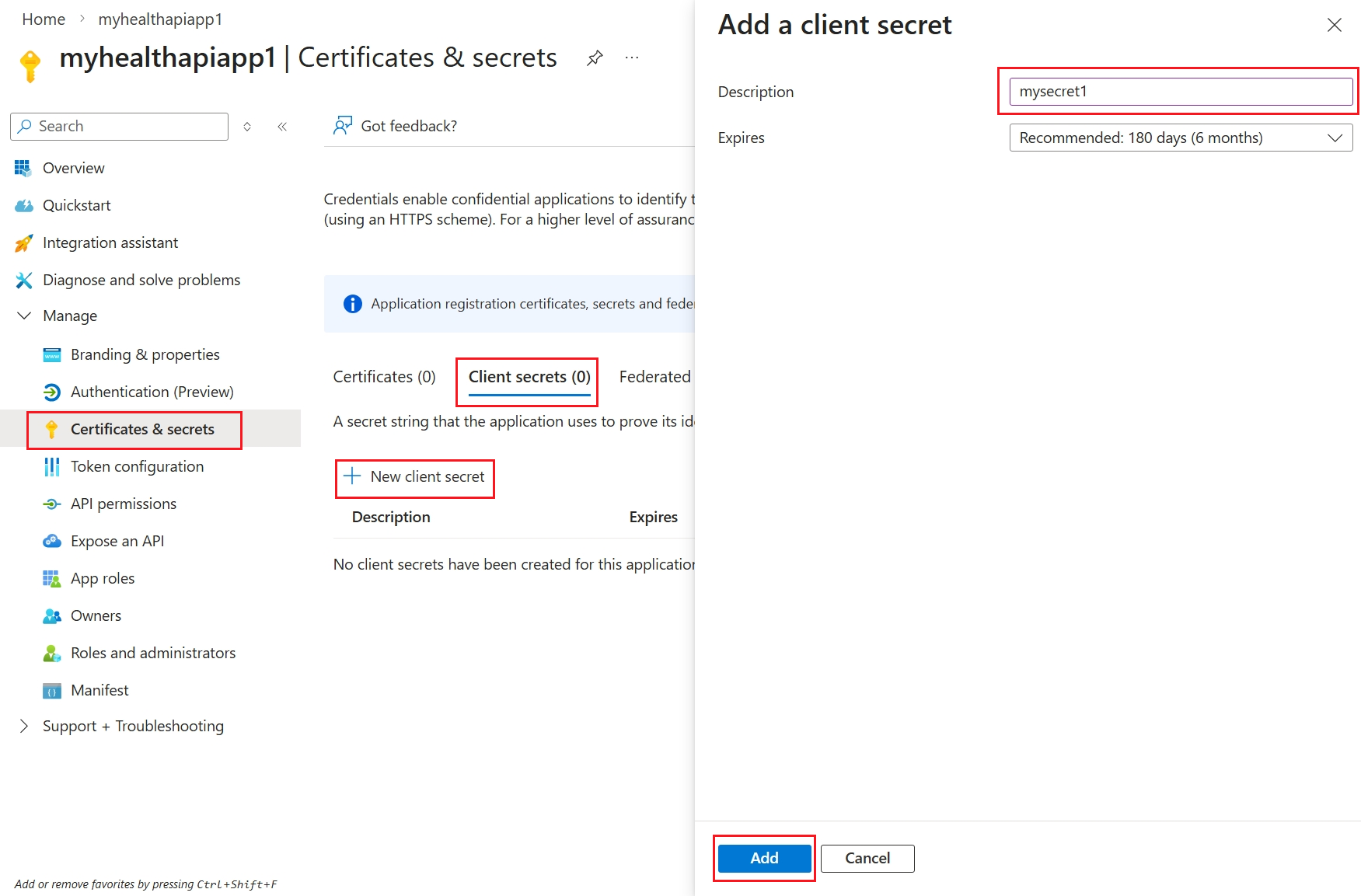
- Navigate to Certificates & secrets and create a new client secret. Copy the secret value immediately. It is not shown again.
Phase 2: Grant admin consent to the Turbo360 Partner App
Admin consent authorises the Turbo360 Partner App to operate in the customer's tenant before API permissions can be assigned.
Use the URL below to grant admin consent, replacing {customer-tenant-id} with your registered application's tenant ID:
https://login.microsoftonline.com/{customer-tenant-id}/adminconsent?client_id=3ff33167-ae34-4bb3-b86d-109c22d28fc8
Phase 3: Add API permissions to the registered application
Adding the Read and Write permissions scopes the registered application's access to the Turbo360 Partner API.
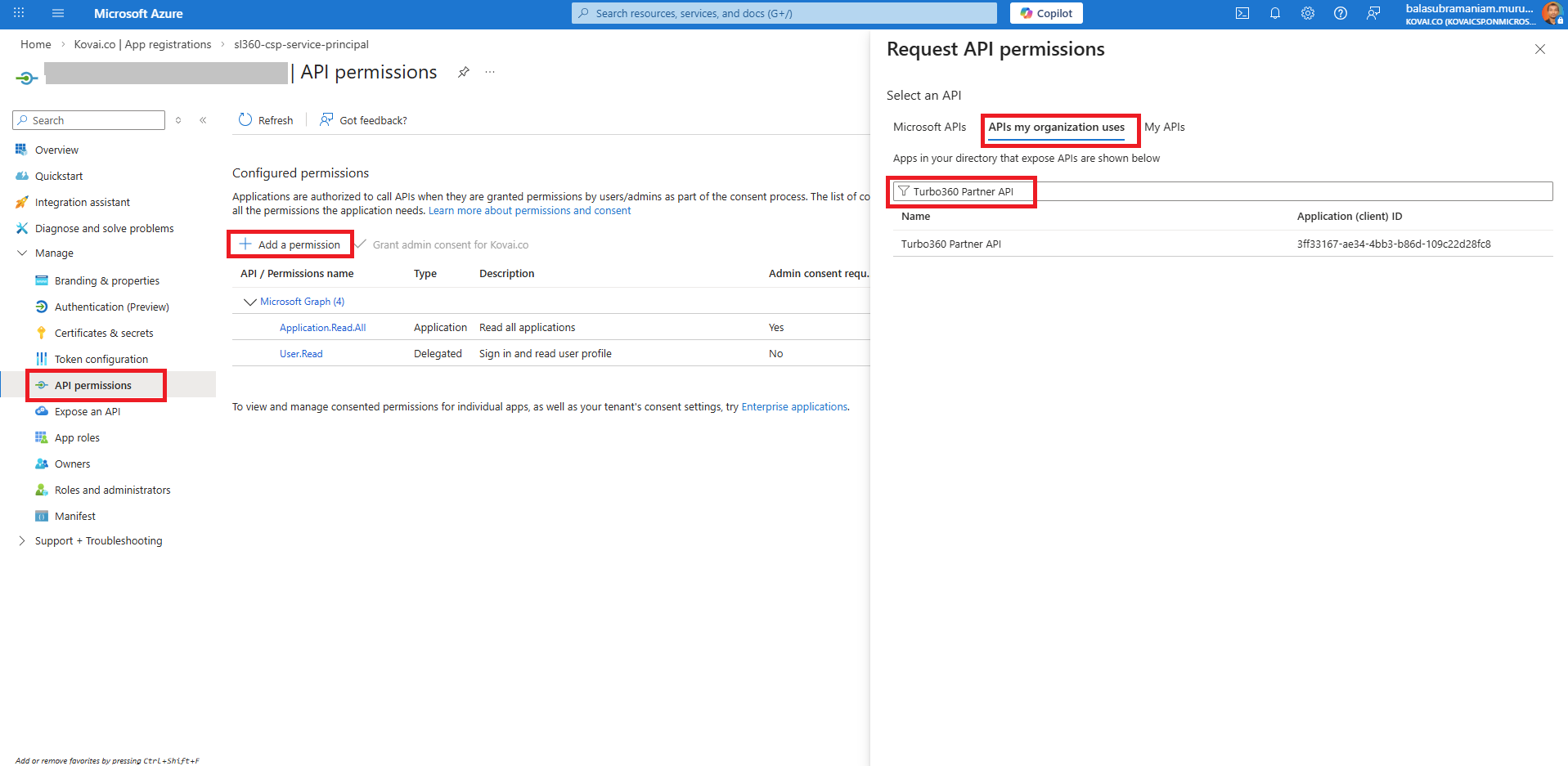
- Navigate to API permissions > Add a permission > open the APIs my organization uses tab.
- Search for Turbo360 Partner API using the filter.
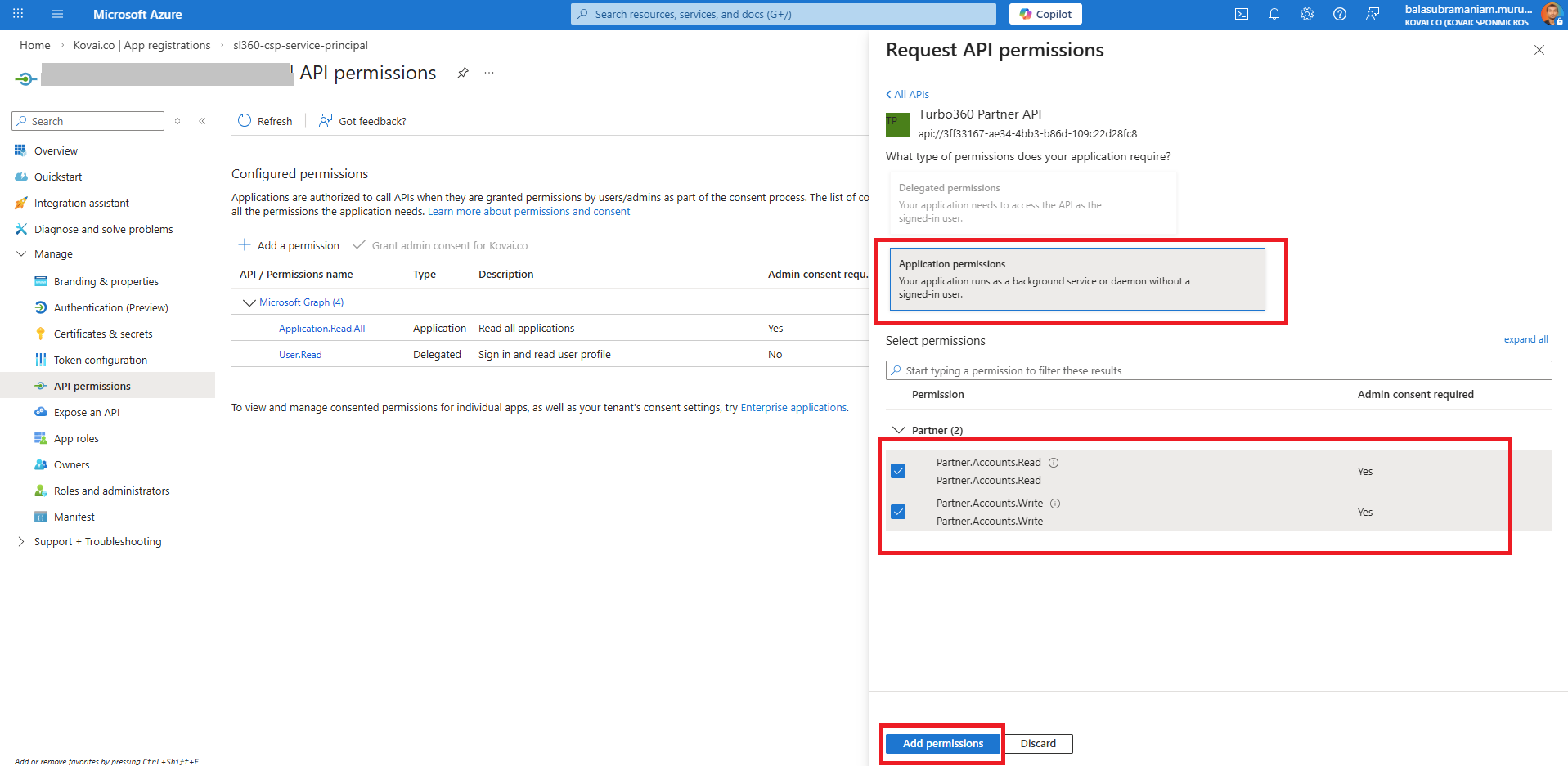
- Select Turbo360 Partner API > choose Read and Write under Application permissions > click Add permissions.
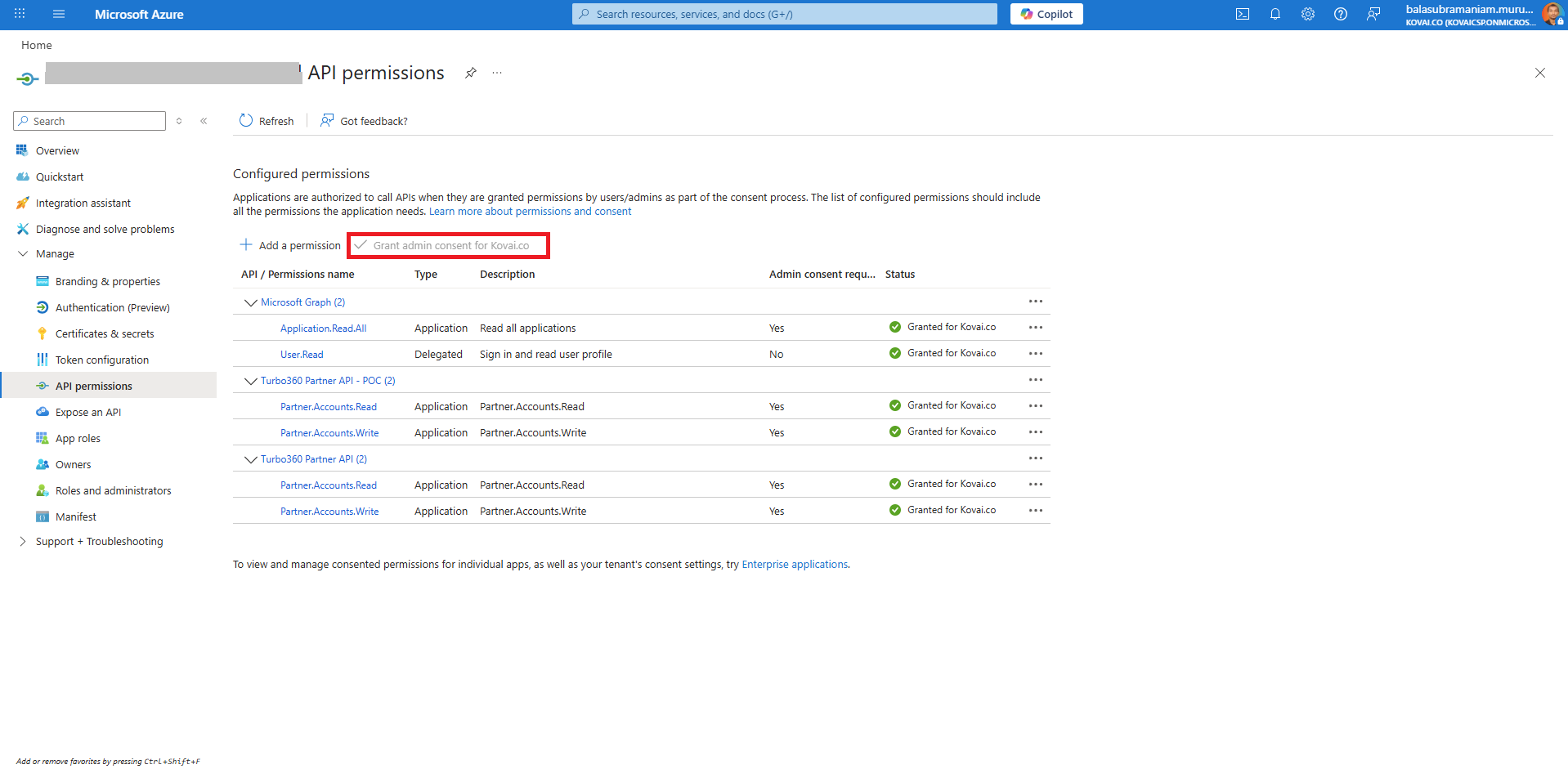
- Select Grant admin consent for the configured permissions.
Phase 4: Configure OAuth in Turbo360
Completing the OAuth configuration in Turbo360 links the registered application to your Partner account and enables token generation for API calls.
- From your Turbo360 Partner account, navigate to the Manage accounts screen.
- Select APIs from the top-right corner.
- Enter the Microsoft Entra (Tenant) ID and Client (Application) ID from the registered application.
- Click Save to store the OAuth configuration.
- Admin consent for the Turbo360 Partner App can also be granted using the link generated during the OAuth configuration process in Turbo360.
- Use the API request details shown on the OAuth Configuration screen to generate an OAuth token for Partner API calls.
- Available Partner APIs can be viewed in Swagger via the link on the OAuth Configuration screen.
Configuration
| Field | Description |
|---|---|
| Microsoft Entra (Tenant) ID | Directory (tenant) ID from the registered Entra ID application |
| Client (Application) ID | Application (client) ID from the registered Entra ID application |
| Client secret | Generated in Certificates & secrets; used to obtain OAuth tokens |
| Admin consent URL | https://login.microsoftonline.com/{tenant-id}/adminconsent?client_id=3ff33167-ae34-4bb3-b86d-109c22d28fc8 |
| API permissions | Read and Write under Application permissions for Turbo360 Partner API |
Permission behavior
With Management account access and OAuth configured: You can generate OAuth tokens and make authenticated calls to the Turbo360 Partner API. Available APIs are accessible via the Swagger link on the OAuth Configuration screen.
Without Management account access: The APIs option on the Manage accounts screen is not available. OAuth configuration cannot be completed.
Without admin consent granted: API calls will fail with an authorization error even if OAuth is configured in Turbo360.
Example scenario
Common integration patterns include:
- Using a PowerShell script to provision a new Turbo360 child account and kick off Cost Analyzer imports automatically.
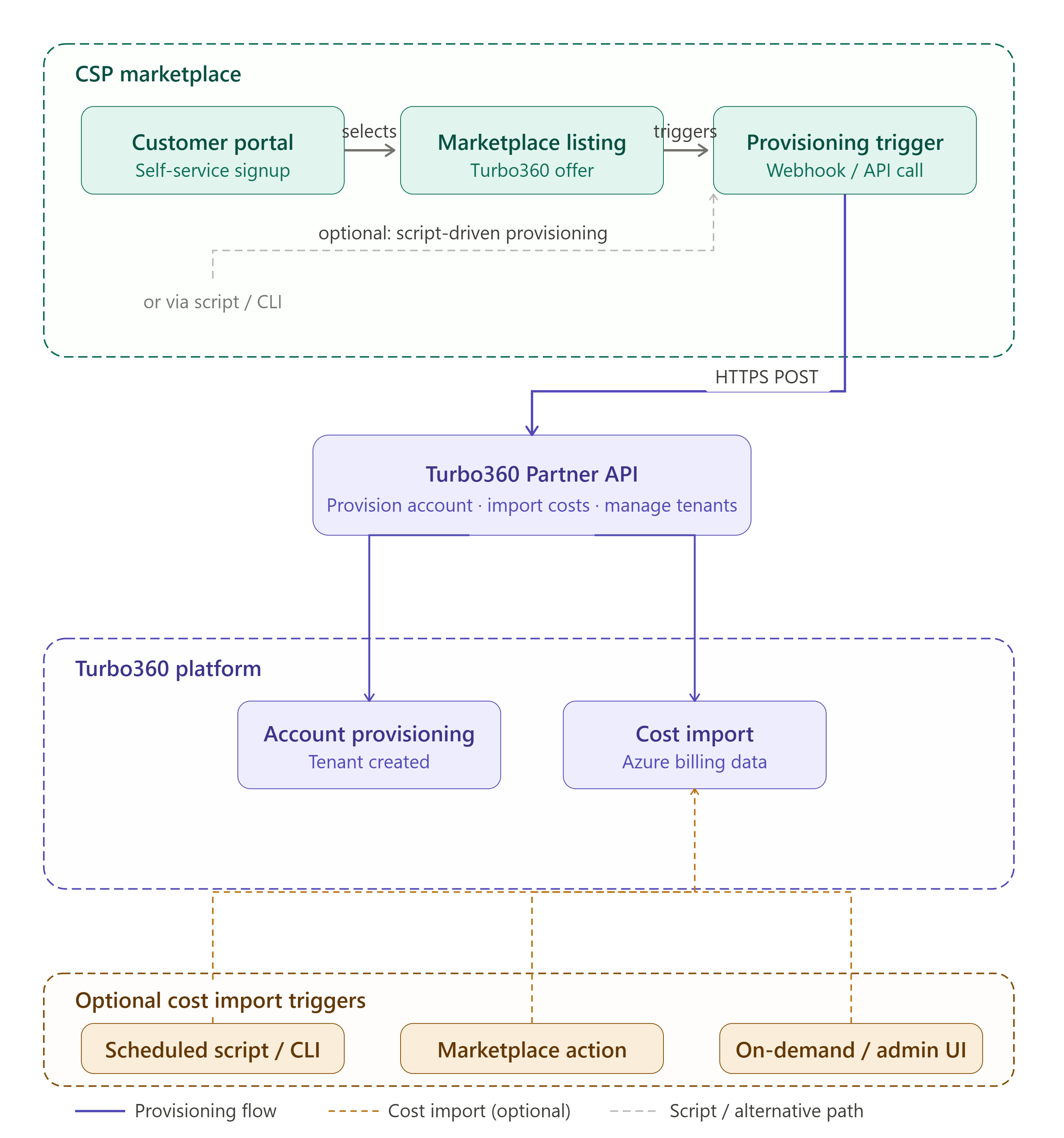
- Integrating the Partner API into your CSP marketplace so that customers can provision Turbo360 as part of your standard onboarding flow.
The diagram below illustrates an example marketplace integration using the Partner API.
A partner also uses the Partner API to automate onboarding for new customers. When a new customer is provisioned, an internal workflow triggers an API call to create a new Managed account in Turbo360 and assign the appropriate license allocation, eliminating the need for manual account creation from the portal.
Limitations
- Only Single-Tenant application registrations are supported. Multi-tenant registrations are not compatible with the Turbo360 Partner API.
- Admin consent must be granted by a Global Administrator or Privileged Role Administrator. Delegated consent is insufficient.
Troubleshooting
-
Admin consent URL returns an error
Cause: The tenant ID in the URL is incorrect, or the user granting consent does not have the required admin role.
Fix: Verify the tenant ID matches the registered application's Directory (tenant) ID. Ensure the consenting user has Global Administrator or Privileged Role Administrator rights. -
Turbo360 Partner API does not appear in the APIs my organization uses tab
Cause: Admin consent for the Turbo360 Partner App has not been granted in the tenant yet.
Fix: Complete Phase 2 (admin consent) before adding API permissions. -
OAuth configuration does not save in Turbo360
Cause: The Tenant ID or Client ID entered is invalid or does not match the registered application.
Fix: Re-copy the Application (client) ID and Directory (tenant) ID from the Entra ID app overview page and re-enter them. -
API calls return a 401 Unauthorized error after OAuth is configured
Cause: Admin consent may not have been granted, or the OAuth token was not generated correctly.
Fix: Confirm admin consent is shown as granted in the API permissions screen. Regenerate the OAuth token using the API request details on the OAuth Configuration screen. -
Client secret is not accepted when generating an OAuth token
Cause: The client secret may have expired or been copied incorrectly at creation time.
Fix: Navigate to Certificates & secrets in the registered application and create a new client secret. Update any automation using the previous secret.
FAQs
-
Where do I find the available Partner APIs?
The Swagger documentation for all available Partner APIs is accessible via the link on the OAuth Configuration screen in Turbo360. -
Can admin consent be granted from within Turbo360?
Yes. A consent link is also generated during the OAuth configuration process in Turbo360 and can be used as an alternative to the manual URL approach. -
Do I need to repeat this setup for each Managed account?
No. You need to configure this only at the Management account level.