Overview
Custom messages let you attach a user-defined note to specific exception codes, exception messages, or message body values in Business Activity Monitoring (BAM). When a tracked stage matches the configured type and value, the custom note appears in the Stage details blade alongside the tracked properties, and is included in the exception alert sent to your notification channels.
Custom messages are available in the Push Model (Custom Logging type) only.
Business value
Generic exception alerts tell you that something failed, but not what the failure means in business terms. Custom messages let your operations team attach plain-language context, such as "Downstream payment gateway rejected the request" or "Order ID format is invalid", directly to exception codes and message body values. This reduces triage time by surfacing the right context at the moment an alert is received, without requiring the recipient to cross-reference external runbooks.
Prerequisites
Required permissions
| Permission | Access level |
|---|---|
| View Exception monitor settings | Required to view custom message configuration |
| Manage Exception monitor settings | Required to create, edit, or delete custom messages. Only Account owner, Owner, and Contributor roles have this permission. |
How it works
Custom messages are defined at the BAM organization level under Settings > Custom messages. Each custom message maps a type-value pair to a free-text note. When BAM processes a stage event and the exception type and value match a configured custom message, the note is attached to the stage instance and propagated to any exception alerts generated for that stage.
You can also define custom messages at the stage level by editing a specific transaction stage within a business transaction. When both a global and a stage-level custom message are configured for the same exception, the stage-level message takes precedence.
Steps
Use the following steps to create and manage custom messages. Navigate to Settings > Custom messages to get started.
Create a custom message
Creating a custom message maps an exception type and value to a note that appears in stage details and alerts.
- Click Create.
- Select the Type: Exception code, Exception message, or Message body.
- Enter the value that should trigger the custom message in the Custom note field.
- Click Save.
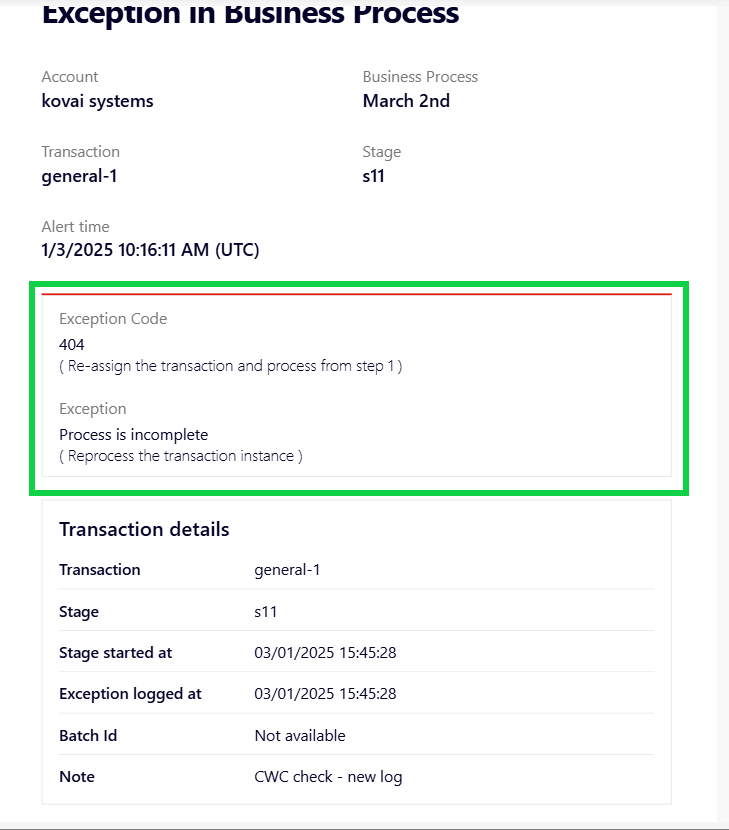
The custom note appears alongside the Exception Code and Exception Message in the Stage details blade, and is included in exception alerts received via Turbo360 mail:
Configure stage-level custom messages
Stage-level custom messages override global custom messages for a specific stage, letting you attach context that is relevant only to that stage without affecting the organization-wide setting.
- Navigate to Business Activity Monitoring > your business process > Transactions.
- Open the business transaction that contains the stage you want to configure.
- Click the stage to open its configuration.
- Enter the custom message in the stage-level custom message field.
- Save the stage configuration.
When a global and a stage-level custom message are both configured for the same exception, the stage-level message takes precedence.
Configuration
| Field | Type | Description |
|---|---|---|
| Type | Dropdown | The exception field to match against. Options: Exception code, Exception message, Message body |
| Custom note | Text | The note to display when the type and value match. Appears in the Stage details blade and in exception alert notifications. |
Limitations
- Custom messages are available in the Push Model (Custom Logging type) only. They are not available for Pull Model (Data Queries) transactions.
- When a custom message is defined globally and at the stage level for the same exception, the stage-level message overrides the global one.
- The Like / Not Like operators in exception monitoring advanced mode match against exception codes and messages but not message body values. Custom messages configured for Message body type are not affected by this operator restriction; they match on exact value.
Troubleshooting
-
Custom message is not appearing in the Stage details blade
Cause: The exception type and value in the custom message may not match what is being logged at the stage.
Fix: Open the Stage details blade and note the exact exception code, message, or body value. Update the custom message configuration to match that exact value. -
Custom message is not included in the exception alert
Cause: The alert was generated before the custom message was saved, or the type-value pair does not match the logged exception.
Fix: Confirm the custom message is saved and the type and value exactly match the exception logged at the stage. Trigger a new exception event to verify the note appears in the next alert. -
Stage-level custom message is not overriding the global message
Cause: The stage-level custom message may not have been saved, or it was configured on the wrong stage.
Fix: Open the stage configuration within the business transaction and confirm the custom message field is populated. Save the stage configuration again if needed. -
Custom message created but no matching exceptions appear
Cause: No exception events with the configured type and value have been tracked since the custom message was created.
Fix: Send a test event with the matching exception type and value to verify the configuration. -
Cannot create a custom message
Cause: The user does not have the Manage Exception monitor settings permission. This permission is restricted to the Account owner, Owner, and Contributor roles.
Fix: Request a role upgrade to Contributor or above from your administrator.