Overview
Duration monitoring tracks how long Push Model transaction instances and their stages remain in an in-progress state. When a transaction instance or stage exceeds a defined time threshold, Business Activity Monitoring (BAM) generates an alert so your team can investigate and respond before the delay affects downstream processes.
Duration monitoring is exclusive to the Push Model (Custom Logging type). It monitors events received via the BAM API and evaluates active instances against thresholds you define, in minutes or hours, at the transaction and stage level.
Business value
Slow transactions are often the first sign of a failing integration or an overloaded resource. Duration monitoring gives you a proactive signal, before a delay becomes a failure, by alerting your team the moment a transaction or stage exceeds its expected execution time. This reduces mean time to detection and keeps your operations team ahead of SLA breaches.
How it works
When you configure duration monitoring for a Push Model business process, you assign warning and error threshold values, in minutes or hours, to individual transactions and their stages. BAM evaluates in-progress instances against these thresholds continuously. When an instance or stage exceeds the error threshold, an error alert fires. When it exceeds the warning threshold but not the error threshold, a warning alert fires. Alerts are sent to the notification channels and email recipients you configure, either shared across all transactions and stages (basic mode) or defined separately per rule (advanced mode).
Transactions and stages configured for duration monitoring are tracked independently, so each generates its own distinct alert.
Prerequisites
Required permissions
| Permission | Access level |
|---|---|
| View Duration monitor settings | Required to view duration monitoring configuration |
| Manage Duration monitor settings | Required to create or modify duration monitoring rules |
| Manage monitor settings | Required to enable or disable monitoring across all monitor types for a business process or business process group |
Steps
Use the following steps to configure duration monitoring for a Push Model business process. Navigate to Business Activity Monitoring > your business process > Monitoring > Duration monitor to get started.
Choose the alert configuration mode
Duration monitoring offers two modes that control how notification channels and thresholds are assigned.
Basic alert configuration: one shared configuration applies to all selected transactions and stages. Use this mode for uniform monitoring across your business process. You can also assign an escalation policy in this mode.
Advanced alert configuration: each transaction or stage gets its own independently configured rule, with its own thresholds, schedule, and notification routing. Use this mode when different transactions or stages require different alerting behaviour.
Configure basic alert configuration
- Select Basic alert configuration.
- Set Rules evaluation frequency: how often BAM evaluates rules against in-progress instances.
- Set Maximum alerts per hour: the alert cap for this business process.
- Set Aggregation period: the time window BAM uses to assess threshold conditions.
- Set the Warning threshold value and select the time grain: Minutes or Hours.
- Set the Error threshold value and select the time grain.
- Enter a Recipient email address and select an Email template.
- Under Select the channels, check each notification channel you want to receive the alert.
- Click Update to save the configuration.
Error and warning threshold values accept whole numbers only (1-1000). Decimal values are not supported.
The error threshold always takes priority:
- When the error and warning thresholds are equal, an error alert is sent.
- When the error threshold is lower than the warning threshold, an error alert fires when the error threshold is exceeded. No warning alert is sent even after the warning threshold is also exceeded.
Add a rule (advanced alert configuration)
Each rule targets either transactions or stages, not both. Rules are created individually and listed as cards on the Duration monitor tab.
- Select Advanced alert configuration.
- Click + Add rule.
- Under Rule type, select Transaction to monitor end-to-end transaction duration, or Stage to monitor specific stages inside transactions.
- In Select transactions (or Select stages), choose the targets for this rule. Items already assigned to another rule are hidden from the list.
- Under Schedule and alerting, set:
- Rules evaluation frequency: how often BAM evaluates this rule.
- Maximum alerts per hour: the alert cap for this rule.
- Under Duration thresholds, set:
- Aggregation period: the time window BAM uses to assess threshold conditions.
- Warning threshold: duration value and time grain (Minutes or Hours).
- Error threshold: duration value and time grain (Minutes or Hours).
- Optionally, enter a Note: shown on the rule card for reference; does not affect alert evaluation.
- Under Email recipients, enter a Recipient email address and select an Email template. At least one email recipient or notification channel is required.
- Under Notify the following notification channels, select the channels that should receive this rule's alerts. SMTP channels accept per-channel recipients and templates.
- Click Add rule.
To edit or delete an existing rule, use the edit or delete icons on the rule card.
After you save the configuration, BAM sends alerts to the configured recipients whenever a transaction or stage instance exceeds its set duration.
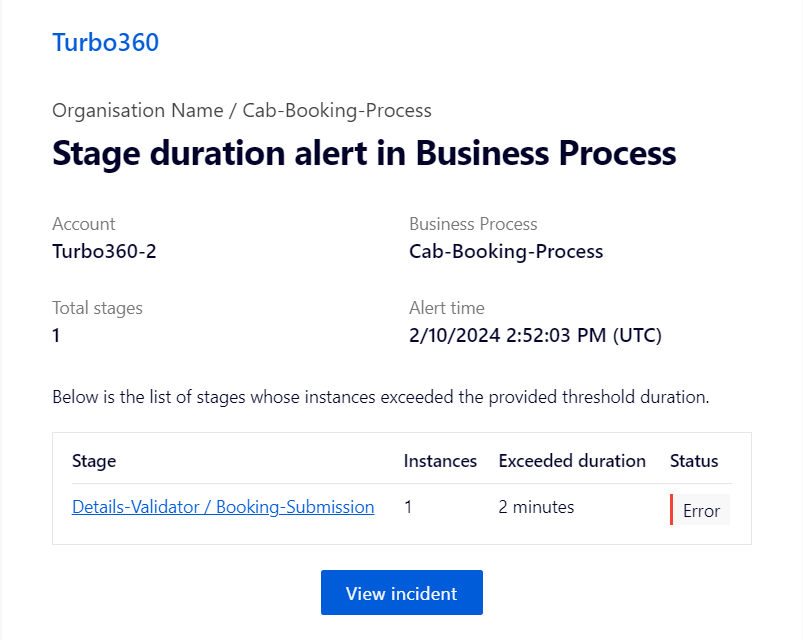
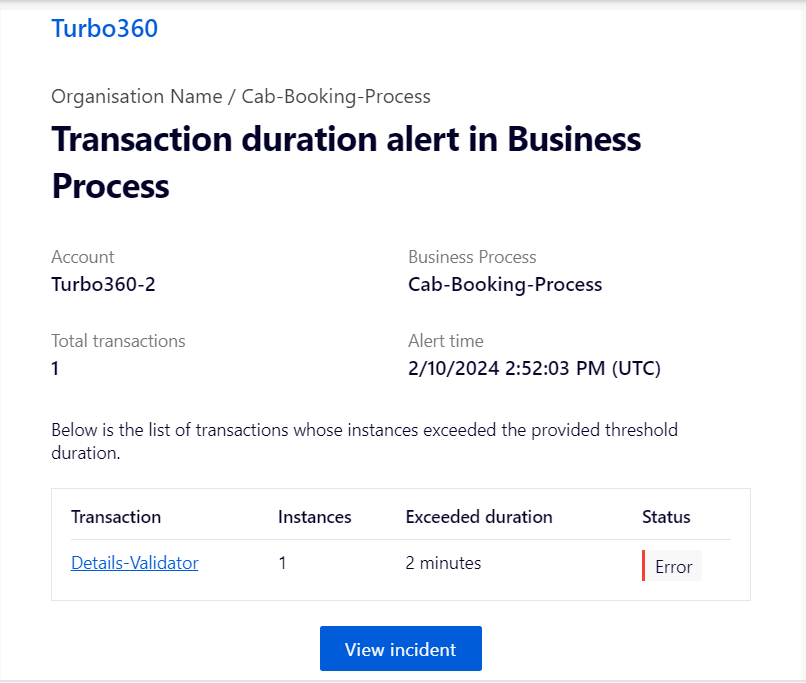
Examples of stage duration and transaction duration alerts received via Turbo360 mail:
Enable or disable monitoring
You can enable or disable all monitoring rules for a business process or business process group without deleting your configuration. This is useful for temporarily suspending alerting during maintenance or testing.
- Navigate to Business Activity Monitoring > your business process > Monitoring.
- In the top-right corner of the Monitoring view, open the Monitoring status dropdown.
- Select Enable to activate monitoring, or Disable to pause all monitoring rules for the business process.
Enabling and disabling monitoring requires the Manage monitor settings permission. This action affects all monitor types (Duration, Exception, and Query) for the selected business process simultaneously.
Configuration
| Option | Type | Description |
|---|---|---|
| Warning threshold | Integer (1-1000) | Time in minutes or hours after which a warning alert fires |
| Error threshold | Integer (1-1000) | Time in minutes or hours after which an error alert fires |
| Time grain | Selection | Minutes or Hours |
| Alert configuration mode | Selection | Basic (shared channels) or Advanced (per-rule channels) |
| Rules evaluation frequency | Selection | How often BAM evaluates rules against in-progress instances |
| Maximum alerts per hour | Integer | Alert cap per hour for this configuration or rule |
| Aggregation period | Selection | Time window used to evaluate whether thresholds have been breached |
| Escalation policy | Selection | Available in basic mode only; escalates the alert after a configured delay |
| Rule type | Selection | Transaction (end-to-end flow) or Stage (specific stages within a transaction); advanced mode only |
| Note | Text | Optional label shown on the rule card in advanced mode; does not affect evaluation |
| Recipient email address | Text | Email address to receive alerts for this configuration or rule |
| Email template | Selection | Template used for alert notification emails |
| Monitoring status | Selection | Enable or Disable all monitoring rules for the business process |
Limitations
- Threshold values support whole numbers only (1-1000). Decimal values are not supported.
- Escalation policy assignment is available in basic alert configuration mode only.
- Duration monitoring applies to the Push Model (Custom Logging type) only. It is not available for Pull Model (Data Queries) transactions.
- Transactions and stages are tracked independently; a single delayed flow generates separate alerts per configured transaction and stage.
- Disabling monitoring via the Monitoring status dropdown suspends all monitor types for the business process, not only duration monitoring.
- In advanced mode, each transaction or stage can only be assigned to one rule. Items already assigned to a rule are hidden from the target selection list when creating additional rules.
Troubleshooting
-
No alert received after a transaction exceeded the threshold
Cause: The duration monitor may not be enabled, or the transaction or stage is not selected for monitoring.
Fix: Open the Monitoring tab for the business process, confirm Monitoring status is set to Enabled, and verify that a duration monitoring rule is configured for the relevant transaction or stage. -
Warning alert fires when the error threshold was exceeded
Cause: The error threshold value is higher than the warning threshold value, so the warning fires first.
Fix: Set the error threshold to a lower value than the warning threshold. When the error threshold is lower, it takes priority and suppresses the warning alert. -
Decimal value entered for threshold is not accepted
Cause: Threshold fields accept whole numbers only.
Fix: Enter a whole number between 1 and 1000. -
Escalation policy option is not visible
Cause: The alert configuration mode is set to Advanced. Escalation policy selection is only available in basic mode.
Fix: Switch to basic alert configuration mode to enable the escalation policy option. -
Alerts are being generated for the wrong transaction
Cause: Transactions and stages are tracked independently, so each configured item generates its own alert. Multiple alerts for a single flow are expected behavior.
Fix: Review which transactions and stages are configured in the monitoring rules and remove any that should not trigger independent alerts.
FAQs
-
Can I monitor only stages without monitoring the parent transaction?
Yes. You can create a rule targeting specific stages without including the parent transaction. Alerts fire independently per configured stage. -
Can I use different notification channels for different transactions in the same business process?
Yes, but only when using advanced alert configuration mode. In basic mode, all transactions and stages share the same notification channels. -
What happens if both the warning and error thresholds are set to the same value?
An error alert is sent. The error threshold always takes priority over the warning threshold when the values are equal.