Overview
Turbo360 Business Activity Monitoring (BAM) ships a set of components that you add to BizTalk receive pipelines, send pipelines, and orchestrations to track business transactions at the BizTalk layer. This article describes each component, how to configure it, the supported property syntax for the CheckpointWithCorrelation connector, and how to correlate hybrid transactions that span both BizTalk Server and Azure.
Business value
Instrumenting BizTalk components lets you extend BAM tracking coverage into on-premises BizTalk Server without changing your business logic. Transaction instances tracked inside BizTalk are automatically correlated with stages tracked outside BizTalk, in Logic Apps, Service Bus, or other Azure services, giving you a complete end-to-end transaction view from a single location.
Prerequisites
- Turbo360 BAM components installed on the BizTalk server (see Installation and SSO configuration)
- Business processes and transactions configured in Turbo360 BAM with matching names
- Visual Studio with BizTalk tools (for custom pipeline creation)
Required permissions
You must have BizTalk Administrator rights to deploy pipelines and orchestrations. Write access to the BizTalk application project is required to add pipeline components.
How it works
The three pipeline connectors, StartTransaction, Checkpoint, and CheckpointWithCorrelation, are BizTalk pipeline components that send tracking data to the BAM Function App at message processing time. Each connector covers a different tracking scenario:
- StartTransaction initiates a new transaction instance and records the first stage.
- Checkpoint updates the status of an existing stage or transaction using the transaction instance ID from the context.
- CheckpointWithCorrelation correlates a stage to an existing transaction instance using tracked property values instead of the transaction instance ID.
For orchestrations, a separate DLL (Kovai.T360.Tracking.BizTalk) exposes equivalent helper methods that you call from orchestration shapes.
The connectors share a common set of pipeline properties. The BAM-FriendlyName property links to the named BAM environment stored in the SSO DB. If BAM-FriendlyName is omitted on the StartTransaction connector, the default BAM entry from the SSO DB is used.
Pipeline component properties
| Property | Description |
|---|---|
| BAM-ArchiveMessage | Set to true to archive both the message body and context. |
| BAM-FriendlyName | Name configured in the SSO DB. Optional on the StartTransaction connector; defaults to the default BAM entry. |
| BAM-BatchStageName | Parent stage name (for batched transactions). |
| BAM-BatchTransactionName | Parent transaction name (for batched transactions). |
| BAM-BusinessProcess | Business process name (mandatory). |
| BAM-IgnoreNotFound | When false, a new transaction instance is created if no correlated properties match. |
| BAM-IsBatchedStage | Set to true to mark the stage as a parent stage. |
| BAM-IsBatchedTransaction | Set to true to mark the transaction as a parent transaction. |
| BAM-IsCustomException | When false, runtime exceptions are logged and BAM-Exception/BAM-ExceptionCode values are ignored. |
| BAM-IsTransactionComplete | Set to true to mark the end of the transaction. |
| BAM-Properties | Properties to correlate with an existing transaction instance. |
| BAM-Stage | Stage name (mandatory). |
| BAM-StageStatus | Stage status: Success, failure, or inprogress. |
| BAM-Transaction | Transaction name (mandatory). |
| BAM-UseExistingStageInstance | When true, uses the stage instance ID from the message context. |
| BAM-UseExistingTransactionInstanceId | When true, uses the transaction instance ID from the message context. |
For the Checkpoint and CheckpointWithCorrelation connectors, BAM-FriendlyName, BAM-BusinessProcess, and BAM-Transaction are derived from the preceding StartTransaction connector step unless you explicitly specify a different value.
Steps
Use the following steps to add pipeline components to a BizTalk pipeline, configure connectors, and set up orchestration tracking. Navigate to the relevant BizTalk project in Visual Studio to get started.
Add sample pipeline components
Turbo360 ships 30+ sample pipelines with the BizTalk BAM-1.0 installation that you can use immediately in receive locations and send ports.
Pipelines with the suffix Receive go on receive locations; pipelines with the suffix Send go on send ports. The supported data formats and their corresponding namespace are:
- JSON pipelines:
Kovai.T360.BizTalk.Pipeline.JSON.*— process JSON matching namespacehttp://Kovai.T360.BizTalk.Schemas.JSONSalesOrder - XML pipelines:
Kovai.T360.BizTalk.Pipeline.XML.*— process XML matching namespacehttp://Kovai.T360.BizTalk.Schemas.XMLSalesOrder - Text pipelines:
Kovai.T360.BizTalk.Pipeline.TXT.*— process flat-file text matching namespacehttp://Kovai.T360.BizTalk.Schemas.TXTSalesOrder - PassThrough pipelines:
Kovai.T360.BizTalk.Pipeline.PassThrough.*— process all data types, equivalent toMicrosoft.BizTalk.DefaultPipelines
JSON schema example:
{
    "OrderId": "P0001",
    "PartID": 10,
    "Quantity": 10,
    "AskPrice": 10.4,
    "RequestShipmentDate": "1999-05-31",
    "Address": {
      "Line1": "Line1_0",
      "Line2": "Line2_0",
      "City": "City_0",
      "State": "State_0",
      "Country": "Country_0",
      "Zipcode": 10
    },
    "Contact": {
      "Firstname": "Firstname_0",
      "Lastname": "Lastname_0"
    },
    "Comments": "Comments_0",
    "DateNow": "1999-05-31",
    "SenderId": "Contoso",
    "ReceiverId": "Kovai",
    "TransactionType": "PurchaseOrder",
    "Metadata": {
      "TestFlag": "TestFlag_0"
    }
}
XML schema example:
<ns0:SalesOrder xmlns:ns0="http://Kovai.T360.BizTalk.Schemas">
  <OrderId>P0001</OrderId>
  <PartID>10</PartID>
  <Quantity>10</Quantity>
  <AskPrice>10.4</AskPrice>
  <RequestShipmentDate>1999-05-31</RequestShipmentDate>
  <Address>
    <Line1>Line1_0</Line1>
    <Line2>Line2_0</Line2>
    <City>City_0</City>
    <State>State_0</State>
    <Country>Country_0</Country>
    <Zipcode>10</Zipcode>
  </Address>
  <Contact>
    <Firstname>Firstname_0</Firstname>
    <Lastname>Lastname_0</Lastname>
  </Contact>
  <Comments>Comments_0</Comments>
  <DateNow>1999-05-31</DateNow>
  <SenderId>Contoso</SenderId>
  <ReceiverId>Kovai</ReceiverId>
  <TransactionType>PurchaseOrder</TransactionType>
  <Metadata>
    <TestFlag>TestFlag_0</TestFlag>
  </Metadata>
</ns0:SalesOrder>
Text data example:
Order1;TimesOfIndia;12;Contoso;Kovai
Order2;Hindu;5;Fabrikam;Kovai
Order3;TimesNow;8;Contoso;Kovai
Order4;WiredMagazine;70;Fabrikam;Kovai
Configure the StartTransaction connector
The StartTransaction connector initiates the transaction instance and records the first stage. Add it to the Decode, Resolve, Pre-Assemble, or Encode stage of a receive or send pipeline.
-
In Visual Studio, open your pipeline file in the BizTalk Pipeline Designer.
-
Drag Turbo360 StartTransaction Connector from the toolbox to the target pipeline stage.
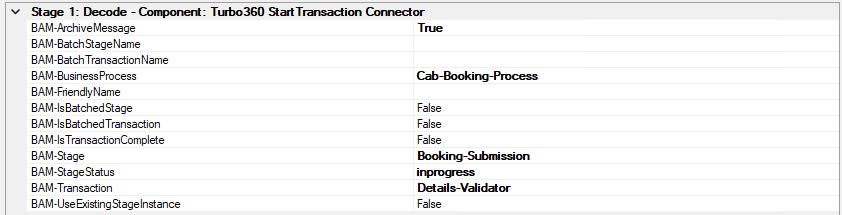
-
In the Properties panel, configure at minimum:
BAM-BusinessProcess,BAM-Stage, andBAM-Transaction. -
Set
BAM-FriendlyNameif you want to target a specific BAM environment; otherwise the default SSO DB entry is used.
Configure the Checkpoint connector
The Checkpoint connector updates the status of an existing stage or transaction. It reads the transaction instance ID from the message context set by the StartTransaction connector.
-
Drag Turbo360 Checkpoint Connector from the toolbox to the target pipeline stage.
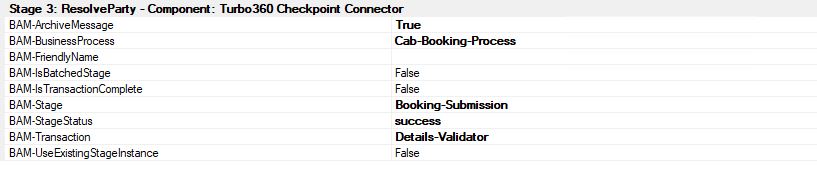
-
Configure
BAM-Stage,BAM-StageStatus, andBAM-Transaction.BAM-BusinessProcessis inherited from the preceding StartTransaction step unless overridden. -
Set
BAM-ArchiveMessagetotrueif you want to archive the message at this stage.
Configure the CheckpointWithCorrelation connector
The CheckpointWithCorrelation connector correlates a stage instance to a transaction using tracked property values. Use this when the transaction instance ID is not available in the context, for example on a receive location that starts a new BizTalk processing flow for an Azure-originated transaction.
-
Drag Turbo360 CheckpointWithCorrelation Connector to the target pipeline stage.
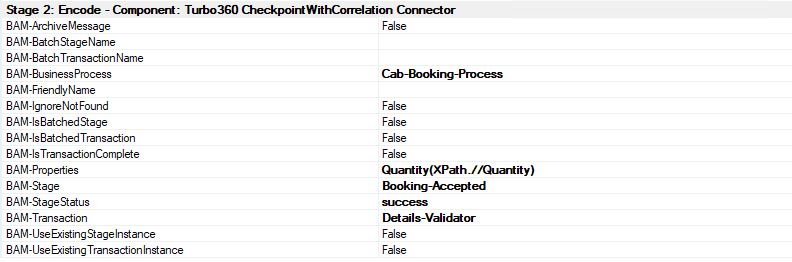
-
Set
BAM-Propertiesusing one of the following syntax patterns:
Single property tracking:
| Source | Syntax |
|---|---|
| XML | PropertyName(xpath,yourpath) |
| JSON | PropertyName(json,yourpath) |
| HTTP Header | PropertyName(httpheader,yourpath) |
| BizTalk Context | PropertyName(biztalkcontext,propertynamespace) |
Multiple property tracking — separate entries with a semicolon:
PropertyName(xpath,yourpath);PropertyName(xpath,yourpath)
Static message header values:
key1=Value1;Key2=Value2;
These static values are combined with BizTalk message context and can be mapped to BAM stage properties for tracking.
The sample schemas and pipelines included with the installation are designed to help you explore Turbo360 BAM integration with BizTalk before instrumenting your own applications.
Create a custom pipeline
Turbo360 Pipelines ship with pre-defined schemas. To track messages with your own schema, create a custom pipeline.
-
In Visual Studio, verify that the Turbo360 pipeline components appear in the toolbox.
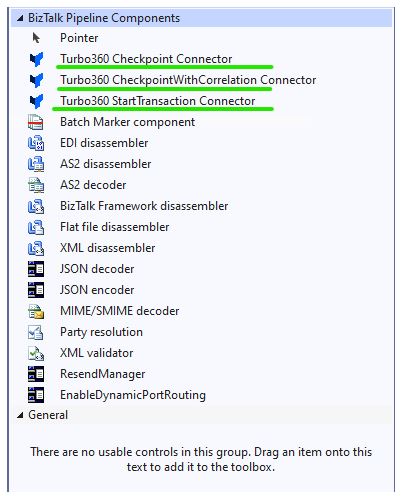
The components are in the Assemblies folder where Turbo360 BizTalk BAM-1.0 was installed. The required DLL is
Kovai.T360.PipelineComponents.dll. -
If the components are missing from the toolbox, right-click BizTalk Pipeline Components in the toolbox, select Choose Items, and browse to
Kovai.T360.PipelineComponents.dll.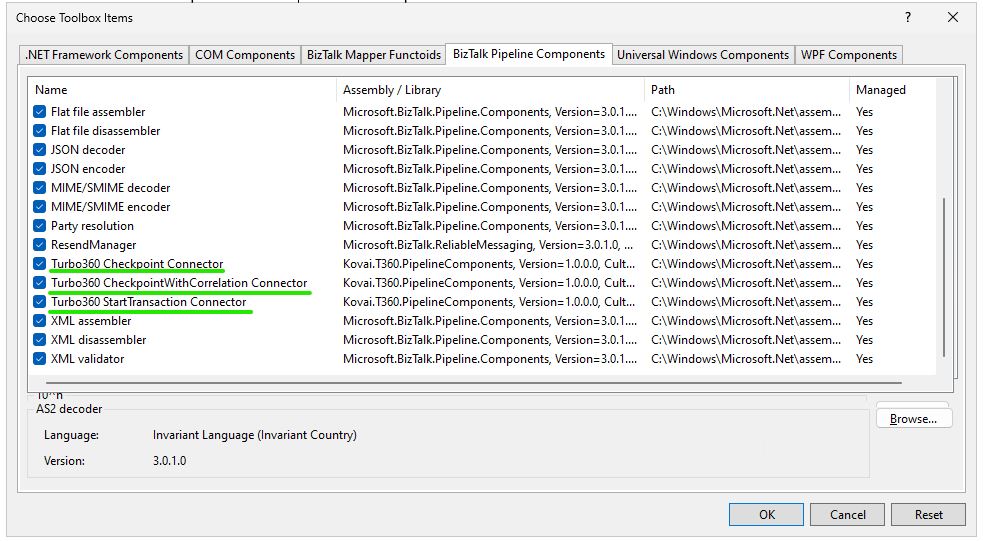
-
Open your pipeline file, then drag and drop the required connector from the toolbox to the appropriate stage.
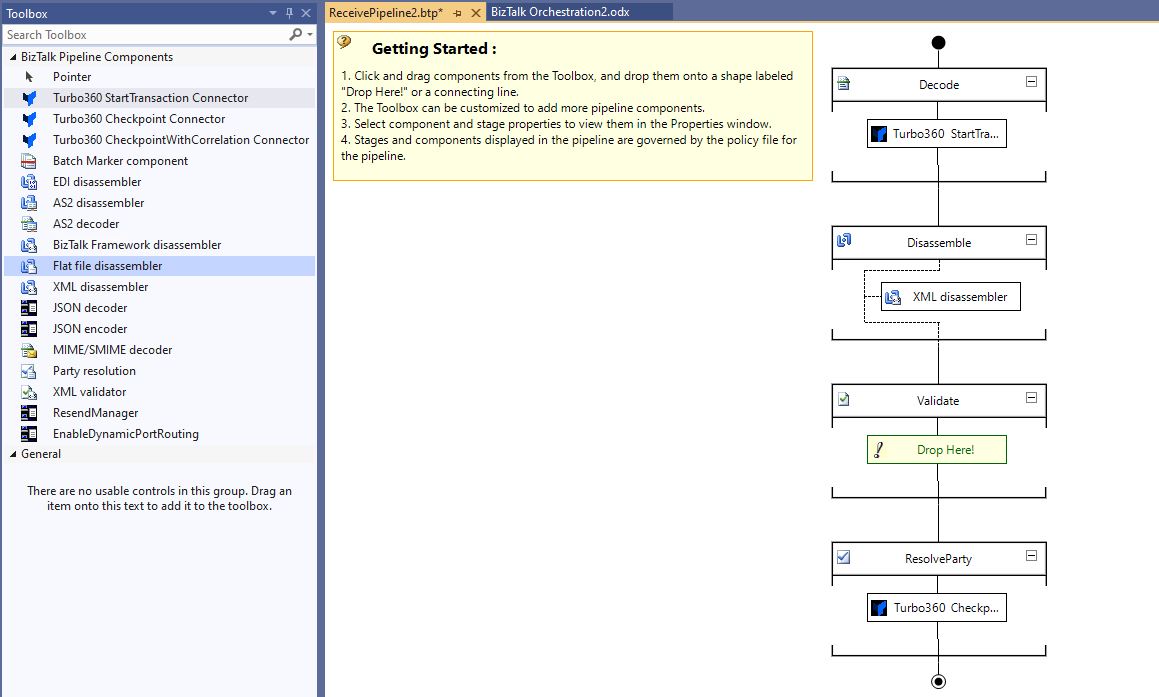
You can configure connectors at the Decode, Resolve, Pre-Assemble, and Encode stages.
Instrument an orchestration
Orchestration tracking uses the Kovai.T360.Tracking.BizTalk DLL, which exposes the same StartTransaction, Checkpoint, and CheckpointWithCorrelation operations as the pipeline connectors.
-
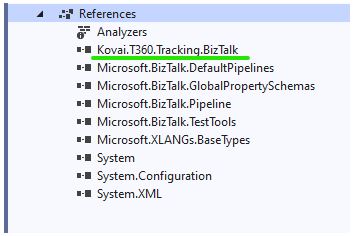
In your orchestration project, add a reference to Kovai.T360.Tracking.BizTalk DLL. The DLL is in the GAC_MSIL folder.
-
Declare the following variables:
Variable Type VarOrchestrationActivity Kovai.T360.Tracking.BizTalk.Orchestration_Activities.OrchestrationActivityVarStartTransactionRequest Kovai.T360.Tracking.BizTalk.Models.StartTransactionRequestVarCheckPointRequest Kovai.T360.Tracking.BizTalk.Models.CheckpointRequestVarCheckPointWithCorrelationRequest Kovai.T360.Tracking.BizTalk.Models.CheckpointWithCorrelationRequestVarStartActivityResponse Kovai.T360.Tracking.BizTalk.Models.ActivityResponseNote:Initialize variables in a MessageAssignment shape. After initialising, assign the incoming message to the orchestration's original message. This step is mandatory for tracking.
-
Add the following code in a MessageAssignment or Expression shape:
//Assigning original message and properties to another variable.
MessageOut = MessageIn;
MessageOut(*) = MessageIn(*);

//Variables declaration
VarOrchestrationActivity = new Kovai.T360.Tracking.BizTalk.Orchestration_Activities.OrchestrationActivity();
VarStartTransactionRequest = new Kovai.T360.Tracking.BizTalk.Models.StartTransactionRequest();
VarCheckPointRequest = new Kovai.T360.Tracking.BizTalk.Models.CheckpointRequest();
VarCheckPointWithCorrelationRequest = new Kovai.T360.Tracking.BizTalk.Models.CheckpointWithCorrelationRequest();
VarStartActivityResponse = new Kovai.T360.Tracking.BizTalk.Models.ActivityResponse();

//Message Assignment
VarOrchestrationActivity.OriginalMessage = MessageIn;    //Important
VarOrchestrationActivity.EnrichedMessage = MessageOut;    //Important


//Sample configurations
VarStartTransactionRequest.BAM_ArchiveMessage = true;
VarStartTransactionRequest.BAM_FriendlyName = "Prod";
VarStartTransactionRequest.BAM_BusinessProcess = "HybridSamples";    //mandatory field
VarStartTransactionRequest.BAM_Stage = "Bennington";    //mandatory field
VarStartTransactionRequest.BAM_StageStatus = "inprogress";
VarStartTransactionRequest.BAM_Transaction = "VermontPaperSupply";    //mandatory field
VarStartActivityResponse = VarOrchestrationActivity.StartTransaction(VarStartTransactionRequest,MessageOut);

VarStartTransactionRequest.BAM_ArchiveMessage = true;
VarStartTransactionRequest.BAM_BusinessProcess = "HybridSamples";
VarStartTransactionRequest.BAM_Stage = "Bennington";
VarStartTransactionRequest.BAM_StageInstanceId = VarStartActivityResponse.BAM-StageInstanceId;    //This step will prevent logging this stage activity as a new instance.
VarStartTransactionRequest.BAM_StageStatus = "success";
VarStartTransactionRequest.BAM_Transaction = "VermontPaperSupply";
VarStartActivityResponse = VarOrchestrationActivity.StartTransaction(VarStartTransactionRequest,MessageOut);

VarCheckPointRequest.BAM_ArchiveMessage = true;
VarCheckPointRequest.BAM_BusinessProcess = "HybridSamples";
VarCheckPointRequest.BAM_Stage = "Milton";
VarCheckPointRequest.BAM_StageStatus = "success";
VarCheckPointRequest.BAM_Transaction = "VermontPaperSupply";
VarCheckPointRequest.BAM_TransactionInstanceId = VarStartActivityResponse.BAM-TransactionInstanceId;
VarOrchestrationActivity.Checkpoint(VarCheckPointRequest,MessageOut);

VarCheckPointWithCorrelationRequest.BAM_ArchiveMessage = true;
VarCheckPointWithCorrelationRequest.BAM_BusinessProcess = "HybridSamples";
VarCheckPointWithCorrelationRequest.BAM_Stage = "Weston";
VarCheckPointWithCorrelationRequest.BAM_StageStatus = "success";
VarCheckPointWithCorrelationRequest.BAM_Transaction = "VermontPaperSupply";
VarOrchestrationActivity.CheckpointWithCorrelation(VarCheckPointWithCorrelationRequest,MessageOut);
All StartTransaction, Checkpoint, and CheckpointWithCorrelation calls return an ActivityResponse containing Result, TransactionInstanceId, StageInstanceId, and Status.
Sample ActivityResponse:
{
 "TransactionInstanceId": "20c1f973-eae4-4ebc-9089-d685c546837",
 "StageInstanceId": "30c1g673-aee4-4ebc-0989-1c685c446837 ",
 "Result": "Start Transaction Accepted",
 "Status": "success"
}
Correlate hybrid transactions
When a transaction begins outside BizTalk, for example in a Logic App or HTTP receive location, and continues inside BizTalk, you must pass the transaction instance ID and stage instance IDs from the Azure side into BizTalk so they can be correlated as a single transaction instance.
Pass IDs using the following header format:
- Transaction instance ID:
TransactionInstanceId_{TransactionName} - Stage instance ID:
StageInstanceId_{StageName}
For Logic App and HTTP receive locations — pass these as HTTP headers:
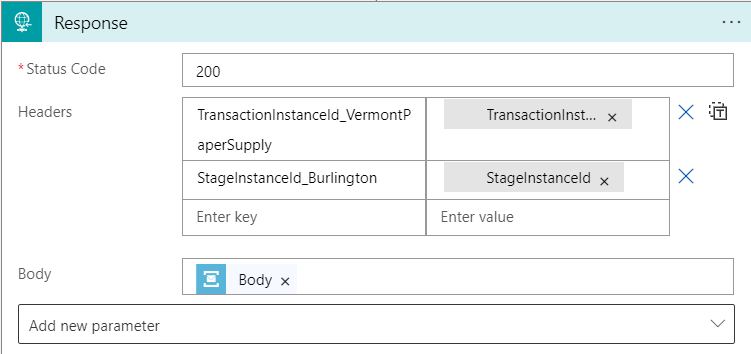
For Service Bus receive locations — pass these as custom message properties:
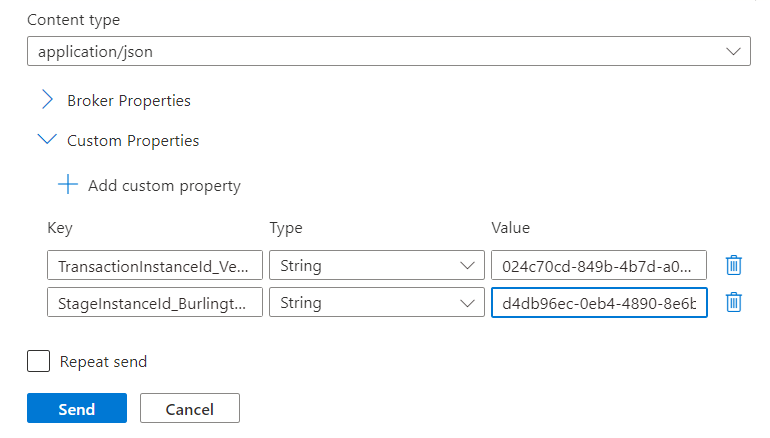
Transaction and stage instance IDs logged inside BizTalk are also available in the same format and can be passed outward to continue the instance in downstream Azure stages.
Use these dynamic expressions in Logic Apps to read instance IDs from BizTalk:
-
Transaction instance ID:
triggerOutputs()?['headers']?['TransactionInstanceId_YourTransactionName'] -
Stage instance ID:
triggerOutputs()?['headers']?['StageInstanceId_YourStageName']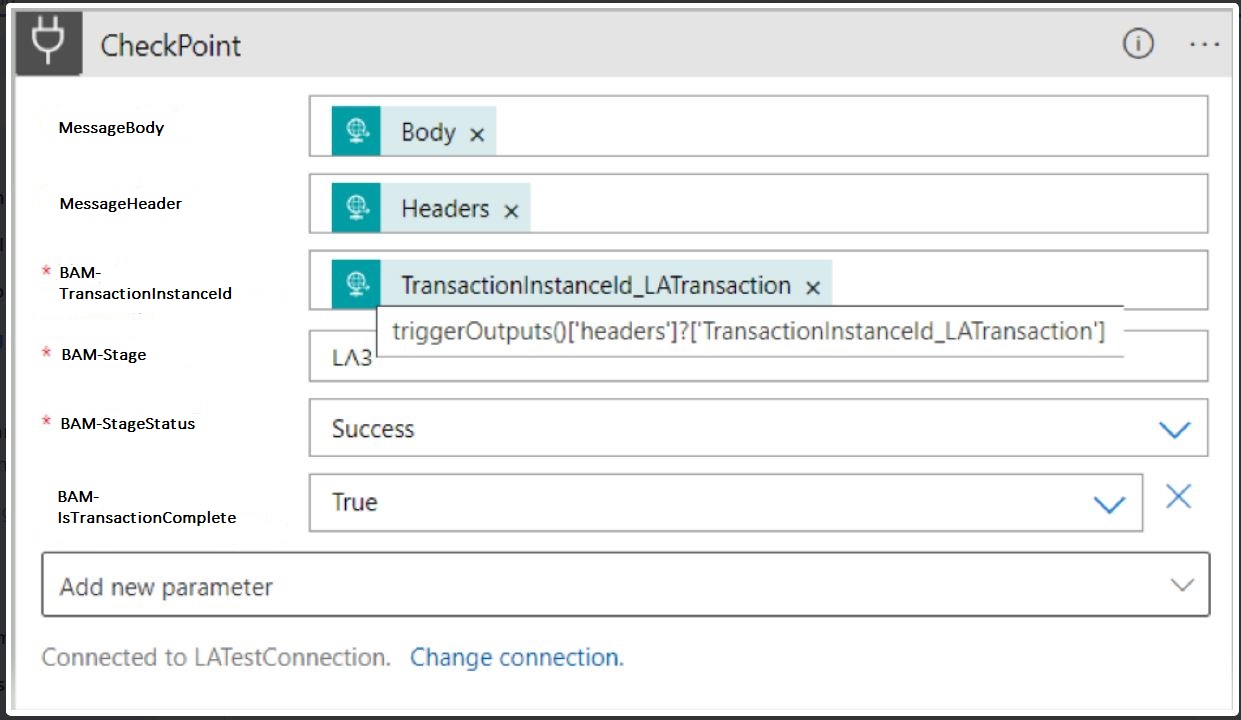
For Service Bus Queue, the BizTalk component sends transaction and stage instance IDs in the custom message properties:
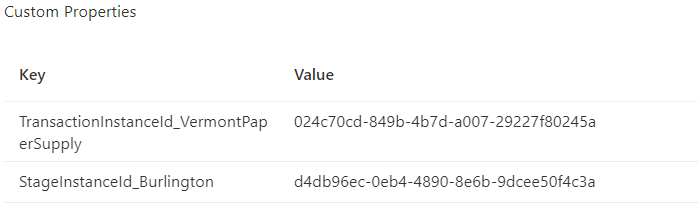
Troubleshooting
-
Pipeline component does not appear in the Visual Studio toolbox
Cause: The component DLL was not registered with the toolbox after installation.
Fix: Right-click BizTalk Pipeline Components in the toolbox, select Choose Items, and addKovai.T360.PipelineComponents.dllfrom the Assemblies folder. -
Tracking data is not appearing in BAM for BizTalk pipeline stages
Cause: TheBAM-BusinessProcess,BAM-Stage, orBAM-Transactionproperty value does not match the names configured in Turbo360 BAM.
Fix: Verify the exact names in the Turbo360 BAM portal and update the pipeline component properties to match. -
Hybrid transaction stages do not correlate into a single instance
Cause: The transaction instance ID or stage instance ID is not being passed correctly between Azure and BizTalk.
Fix: Confirm the header or custom property name follows the exact formatTransactionInstanceId_{TransactionName}andStageInstanceId_{StageName}, with the exact transaction and stage names used in BAM. -
Orchestration tracking throws a runtime exception
Cause: TheOriginalMessageorEnrichedMessageassignment in the MessageAssignment shape was omitted.
Fix: Ensure bothVarOrchestrationActivity.OriginalMessage = MessageInandVarOrchestrationActivity.EnrichedMessage = MessageOutare present before calling StartTransaction. -
BAM-FriendlyName not recognized at runtime
Cause: The friendly name entered in the pipeline component does not match the name stored in the SSO DB.
Fix: Use option 1 inKovai.T360.BAM.Configurationto list all SSO DB entries and confirm the exact friendly name.