Overview
This article covers installing the Turbo360 Business Activity Monitoring (BAM) components on BizTalk Server, deploying the sample BizTalk application with artifacts, and configuring the BAM connection details in the SSO database (SSO DB). Complete these steps before instrumenting any BizTalk pipelines or orchestrations for tracking.
Business value
Setting up the BAM components and SSO configuration correctly is the foundation for hybrid BizTalk and Azure transaction tracking. A correctly configured SSO DB lets every BizTalk pipeline component locate and authenticate to your BAM Function App without requiring hard-coded credentials, making the integration secure, maintainable, and portable across environments.
Prerequisites
- BizTalk Server installed and operational
- Access to the BizTalk Admin Console with sufficient permissions to deploy applications
- The Turbo360 BizTalk BAM-1.0 MSI package
- The BAM Function App URL and API Key from your Turbo360 BAM account
Required permissions
You must have BizTalk Administrator rights on the server to install components and deploy the BizTalk application. SSO DB configuration also requires SSO Administrator access.
How it works
The installation has two sequential steps. First, install the Turbo360 BAM components. This creates the Assemblies, BizTalk, and SDK folders on disk. Second, deploy the sample BizTalk application using the MSI in the BizTalk folder. After deployment, run a configuration utility to store the BAM Function App URL and API Key in the SSO DB, making them available to all pipeline components at runtime.
Steps
Use the following steps to install the Turbo360 BAM components, deploy the BizTalk application, and register the BAM connection in the SSO DB. Run all steps on the BizTalk Server host.
Install the Turbo360 BAM components
Installing the main MSI creates the component library and SDK folders required for pipeline instrumentation.
-
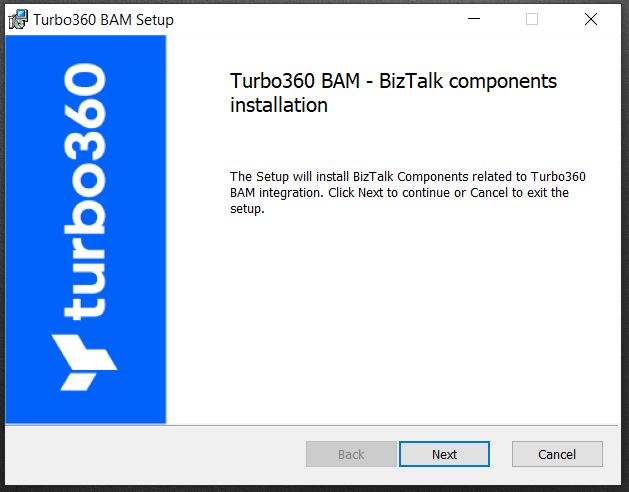
Launch the Turbo360 BAM MSI file. The installation wizard opens.
-
Click Next and accept the license agreement.
-
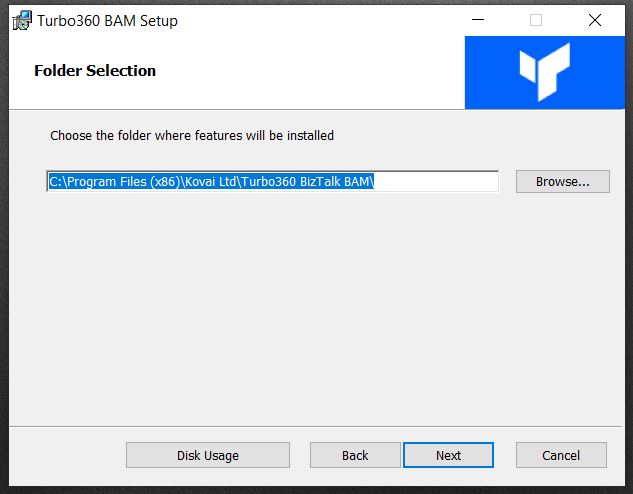
Select the installation folder and click Next.
-
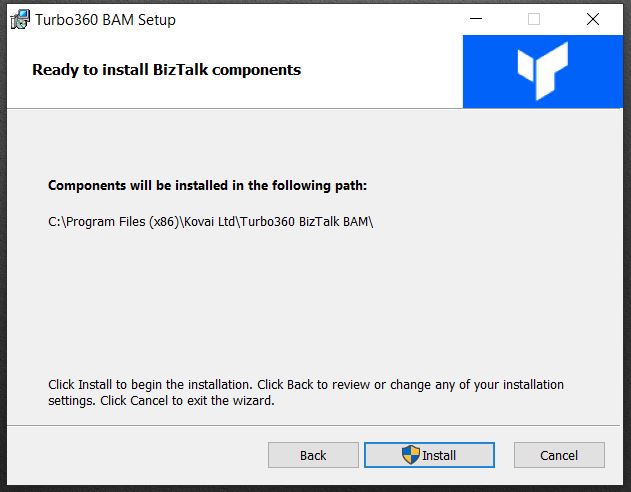
Click Install to begin.
-
To view installation logs, select View Installation Log, then click Finish.
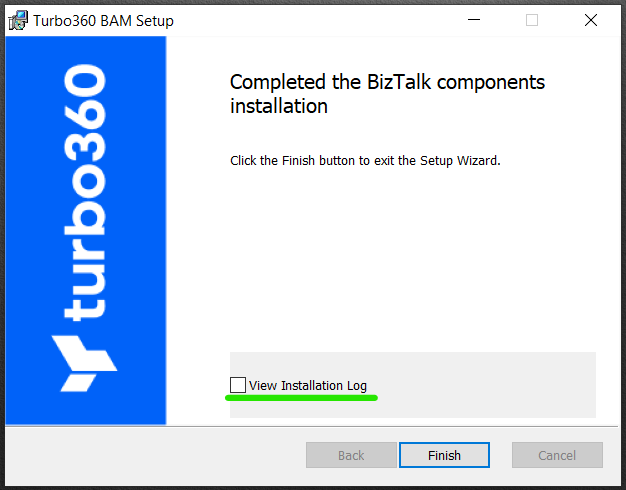
After installation, three folders are created in the deployed location:
- Assemblies: contains all required DLLs for use in pipeline and orchestration projects.
- BizTalk: contains the subfolders
MSI\BizTalkBAMwith theTurbo360 BizTalk BAM-1.0MSI, which includes sample pipelines and schemas. - SDK: under
Configuration\BAMConfiguration, contains theKovai.T360.BAM.Configurationexecutable for SSO DB configuration. AConfiguration.xmlfile is also available here for modifying Event Viewer logging settings.
Install the BizTalk application with artifacts
Deploying the BizTalk application installs sample pipelines and schemas that you can use to test and explore BAM tracking in BizTalk.
-
Navigate to the BizTalk folder from the previous installation and open
MSI\BizTalkBAM. -
Launch
Turbo360 BizTalk BAM-1.0.msi. The installation wizard opens.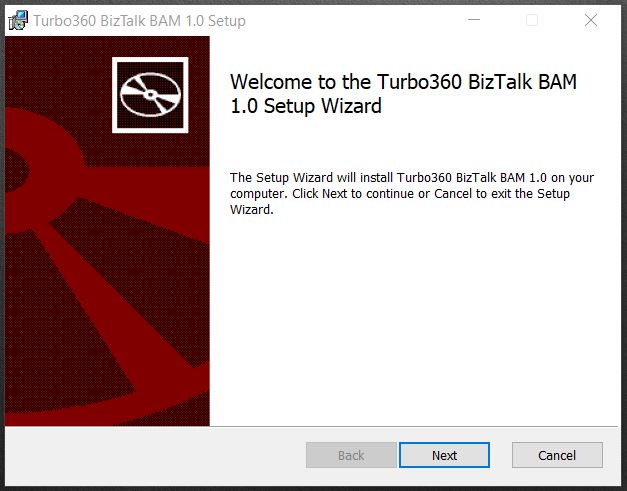
-
Click Next and accept the license agreement.
-
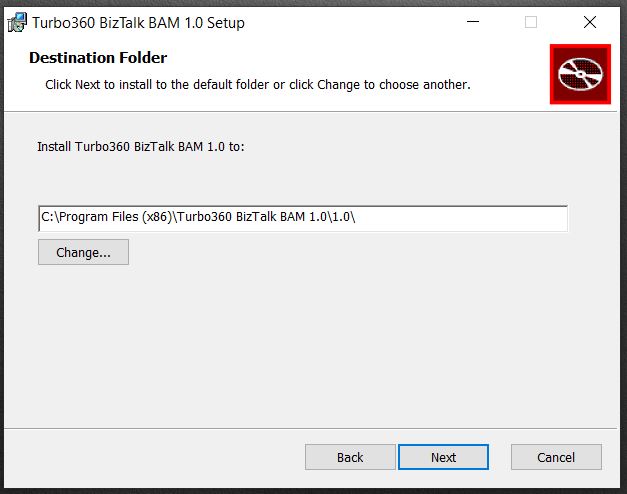
Select the installation folder and click Next.
-
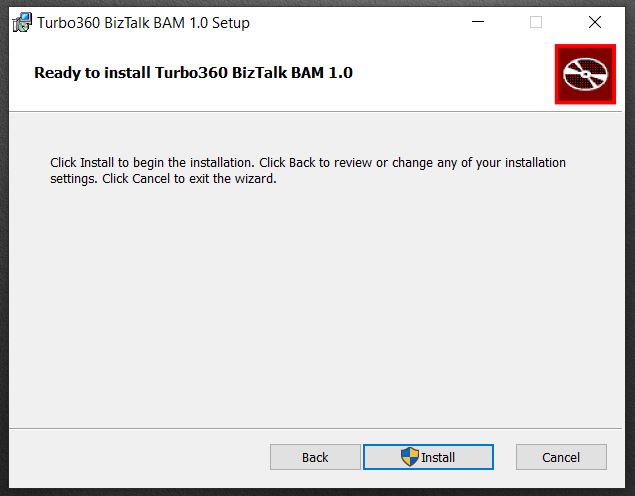
Click Install.
-
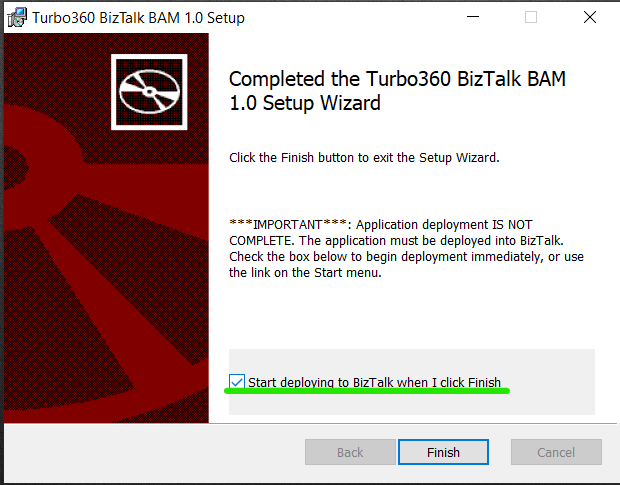
Once installation completes, select "Start deploying to BizTalk when I click Finish" to deploy the application to the BizTalk Management DB, then click Finish.
-
During deployment, enter the FILE adapter host username and click Next.
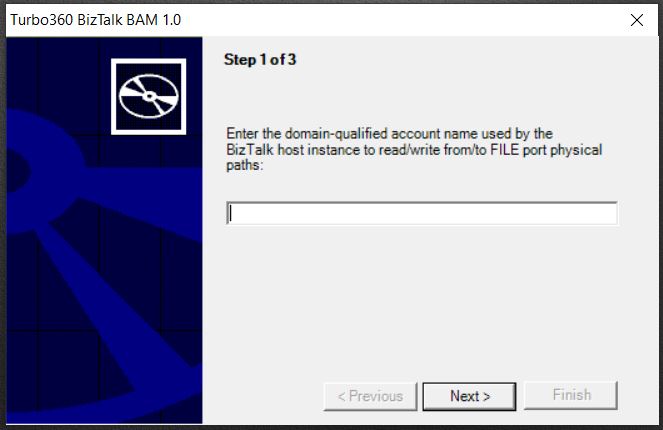
-
Select the required configuration settings file and click Next. Configuration files are in the Environment Settings folder under the installation location.
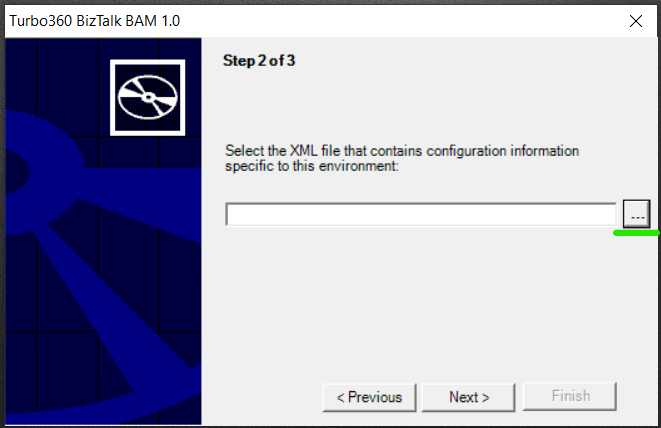
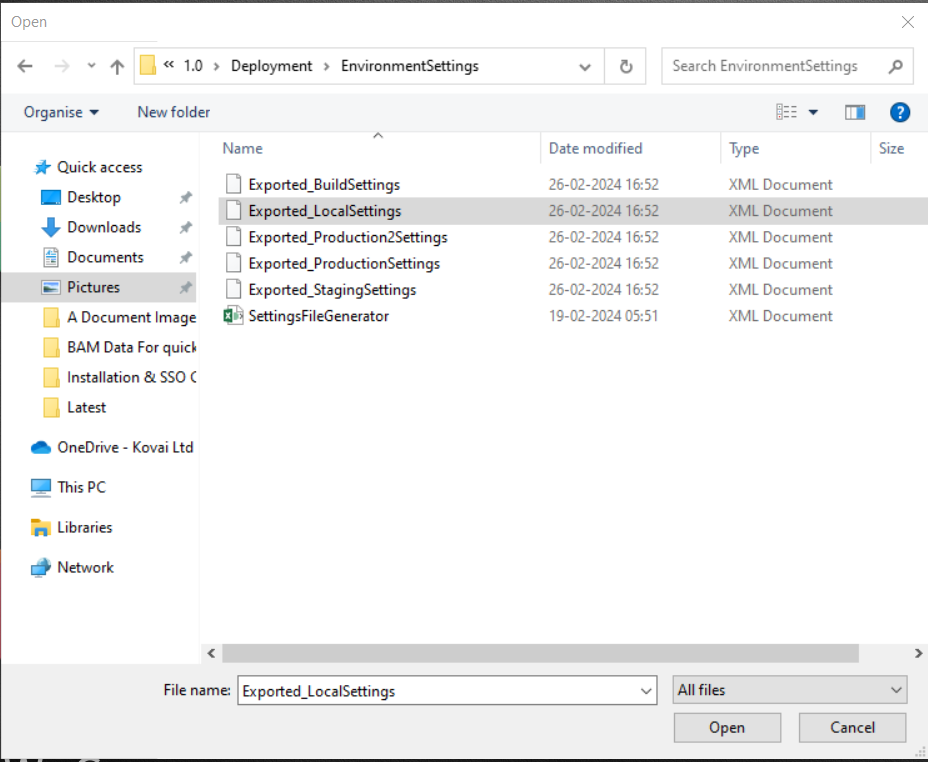
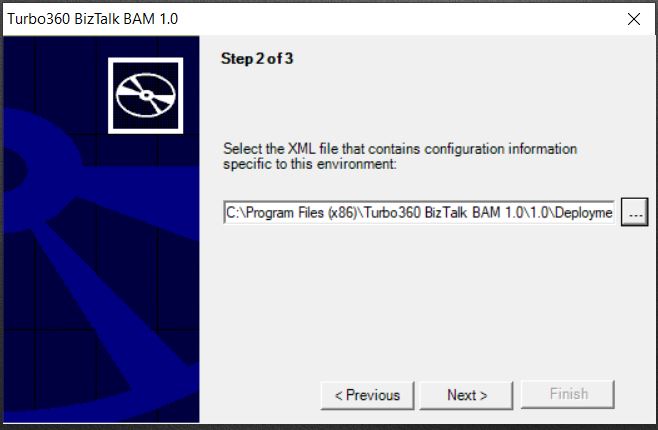
:::(Info)(Note:)
If yourSSOAppUserGroupandSSOAppAdminGrouphave different users, modify those values in the relevant environment settings file before proceeding. The default users listed in the settings apply to all environment settings files.
:::
-
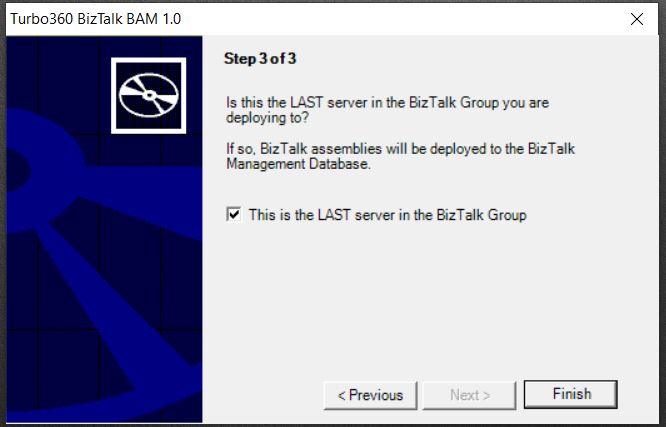
If this is the last server in the BizTalk group, select "This is the LAST server in the BizTalk Group" and click Finish.
-
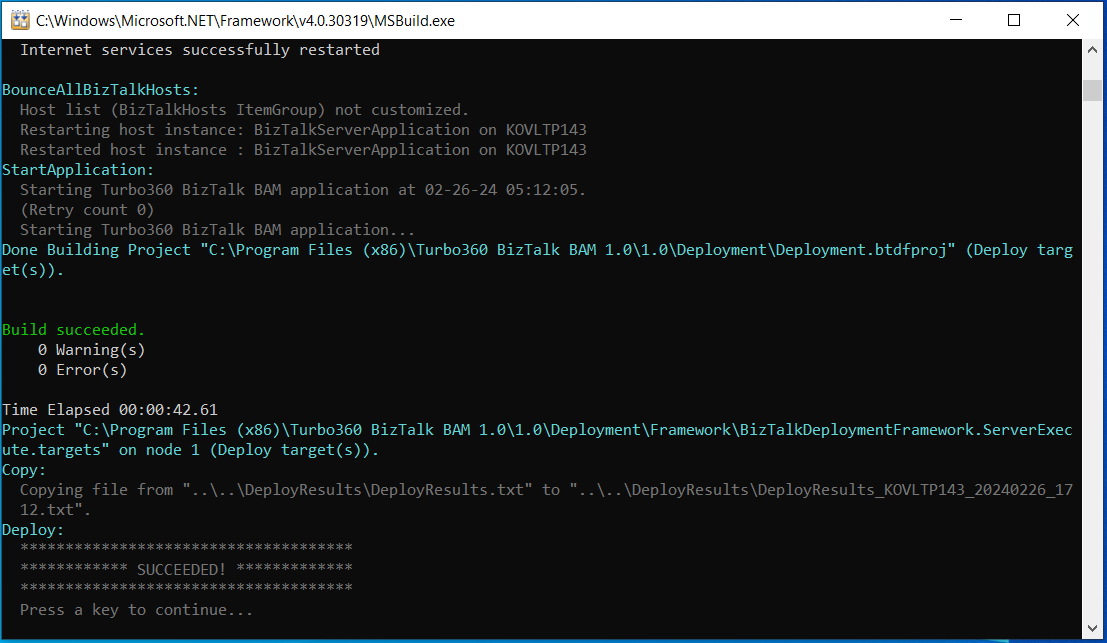
Deployment status is displayed once complete.
-
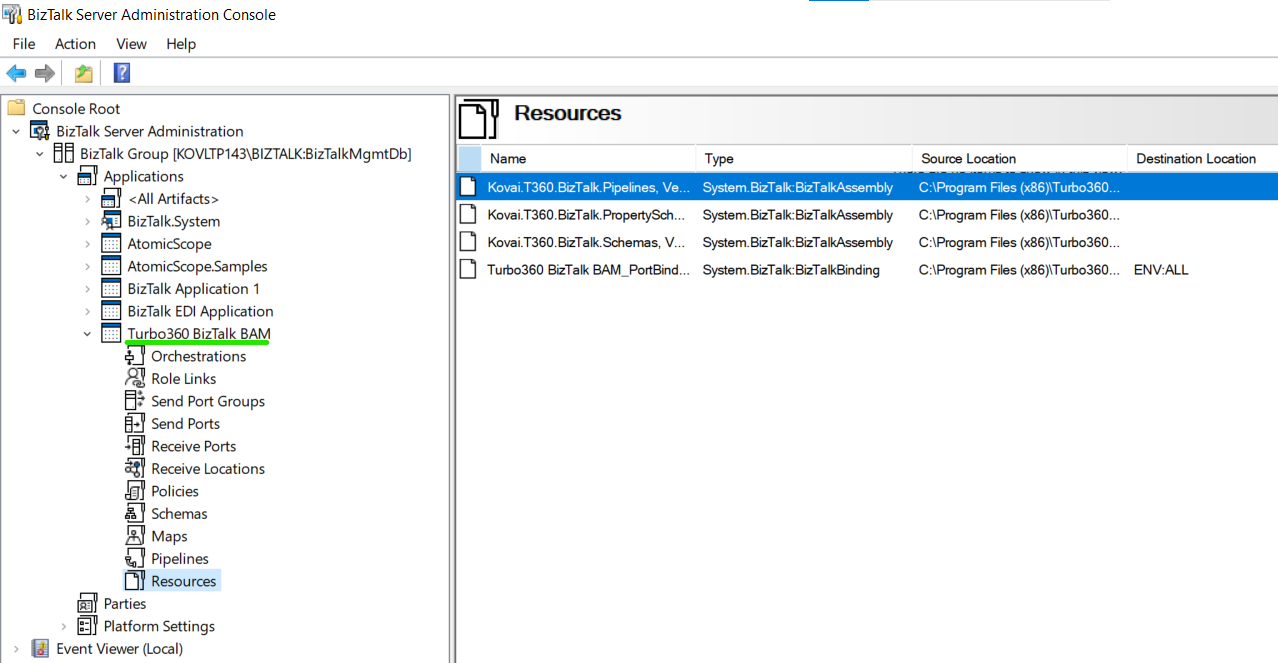
The Turbo360 BizTalk BAM application is now available in the Admin Console with sample schemas and pipelines.
Configure Turbo360 BAM in the SSO DB
Registering your BAM connection details in the SSO DB makes the Function App URL and API Key available to all pipeline components at runtime without requiring hard-coded values.
The configuration executable is in the first installation folder under \SDK\Configuration\BAMConfiguration.
-
Launch
Kovai.T360.BAM.Configuration.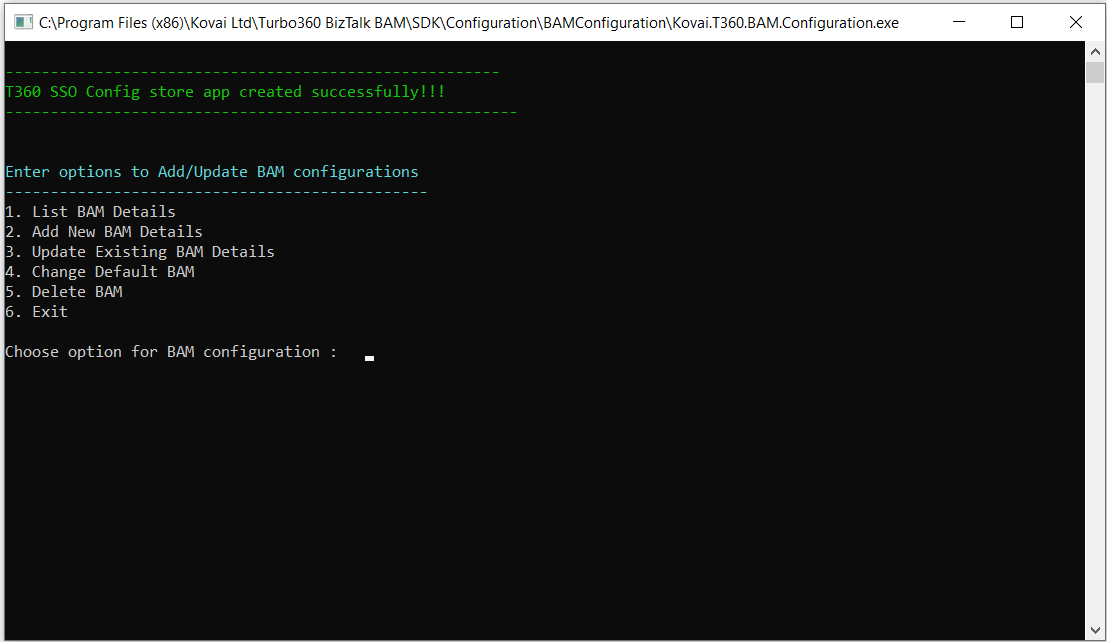
-
To add new BAM details, enter
2and press Enter.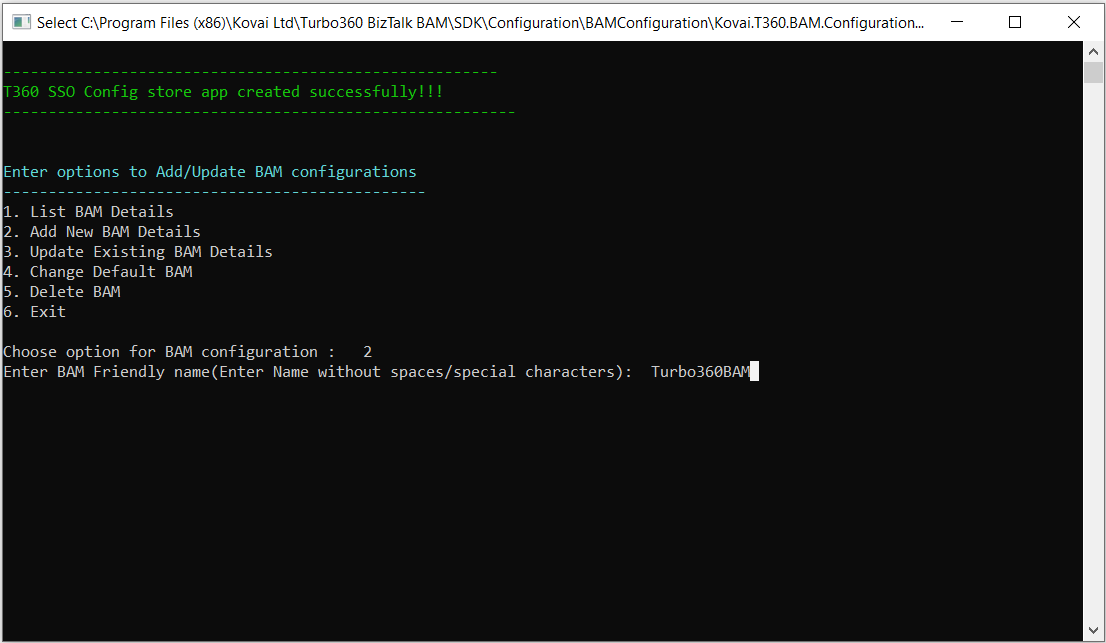
-
Enter a value for BAM Friendly name and press Enter.
-
Copy and paste the BAM Function App URL and API Key from your Turbo360 BAM account and press Enter.
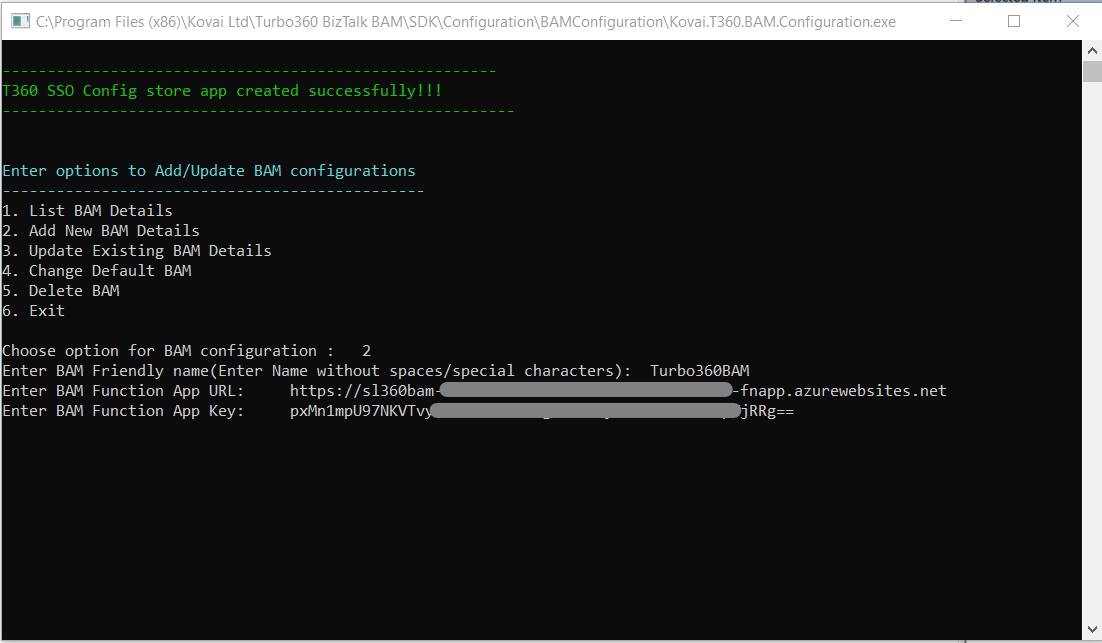
-
To configure multiple BAM environments, enter
Yand repeat steps 3–4. -
Use the following options to manage BAM details in the SSO DB:
Option Description 1. List BAM Details List all configured BAM details in the SSO DB. 2. Add new BAM Details Add new BAM details to the SSO DB. 3. Update Existing BAM Details Update the existing BAM Function App URL and API Key. 4. Change Default BAM Change the default BAM entry in the SSO DB. 5. Delete Delete a configured BAM entry from the SSO DB. 6. Exit Close the application. -
Enter
6and press Enter to exit. Press Enter again to close the command window.
Troubleshooting
-
Installation wizard does not launch
Cause: The MSI file may be blocked by Windows security policies or antivirus software.
Fix: Right-click the MSI file, select Properties, and click Unblock if the option is present. Disable antivirus scanning temporarily if needed. -
BizTalk application deployment fails
Cause: The FILE adapter host username entered during deployment is incorrect or does not have BizTalk Host Instance permissions.
Fix: Verify the host username matches the BizTalk host instance service account. Re-run the deployment wizard with the correct account. -
SSO DB configuration tool returns an error on save
Cause: The user running the tool does not have SSO Administrator rights.
Fix: RunKovai.T360.BAM.Configurationas a user who is a member of the BizTalk SSO Administrators group. -
BAM Friendly name does not appear when listing BAM details
Cause: The entry was not saved successfully, or the SSO DB connection timed out.
Fix: Re-run the configuration tool, select option 1 to list details, and re-add the entry if it is missing. -
Pipeline components cannot connect to the BAM Function App after installation
Cause: The BAM Function App URL or API Key stored in the SSO DB is incorrect or the Function App is unreachable from the BizTalk server network.
Fix: Use option 3 in the configuration tool to update the URL and API Key. Verify network connectivity from the BizTalk server to the Function App endpoint.