Overview
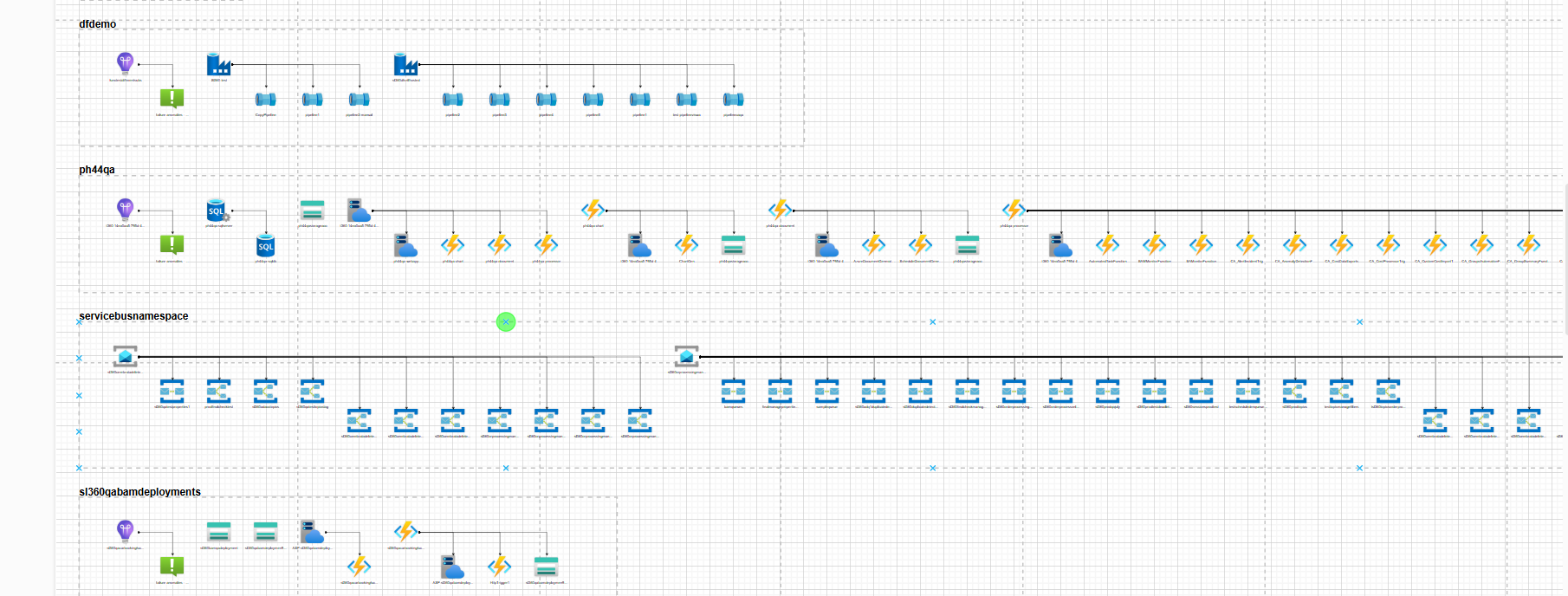
Workload diagram is a document type in Azure Documenter that generates a visual representation of the workload architecture across Azure resources. It maps workloads and their interconnected resources into an XML file compatible with draw.io for easy visualization.
Business value
Workload diagrams give administrators and architects a consolidated, visual reference for workload structure and resource dependencies across Azure subscriptions, reducing the manual effort needed to map workload architecture during design reviews and incident investigations.
Prerequisites
Required permissions
| Role | Permission level | Access |
|---|---|---|
| Account owner, Owner, Contributor | — | Full access to the Documentation section |
| Custom role | Read | View documents generated under Documentation |
| Custom role | Manage | View, generate, and manage documents under Documentation |
How it works
The Workload diagram depicts workloads and their interconnected resources, including:
- API Management Services with the associated Functions and Logic Apps
- App Service Plans with associated Web Apps, Azure Functions, Logic Apps, and API Apps
- Service Bus Namespaces with Queues and Topics
- Azure Kubernetes Services with Managed Clusters
Hover over any resource in the diagram to view its Name, Type, Location, Group, and Tags.
Sample workload diagram:
Steps
Use the following steps to generate a Workload diagram. Navigate to Azure Documenter to get started.
- Click New configuration. The Configure your document wizard opens.
- In Step 1 — Basics, enter a configuration name. Under Choose document type, select Workload diagram. Click Next.
- In Step 2 — Service principal, select the service principal and configure the subscription scope. Click Next.
- Complete Steps 3–6 (Branding, Publish settings, Schedule, Notifications) as required. Click Next after each step.
- In Step 7 — Review, confirm your configuration and click Finish.
Once generation is complete, a URL is created for the document, and you can download it using the Download link.
Example scenario
An architect at Contoso wants to document the workload structure of their Production subscription for a design review. They generate a Workload diagram, download the XML file, and open it in draw.io to review the relationships between their App Service Plans, API Management Services, and Service Bus Namespaces.
Troubleshooting
-
Diagram shows no resources
Cause: no supported workload resource types exist in the selected subscriptions, or the service principal lacks permission to read resource data.
Fix: verify the subscription selection, confirm supported workload resources exist, and ensure the service principal has at least Reader access on all selected subscriptions. -
Diagram XML doesn't open correctly in draw.io
Cause: an outdated or incompatible draw.io version, or a corrupted download.
Fix: re-download the file and open it using a supported version of draw.io. -
Diagram is generated but resource details are incomplete
Cause: some resource types within the subscription were not accessible to the selected service principal.
Fix: verify the service principal has Reader access on all resource groups within the selected subscriptions and regenerate.
FAQs
-
What format is the Workload diagram generated in?
It is generated as an XML file, compatible with draw.io for visualization. -
What resource types are included in the diagram?
API Management Services, App Service Plans, Service Bus Namespaces, and Azure Kubernetes Services, along with their associated resources.