Overview
Violation and up alerts triggered by Turbo360 monitoring are recorded as incidents, which you can review and resolve at your convenience.
Alert incidents
You can view the list of alert incidents generated for a Business Application in Monitoring > Incidents. Click the state of any incident to open its details.
Resolving incidents
An alert incident can be changed to any of the following states:
- Open: when there are violations in an incident
- Acknowledge: when you intend to investigate the violations
- Close: when you believe the violations are resolved and the alert incident is no longer needed
- Reopen: when the incident is still problematic
You can change an incident state individually by selecting the option from the Actions menu next to it, or in bulk by selecting multiple incidents and choosing the option from the Actions dropdown.
When all resources in a Business Application return to a healthy state, you can resolve open incidents automatically. Enable the Auto resolve incidents checkbox in the monitoring configuration at the Business Application level or in a mapped monitoring profile. All previous incidents are automatically resolved when every resource in the Business Application turns healthy.
An up alert is generated simultaneously to all configured channels and email addresses in the next monitoring cycle, indicating that the Business Application contains healthy resources.
The image below is a sample up alert received in Turbo360 mail:
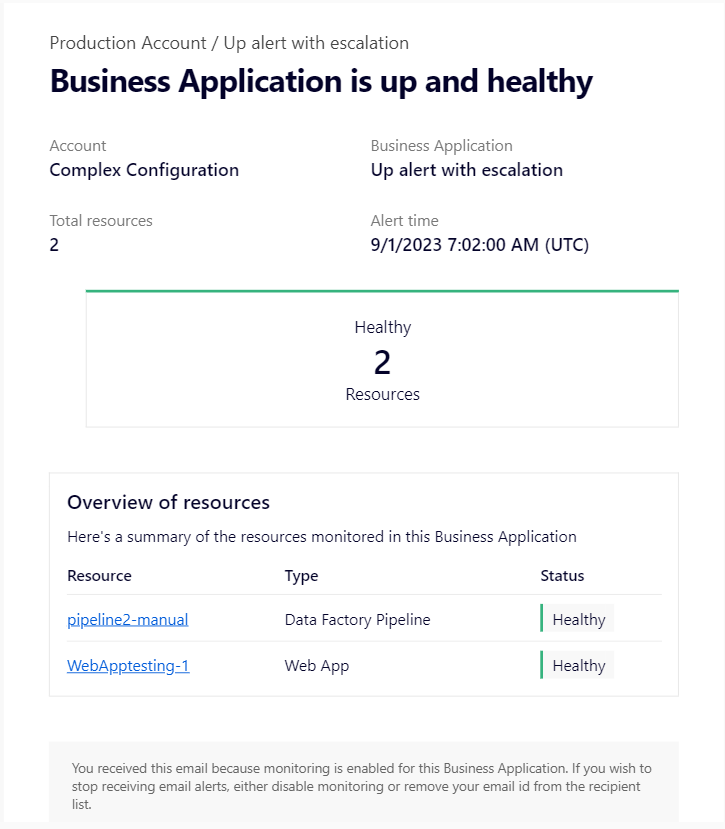
The up alert is generated up to the rule level at which the violation alert was escalated.
Up alerts are generated only when the Business Application has previously generated at least one violation alert.
Tracking user actions
To track user actions for an alert incident, select View user actions from the Actions menu next to the incident. The details include the user's email address, the time each action was taken, and the change in incident state.
Notification history
To view the notification channels for each transmitted alert, select View notification details from the Actions menu next to the incident. If a notification channel transmission failed, the reason for failure is shown against the alert.
Filtering
The following filter options are available for incidents: Category, Incident Status, Alert Type, and Date.
Exporting incidents
Incidents within a Business Application can be exported as a PDF report.
- Click the Download option in the Monitoring section of the Business Application.
- Choose a Date range for the incidents and select the Notification channel(s) to receive the report.
- Click Export to start the export in the background. The report is forwarded to the selected notification channels on completion.
A link to access the report will be sent to the selected notification channel(s).
Troubleshooting
-
Up alert was not received after resources recovered
Cause: Up alerts are only generated if the Business Application previously sent at least one violation alert. If no violation alert was ever sent, no up alert is triggered on recovery.
Fix: Confirm that at least one violation alert was generated before the resources recovered. Also verify that the notification channels are correctly configured and active. -
Auto resolve incidents is enabled but open incidents are not being closed
Cause: Auto resolve only triggers when every resource in the Business Application has returned to a healthy state. If any resource is still in violation, open incidents remain.
Fix: Check that all resources in the Business Application are healthy. If some resources are still violating rules, resolve or address those before expecting auto resolve to close incidents. -
Incident export report was not delivered to the notification channel
Cause: The export runs in the background and delivers on completion, but a misconfigured or inactive notification channel will silently fail delivery.
Fix: Verify the selected notification channel is correctly configured and active. Run a test alert to confirm the channel is reachable before re-exporting. -
Notification history shows a failed transmission for an alert
Cause: The notification channel was unavailable, misconfigured, or rejected the payload at the time the alert was sent.
Fix: Check the failure reason shown against the alert in the notification history, then review the channel configuration and retry. -
Bulk state change did not apply to all selected incidents
Cause: Only incidents in a compatible state can transition to the chosen state. Incidents already in the target state or in a state that does not allow the transition are skipped.
Fix: Review the current state of each incident individually and apply state changes to those that are eligible.
FAQs
-
What is the difference between Acknowledge and Close?
Acknowledge signals that someone is actively investigating the incident but the violations have not yet been resolved. Close marks the incident as resolved and no longer needing attention. Closing an incident does not stop future alerts if the same rule is violated again. -
Does closing an incident prevent future alerts for the same resource?
No. Closing an incident only marks that specific incident as resolved. If the resource violates its monitoring rules again in a future cycle, a new incident is created and new alerts are sent. -
What triggers an up alert?
An up alert is generated in the next monitoring cycle after all resources in a Business Application return to a healthy state, provided at least one violation alert was previously sent. It is delivered to all configured notification channels and email addresses simultaneously. -
Can incidents be resolved automatically without manual intervention?
Yes. Enable the Auto resolve incidents checkbox in the monitoring configuration at the Business Application level or in a mapped monitoring profile. When all resources return to a healthy state, all open incidents are automatically resolved and an up alert is sent. -
Can I export incidents for a specific date range only?
Yes. When exporting, you choose the date range to include in the PDF report before triggering the export. The report covers only the incidents within the selected range.