Overview
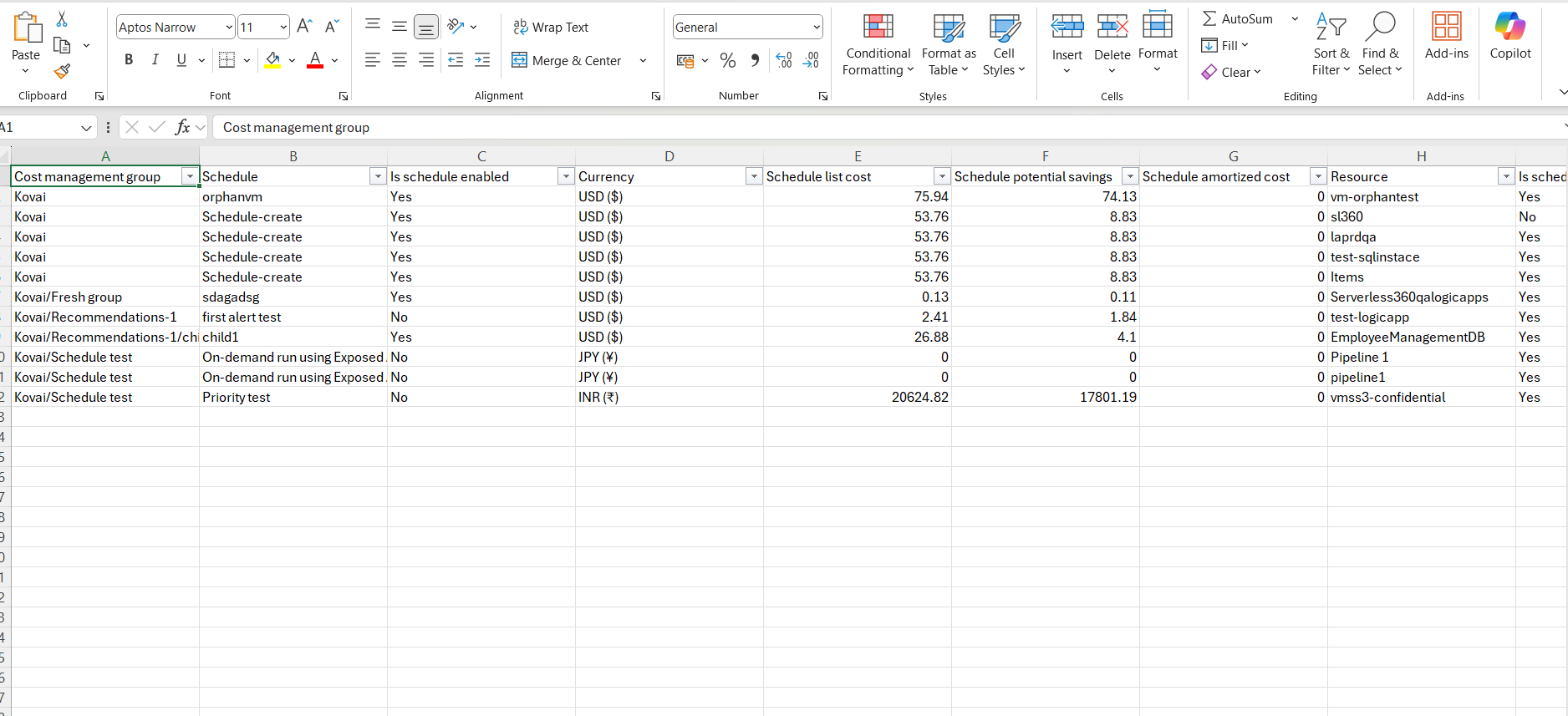
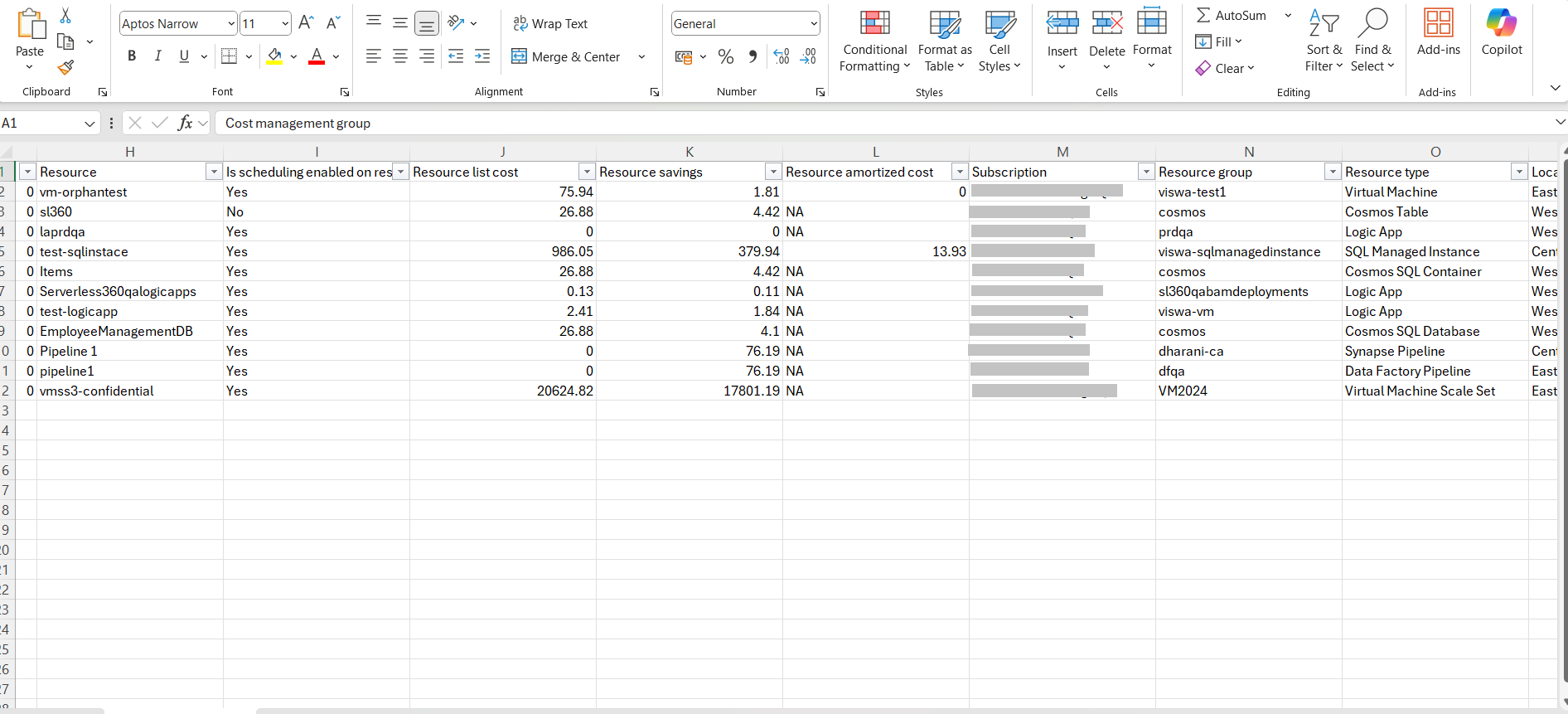
Scheduled resources summary is a monthly Excel-based analytical report that provides a consolidated view of all Azure resources associated with schedules within a cost management group. Reports are available for download from Generation history.
By consolidating scheduling cost data into a single report, you can identify which resources are governed by schedules and assess the financial implications of those schedules. Current scheduling status and potential savings are available for each resource.
Business value
Use this report to quantify actual and potential savings from scheduled start and stop operations, giving cost optimization teams the data they need to evaluate and expand their scheduling coverage.
Prerequisites
Before configuring this report, ensure the cost management group has at least one resource assigned to an active schedule.
Required permissions
Access to the Scheduled resources summary report is controlled by the same Reports permission that governs Cost Analyzer's reporting suite:
| Role | Permission level | Access |
|---|---|---|
| Account owner, Owner, Contributor | - | Full access to Reports |
| Custom role | Reports: Read | View all reports |
| Custom role | Reports: Manage | Edit report configuration and generate reports |
When assigning a custom role, grant Read or Manage on Reports under Specify feature permissions.
How it works
The report includes detailed information for each scheduled resource, such as:
- Current scheduling status (enabled, disabled)
- Resource type and associated schedule
- Potential savings achievable through effective scheduling
Steps
Use the following steps to configure, generate, and access Scheduled resources summary reports. Navigate to your Cost management group > Reports to get started.
Configure the report
Configuring the report sets up the monthly schedule summary and how it is delivered for your cost management group.
- Click the Edit icon next to the Scheduled resources summary report type.
- Check Download report from notifications to allow the report to be downloaded from alerts.
- Enable Includes resources scheduled in child groups to include resource data from schedules available in the child groups.
- Choose the desired notification services to receive alerts.
- Click Save.
- Enable the Scheduled resources summary report type toggle.
Generate an instant report
Generating an instant report lets you get an on-demand copy of the monthly summary without waiting for the scheduled run.
- Click the Actions menu next to the Scheduled resources summary report type.
- Select Generate Now.
The toggle should be enabled for the report type in the Reports section, and at least one notification channel should be selected.
View generation history
Generation history lets you access and re-download previously generated reports without regenerating them.
- Open Generation history to view all triggered reports.
- Click Download next to any record to retrieve that report.
Example scenario
A finance lead schedules the Scheduled resources summary to run Monthly for the Production cost management group, with Download report from notifications enabled and Includes resources scheduled in child groups turned on, and Microsoft Teams selected as the notification channel. Each month, the team receives an Excel report listing every schedule-linked resource, its current scheduling status, and the potential savings achievable through effective scheduling, without manually cross-checking schedules against the resource list.
The following image illustrates a sample monthly Scheduled resources summary report downloaded from the Generation history:
Troubleshooting
-
Report generation fails
Cause: The cost management group contains subscriptions with different billing currencies.
Fix: Ensure all subscriptions in the group share the same billing currency, or split them into separate groups. -
Report shows no scheduled resources
Cause: No resources in the cost management group are currently associated with an active schedule.
Fix: Verify that schedules are configured and applied to the relevant resources before the next report cycle. -
Child group resources missing from the report
Cause: The Includes resources scheduled in child groups checkbox was not enabled during configuration.
Fix: Edit the report configuration and enable Includes resources scheduled in child groups, then save. -
Generate Now option is unavailable
Cause: The Scheduled resources summary report type toggle is disabled, or no notification channel is selected.
Fix: Enable the report type toggle in the Reports section and select at least one notification channel. -
Report is not received via the configured notification channel
Cause: The notification service was removed or reconfigured after the report was saved, breaking the delivery connection.
Fix: Edit the report configuration, reselect the notification service, and save.
FAQs
-
How often does the Scheduled resources summary report run?
The report runs monthly and is delivered to the configured notification services on each cycle. -
Can I include resources from child cost management groups in the report?
Yes. Enable Includes resources scheduled in child groups during configuration to include schedule data from all child groups. -
Can I download a previously generated report without triggering a new one?
Yes. Open Generation history in the Reports section and click Download next to any prior record.