Overview
Tasks summary is a report type in Cost Analyzer that provides a monthly view of all Task planner tasks with a start date in the previous month. Delivered as an Excel sheet, it consolidates task activity across schedules, rightsizing actions, and SKU changes into a single, reviewable snapshot.
Business value
Tasks summary gives teams a recurring, automated record of optimization activity, helping them track task completion, catch overdue items early, and plan resource allocation for the following month without manually cross-checking the Task planner.
Prerequisites
Required permissions
Access to Tasks summary is controlled by the same Reports permission that governs Cost Analyzer's reporting suite:
| Role | Permission level | Access |
|---|---|---|
| Account owner, Owner, Contributor | - | Full access to Reports |
| Custom role | Reports: Read | View all reports |
| Custom role | Reports: Manage | Edit report configuration and generate reports |
When assigning a custom role, grant Read or Manage on Reports under Specify feature permissions.
How it works
- Tasks summary is a monthly report that captures all Task planner tasks with a start date within the previous month.
- Configuration is restricted to the root-level cost management group to ensure complete organizational coverage.
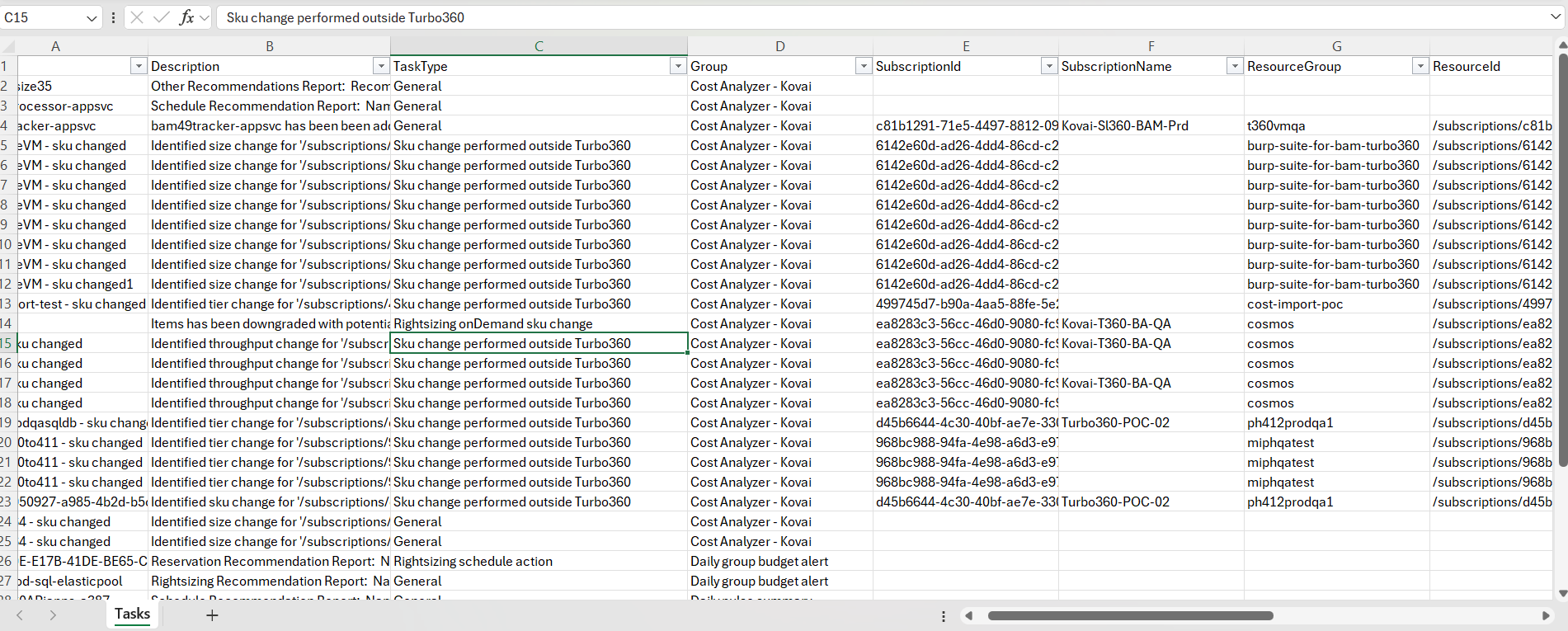
- The SubscriptionId, SubscriptionName, Resource Group, and Resource ID columns are populated only for backend operations that create tasks in the Task planner: schedule creation, mapping resources to an existing schedule, scheduling a rightsizing action, applying a recommended SKU from Rightsizing recommendations, and SKU changes performed outside Turbo360.
Configuration
Use the following steps to schedule Tasks summary reports on a monthly basis for the root-level cost management group. Navigate to Cost management group > Reports to get started.
- Click the Edit icon next to the Tasks summary report type.
- Check Download report from notifications to receive the report via alerts.
- Choose the desired notification services to receive alerts.
- Click Save.
- Enable the Tasks summary report type toggle.
Instant reports
On-demand monthly Tasks summary reports can be generated using the Generate Now option in the Actions menu of the report type.
The Tasks summary toggle must be enabled in the Reports section, and at least one notification channel must be selected, for Generate Now to work.
Generation history
All triggered Tasks summary reports for the relevant cost management group appear in Generation history. Each record shows the report Type (Monthly), the Cost saved during the reported period, and the Generated at timestamp, with a Download link next to each entry. If no tasks were found for that period, the record shows No tasks found instead of a download link.
Example scenario
A Cost Analyzer administrator manages the root-level cost management group and wants monthly visibility into optimization activity across all subscriptions. They configure a Tasks summary report with Download report from notifications enabled and select email as the notification channel. On the first business day of each month, the team receives the report and can immediately see which schedules, rightsizing actions, and SKU changes were initiated the previous month, and follow up on anything still pending.
The following image illustrates a sample monthly Tasks summary report downloaded from Generation history.
Limitations
Tasks summary report configuration is restricted to the root-level cost management group only; it cannot be configured at a child group level.
Troubleshooting
-
Tasks summary report type is not visible under Reports
Cause: The report can only be configured at the root-level cost management group.
Fix: Navigate to the root-level cost management group and configure the report there. -
Generate Now does nothing when clicked
Cause: The Tasks summary report type toggle is disabled, or no notification channel is selected.
Fix: Enable the Tasks summary toggle in the Reports section and select at least one notification service. -
Report cannot be downloaded from the notification alert
Cause: Download report from notifications was not checked during configuration.
Fix: Edit the configuration, enable Download report from notifications, and save. -
SubscriptionId, SubscriptionName, Resource Group, or Resource ID columns are blank for a row
Cause: The task was not created through a backend operation tracked by Task planner (for example, a manual entry outside the supported operations).
Fix: Not an error. These columns populate only for schedule creation, resource mapping, rightsizing scheduling, applying recommended SKUs, and out-of-Turbo360 SKU changes. -
No tasks appear in a generated report
Cause: No Task planner tasks had a start date within the previous month.
Fix: Not an error. Verify task activity for the relevant month in the Task planner.
FAQs
-
Can I configure Tasks summary at a child cost management group level?
No. Tasks summary configuration is restricted to the root-level cost management group only. This ensures the report captures task activity across the entire organization rather than a subset. The report type will not appear in the Reports section of child groups. -
What frequency does Tasks summary support?
Tasks summary is monthly only. There is no weekly option. The report covers all Task planner tasks with a start date in the previous calendar month, and is delivered on a recurring monthly schedule. -
Which task types are included in the report?
The report includes all Task planner tasks with a start date in the previous month, regardless of type. However, the SubscriptionId, SubscriptionName, Resource Group, and Resource ID columns are only populated for tasks created by specific backend operations: schedule creation, resource mapping to an existing schedule, scheduling a rightsizing action, applying a recommended SKU, and SKU changes made outside Turbo360. -
Why does the Generation history record show "No tasks found" instead of a download link?
This means no Task planner tasks had a start date within the reported month. It is not an error — it simply indicates there was no relevant task activity in that period. -
Does Tasks summary report on task completion status?
The report captures tasks with a start date in the previous month. It does not filter by completion status, so both completed and pending tasks from that period are included, giving teams a full picture of what was initiated and what may still need follow-up.