Overview
Summary alerts give you a scheduled, high-level view of the health of your Push Model business processes in Business Activity Monitoring (BAM). Summary alerts are exclusive to the Push Model (Custom Logging type) and are configured at the business process group level. Instead of receiving individual alerts for each transaction failure, you receive a consolidated report showing the status and incident count for every business process group at the time the alert is sent.
Business value
Individual transaction alerts are effective for real-time incident response, but they can make it difficult to see the overall health of your integration landscape at a glance. Summary alerts give operations teams and business stakeholders a regular, actionable digest, showing which business process groups are in error, how many incidents occurred, and links to investigate further, without requiring access to the BAM portal.
How it works
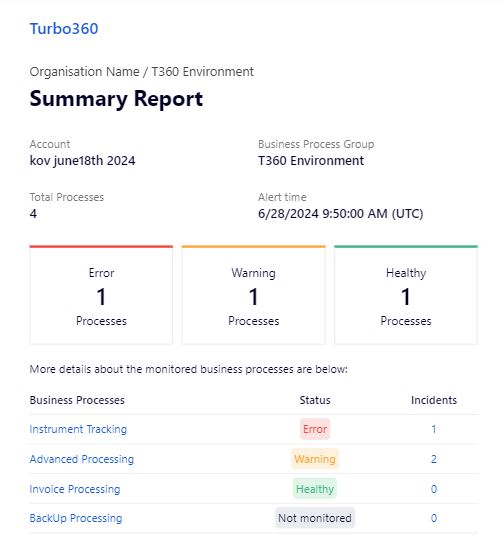
Summary alerts are configured at the business process group level. When enabled, BAM sends a summary report to your configured notification channels at the scheduled frequency. The report includes the status (Error, Warning, or Healthy) and incident count for each business process in the group, along with a link to access the incidents directly.
The Incident Lookback Period determines which incidents are considered in each report. Monitoring results are based on incidents within the selected time range.
Prerequisites
Required permissions
Configuring summary alerts requires at least the Contributor role.
Steps
Use the following steps to configure summary alerts and review incidents for a business process group. Navigate to Business Activity Monitoring, then use the Context menu ( ⋮ ) next to the root business process group in the tree view to get started.
Configure summary alerts
Set the schedule, notification channels, and lookback period for the group's summary alerts.
- Click the Context menu ( ⋮ ) next to the root business process group in the tree view.
- Select Summary alerts from the menu.
- Ensure the Disable summary alerts toggle is off to keep summary alerts active. Toggle it on to disable summary alerts for the group.
- Optionally enable Include Business Processes from sub groups to include business processes from any sub-groups within the root group.
- Optionally enable Download report from notifications (open link) to allow direct download of the summary report from the notification.
- Optionally enable Exclude failures from weekends to exclude incidents that occur on weekends from the report.
- Under Frequency settings, configure the following:
- Select the days to receive alerts: choose the days on which summary alerts should be sent (for example, All Days or specific weekdays).
- Select the hours to receive alerts: choose the hours at which summary alerts should be sent each day.
- Incident Lookback Period: set the time range to consider when calculating monitoring results. Only incidents within this window are included in each report (for example, Last 7 days).
- Optionally enable Send an alert only if any business processes are in error to suppress alerts when all processes are healthy.
- Under Notification settings, configure the following:
- Enter a Recipient email address and select an Email template.
- Under the channel selection table, check each notification channel that should receive the alert. SMTP channels accept per-channel recipients and templates.
- Click Save to apply the configuration.
.png)
Review incidents
The Incidents tab lets you review the delivery history of past summary alert reports and drill into the status of individual business processes.
Open the Incidents tab in the Summary alerts dialog to see all incidents generated by summary alerts. You can filter by Incident status and Date using the dropdowns at the top right, or refresh the list using the refresh button.
Each incident row shows:
- Status: the status of the incident (for example, Error).
- Issues: the number of issues recorded for that incident.
- Created at: the date and time the incident was generated.
Two row-level actions are available per incident:
-
View (eye icon): opens the incident detail view, showing the Transmitted at timestamp and a table of each notification channel with its delivery status and transmission time.
-
Download incident details (download icon): downloads the full incident details.
-
Select a status to see the related business processes, their status, and incident count.
-
Select a business process to navigate directly to it in BAM.
-
Select the incident count for a business process to navigate to the Incidents section of that business process.
A summary alert received for four business processes, showing their status and incident counts:
Configuration
| Option | Type | Description |
|---|---|---|
| Disable summary alerts | Toggle | Disables summary alerts for the group when turned on; keep off to receive alerts |
| Include Business Processes from sub groups | Checkbox | Includes business processes from sub-groups in the report |
| Download report from notifications (open link) | Checkbox | Allows direct download of the summary report from the notification link |
| Exclude failures from weekends | Checkbox | Omits weekend incidents from the report |
| Select the days to receive alerts | Multi-select | The days on which summary alerts are sent |
| Select the hours to receive alerts | Multi-select | The hours at which summary alerts are sent each day |
| Incident Lookback Period | Selection | Considers incidents within the selected time range; monitoring results are based on these incidents |
| Send an alert only if any business processes are in error | Checkbox | Suppresses alerts when all processes are healthy |
| Recipient email address | Text | Email address to receive the summary alert notification |
| Email template | Selection | Template used for the summary alert email |
Limitations
- Summary alerts are configured at the root business process group level and apply to all business processes within that group (and optionally its sub-groups).
- Summary alerts are available only in the Push Model (Custom Logging type). They are not available for Pull Model (Data Queries) business processes.
- Disabling monitoring via the Monitoring status dropdown suspends all monitor types for the business process simultaneously.
Troubleshooting
-
No summary alert was received at the scheduled time
Cause: The Disable summary alerts toggle may be on, or no notification channels are configured.
Fix: Confirm the toggle is off (alerts enabled), at least one notification channel is selected, and the scheduled days and hours include the expected time. -
Alert was not sent even though a business process was in error state
Cause: The Send an alert only if any business processes are in error checkbox may be enabled but the error occurred outside the lookback period.
Fix: Check whether the incident timestamp falls within the configured Incident Lookback Period and adjust the period if needed. -
Sub-group business processes are missing from the report
Cause: The Include Business Processes from sub groups option is not enabled.
Fix: Enable Include Business Processes from sub groups in the summary alert configuration and save. -
Weekend failures are appearing in the summary report
Cause: The Exclude failures from weekends option is not enabled.
Fix: Enable Exclude failures from weekends in the configuration and save. -
Clicking the incident count in the alert email does not open the correct view
Cause: The notification link may be opening the BAM portal without navigating to the specific incidents view, or the user may not have access to the business process.
Fix: Confirm Download report from notifications (open link) is enabled and that the recipient has access to the relevant business process in BAM.
FAQs
-
Can I configure summary alerts for individual business processes rather than the whole group?
Summary alerts are configured at the root business process group level. They cover all business processes within that group (and sub-groups if enabled). Per-process summary alerts are not supported. -
Can I receive summary alerts more than once a day?
Yes. You can select multiple hours in Select the hours to receive alerts to receive summary alerts at different times throughout the day. -
What is the Incident Lookback Period used for?
The Incident Lookback Period defines the time range considered when calculating monitoring results in each summary alert. Only incidents within this window are included in the report.