Overview
AI Agents is Cost Analyzer's built-in AI capability that provides intelligent, AI-generated insights for your Azure resources. Each agent analyzes a specific aspect of a resource, covering areas such as cost drivers, rightsizing opportunities, carbon footprint, and scheduling, to help you make informed decisions on cost and performance.
AI-generated content: The insights and recommendations produced by AI Agents are generated by Azure OpenAI. They reflect your resource data at the time of the request and are intended to support your decision-making. Always review them before taking action.
Business value
AI Agents surfaces AI-generated cost and resource insights directly inside Cost Analyzer, reducing the time your team spends manually interpreting cost data and enabling faster, more consistent decision-making across subscriptions.
Prerequisites
- An active Azure OpenAI resource (Private Hosting only). SaaS deployments do not need this step. See OpenAI setup in Turbo360 for setup steps.
Required permissions
| Role | Permission level | Access |
|---|---|---|
| Account owner, Owner, Contributor | - | Full access to AI Agents |
| Custom role | AI Agents feature: Enable | Full access to AI Agents |
| Custom role | AI Agents feature: Disable | No access to AI Agents |
The AI Agents permission is a single Enable/Disable toggle under Specify feature permissions when adding or editing a Custom role. It does not use separate Read/Manage levels.
How it works
- In SaaS, Turbo360 uses its in-house OpenAI connection to generate AI-driven resource insights with no setup on your part.
- In Private Hosting, Cost Analyzer requires a dedicated Azure OpenAI connection before its built-in AI Agents can generate insights and analysis. For the full connection procedure, see OpenAI setup in Turbo360.
Architecture
When you run an AI Agent, the request flows through three components inside the Turbo360 SaaS platform:
Angular SPA is the browser-based interface that captures your prompt input and renders the streamed response as it arrives. The AI session is interactive: you see output token by token as Azure OpenAI generates it.
Prompt Builder & Orchestrator is a server-side layer that assembles the full prompt before sending it to Azure OpenAI. It pulls in the relevant resource context (cost data, metrics, configuration), applies guardrails to scope and sanitize the request, and injects telemetry so the model has an accurate picture of the resource's current state. This layer is what makes each agent's output specific to your resource rather than generic.
Azure OpenAI receives the assembled prompt and runs it against GPT reasoning models and domain-specific agents. Responses are streamed back to the Angular SPA using Server-Sent Events (SSE), which means the output appears progressively in your browser rather than waiting for the full response to complete.
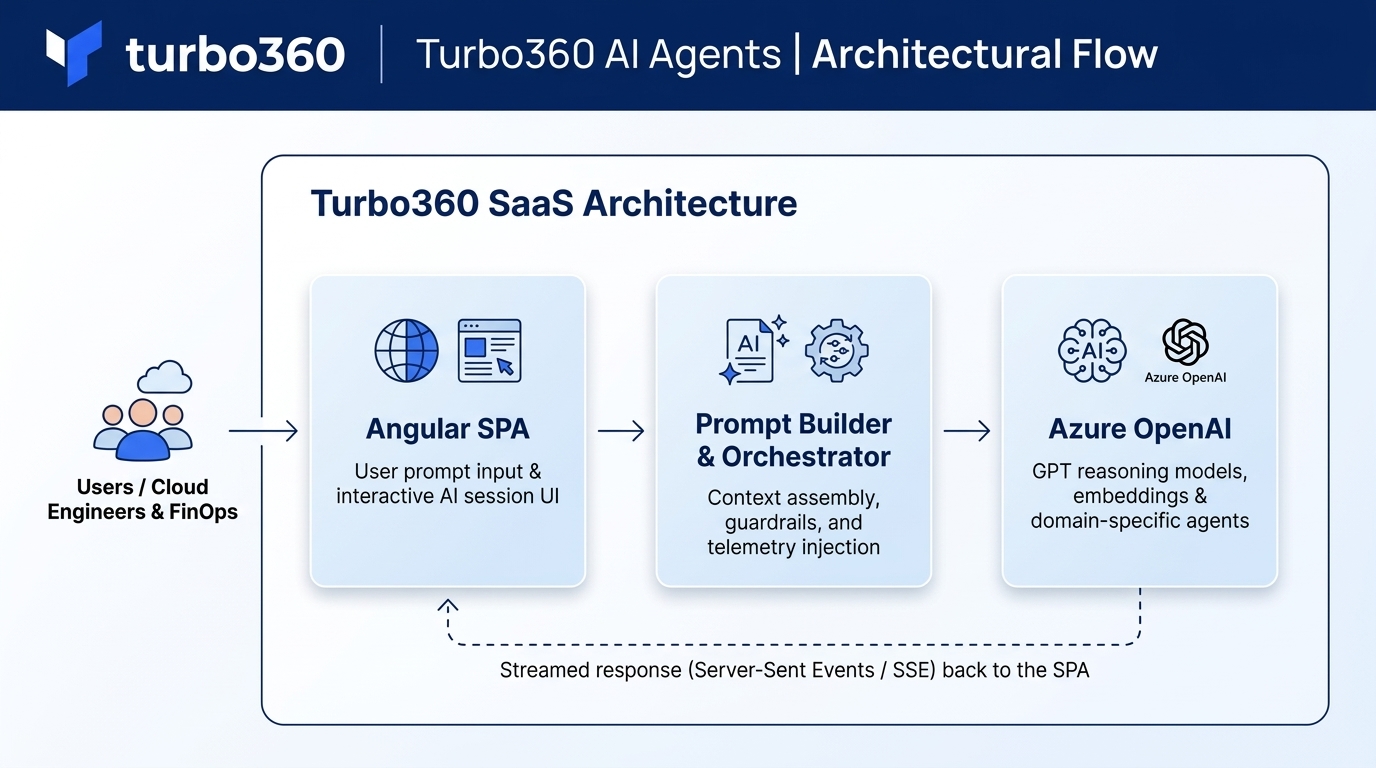
This architecture applies to all AI Agents in Cost Analyzer on SaaS deployments. On Private Hosting, the same flow applies, but the Azure OpenAI component is replaced by the Azure OpenAI resource you configured under Settings > OpenAI connection.
AI agents account-wide toggle
The Account owner can enable or disable AI agents for the entire organization from a single toggle. When disabled, AI agents are hidden across the app for every user, regardless of their individual role permissions.
The toggle location depends on your deployment model:
- SaaS: navigate to Settings > General settings. The AI agents toggle is in the right panel.
- Private hosting: navigate to Settings > OpenAI connection. The AI agents toggle appears on the same page as your connection configuration.
Both the account-wide toggle and the per-role AI Agents permission must be enabled for a user to access AI agents.
Available AI Agents
The following agents are available under the AI Agents tab for a resource:
- Resource summary: an AI-generated summary of the resource covering summary, cost, and health.
- Cost spike troubleshooter: analyzes and troubleshoots unexpected cost spikes, covering anomaly, trend, and root cause.
- Analyze OS change impact: evaluates the impact of changing the operating system of a Virtual Machine, covering downtime, cost implications, compatibility risks, and migration effort.
- Analyze AMD vs Intel impact: analyzes the cost and performance impact of switching between AMD and Intel processor families for a Virtual Machine, covering SKU, pricing, and performance trade-offs.
- Analyze data centre change: the impact of moving the resource to a different data centre, covering region, migration, and latency.
- Analyze rightsizing: rightsizing opportunities for the resource, covering SKU, utilization, and savings.
- Evergreen recommendations: modernization opportunities to keep the resource up to date, covering modernize, generation, and risk.
- Analyze hybrid benefit: estimated cost savings from applying Azure Hybrid Benefit, covering license, AHB, and savings.
- Carbon optimizer recommendations: opportunities to reduce the resource's carbon footprint, covering CO2, region, and energy.
- Analyze resource scheduling: start/stop or scale-down scheduling opportunities and estimated savings, covering schedule, off-peak, and savings.
- Analyze cost drivers: what you're being charged for and what makes the cost rise or fall, covering meters, breakdown, and drivers.
- Analyze resource purpose: what the resource does, who depends on it, and whether it's still needed, covering purpose, dependencies, and usage.
- Cost optimization checklist: a prioritized audit of cost issues and quick wins, covering audit, quick wins, and score.
Explain with AI on recommendations
In addition to the AI Agents tab, Cost Analyzer surfaces Explain with AI directly on rightsizing and reservation recommendations. This is a separate AI capability that generates a structured analysis panel for a specific recommendation (a rightsizing suggestion or a reservation purchase opportunity) rather than operating as a general resource-level agent.
Explain with AI is available on the following:
- Basic recommendations for Rightsizing
- Advanced recommendations for Rightsizing
- Basic recommendations for Reservations
- Advanced recommendations for Reservations
Explain with AI on recommendations requires the AI Agents permission plus the relevant Optimization tab permission (Rightsizing or Reservations) to be enabled for the user's role.
Explain with AI on monitoring widgets
Cost Analyzer also surfaces Explain with AI on monitoring widgets at the cost management group level. These generate AI-driven audit reports scoped to the widget's data, separate from the resource-level AI Agents tab.
- Automatic anomaly detection: the (✦) icon on the Automatic anomaly detection widget opens an Anomaly Insights audit covering setup score, cost consistency, alert routing, and tuning recommendations. Requires AI Agents + Monitoring permissions.
- Group budget monitoring: the (✦) icon on the Group budget widget opens a Budget Insights report covering budget configuration, spend trend, threshold health, and improvement recommendations. Requires AI Agents + Monitoring permissions.
Cost review agent
Cost review agent is a group-level AI capability that compiles a comprehensive cost report for a cost management group on demand. It assembles spending trends, top cost drivers, notable movers, budget incidents, anomalies, optimization posture, and recommended actions into a single ready-to-present report. Cost review agent requires the AI Agents permission plus Analysis, Monitoring, and Optimization Read permissions. It is accessed from the cost management group's context menu under Tools or from the group's Overview tab.
Data and AI transparency
This section describes what data Cost Analyzer sends to Azure OpenAI when AI Agents and Explain with AI features are used, and how that data is handled.
What data is sent
When you run an AI Agent or Explain with AI feature, Cost Analyzer assembles a prompt from your resource's current data and sends it to Azure OpenAI to generate the response. The data included depends on the agent or feature, but covers one or more of the following categories:
- Resource metadata: resource name, type, location, resource group, subscription name, and SKU
- Cost and usage data: spend history, cost breakdowns, forecasts, and savings figures from Azure Cost Management
- Azure Monitor metrics: performance aggregates such as CPU, memory, and throughput over recent periods
- Azure Advisor recommendation details: recommendation descriptions, impact levels, and estimated savings
- Resource configuration data: SKU options, licensing details, scheduling patterns, and resource-level settings retrieved from Azure Resource Manager
- Monitoring configuration: alert thresholds, notification channel names, and anomaly detection settings where relevant to the agent
Azure resource tags are included for agents that analyze resource purpose, rightsizing, and security. Tags help the model understand resource context and ownership.
What data is not sent
- Your Azure service principal credentials are used server-side to retrieve resource data from Azure and are never included in the prompt sent to Azure OpenAI.
- Webhook URIs and notification recipient email addresses are not sent. Only a count of configured recipients is included where relevant.
Response storage and logging
AI Agents responses are streamed directly to your browser and are not stored in any Turbo360 database or server cache. Raw prompts sent to Azure OpenAI are not logged.
The one exception is Automatic anomaly detection: this feature runs a background AI validation job to assess cost anomalies and determine alert severity. The structured verdict from that validation, covering result, confidence, and severity, is stored as part of the alert object and used to route notifications. The full response text is not stored.
SaaS and Private Hosting
The data sent to Azure OpenAI is the same regardless of deployment type. The difference is which Azure OpenAI resource receives it:
- SaaS: your resource data is sent to a Turbo360-managed Azure OpenAI connection. Turbo360 manages this connection on your behalf; no configuration is required from you.
- Private Hosting: your resource data is sent to the Azure OpenAI resource you configured under Settings. The data stays within the connection you own and control.
Steps
Use the following steps to access AI Agents for a resource. AI Agents can be reached from three places in Cost Analyzer.
Access from Analysis
Accessing AI Agents from Analysis lets you review AI-generated insights alongside your cost data for any resource.
- In Analysis, create a view with the chart type set to Table and the Group by filter set to Resource.
- Click a resource from the results.
- Switch to the AI Agents tab to access the required agent.
Access from Optimization schedules
Accessing AI Agents during schedule creation lets you evaluate a resource before committing it to a schedule.
- During schedule creation, click a resource from the resource selection screen.
- Switch to the AI Agents tab to access the required agent.
Alternatively, within an existing schedule:
- Click Schedule Resources.
- Select a resource from the resource selection screen.
- Switch to the AI Agents tab to access the required agent.
Access from Advanced recommendations
Accessing AI Agents from Advanced recommendations lets you evaluate a resource directly from Rightsizing or Reservations recommendations.
- Go to Optimization > Rightsizing > Advanced Recommendations or Optimization > Reservations > Advanced Recommendations.
- Click the View resource details icon for a resource.
- Switch to the AI Agents tab to access the required agent.
Example scenario
An administrator managing a Private Hosting deployment of Cost Analyzer wants their team to see AI-generated cost summaries. They follow OpenAI setup in Turbo360 to connect their organization's Azure OpenAI resource. Once saved, AI Agents becomes available to any role with the AI Agents permission enabled, accessible from Analysis, Schedules, or Advanced Recommendations.
Troubleshooting
-
OpenAI connection validation fails
Cause: The Azure OpenAI connection details (endpoint, key, or deployment configuration) entered don't match the Azure OpenAI resource.
Fix: See OpenAI setup in Turbo360 for troubleshooting steps. -
AI Agents option is not visible to a user
Cause: The user's Custom role does not have the AI Agents feature permission enabled.
Fix: Go to User management > Roles, edit the relevant Custom role, and enable the AI Agents toggle under Specify feature permissions. -
AI agents are not visible to any user despite role permissions being correct
Cause: The account-wide AI agents toggle has been disabled by the Account owner.
Fix: Navigate to Settings > General settings (SaaS) or Settings > OpenAI connection (Private hosting) and confirm the AI agents toggle is enabled.
FAQs
-
Do I need to configure an OpenAI connection on Turbo360 SaaS?
No. SaaS deployments use Turbo360's in-house OpenAI connection, so AI Agents works without any additional setup. -
Which roles can access AI Agents by default?
Account owner, Owner, and Contributor have full access by default. Custom roles need the AI Agents permission enabled. -
Where can I access AI Agents for a resource?
From Analysis (table view grouped by resource), from Optimization > Schedules during or after schedule creation, or from Rightsizing/Reservations Advanced Recommendations. -
What's the difference between AI Agents and Explain with AI?
AI Agents runs from the AI Agents tab on a resource and covers general cost, health, and optimization topics. Explain with AI surfaces on individual rightsizing and reservation recommendations and on monitoring widgets (anomaly detection, group budget), generating a structured analysis scoped to that specific feature. It is not available from the AI Agents tab. -
Is my resource data stored after an AI Agent runs?
No. Responses are streamed directly to your browser and are not stored or logged by Turbo360. The exception is Automatic anomaly detection, which stores a structured verdict from its background AI validation to drive alert severity and notification routing. -
Can the Account owner disable AI agents for all users?
Yes. The Account owner can disable AI agents organization-wide from Settings > General settings (SaaS) or Settings > OpenAI connection (Private hosting). When disabled, AI agents are hidden for all users regardless of their role permissions.
Related articles
- OpenAI setup in Turbo360
- Cost review agent
- Cost analysis
- Automatic anomaly detection
- Group budget monitoring
- Basic recommendations for Rightsizing
- Advanced recommendations for Rightsizing
- Basic recommendations for Reservations
- Advanced recommendations for Reservations
- Managing optimization schedules