Overview
This article describes how to configure a Logic App that Turbo360 triggers before a schedule runs — before any resources are started or stopped. Use this hook to perform preparatory actions in external systems, such as disabling third-party monitoring alerts before VMs are turned off.
Business value
Schedule extensibility hooks let you integrate Turbo360 schedule automation with external systems without modifying the schedule itself. A before-schedule hook is useful for suppressing alerts, notifying teams, or placing dependent systems into maintenance mode before the schedule acts on resources — reducing noise and preventing false incident triggers.
Prerequisites
Before configuring this hook, ensure the following are in place:
- A schedule is configured in Cost Analyzer with at least one resource group.
- You have access to create and deploy a Logic App (Consumption) in Azure.
- The Logic App endpoint is accessible from Turbo360 (no firewall blocking outbound webhook calls).
Required permissions
You must have the Contributor or Owner role on the Azure subscription to create the Logic App. Within Turbo360, you must have Manage access on the Cost Analyzer schedule to configure the before-schedule action.
How it works
When a schedule is configured with a before-schedule action, Turbo360 calls the configured Logic App endpoint via HTTP before executing any resource operations. The request includes HTTP headers that your Logic App can use to determine the execution context — whether the trigger came from the Validate button or a live schedule run, and whether the schedule is about to move resources to the started or stopped state.
Your Logic App must return an HTTP 200 response within the timeout window for the schedule to proceed. If the Logic App returns an error or times out, the schedule behaviour depends on your schedule's failure configuration.
Steps
Use the following steps to set up and validate a before-schedule Logic App hook. Start in Cost Analyzer > Schedule Automation and open the schedule you want to extend.
Create the before-schedule action
Configuring the action on the schedule registers the Logic App endpoint that Turbo360 will call before the schedule runs.
- Open the target schedule in Cost Analyzer > Schedule Automation.
- Navigate to the Actions tab.
- Select Before schedule runs and enter the Logic App HTTP trigger URL.
- Save the schedule.
- Use the Validate button to send a test event to the Logic App before the schedule next runs live.
Handle the HTTP headers
The scheduler passes the following HTTP headers to your Logic App on every trigger — use them to control your workflow logic.
| Header | Use | Values |
|---|---|---|
Execution-Type | Indicates whether this is a test event from the Validate button or a live schedule run. | Test — the Validate button was clickedActual — the schedule ran live |
Schedule-Operation | Indicates the state the schedule is about to move resources to. | Start — moving to the started (green) stateStop — moving to the stopped (red) state |
In your Logic App, implement the following conditional logic:
- If
Execution-Typeis Test, return an HTTP 200 acknowledgement and terminate — do not perform real actions. - If
Schedule-Operationis Start, perform your pre-start actions (for example, re-enable monitoring). - If
Schedule-Operationis Stop, perform your pre-stop actions (for example, disable monitoring alerts before VMs are turned off).
Example scenario
A team runs a schedule that stops all non-production VMs at 7 PM every weekday. Their third-party monitoring platform raises alerts when VMs go offline unexpectedly. To prevent false incidents, they configure a before-schedule Logic App that calls the monitoring platform's API to silence alerts for the affected resource group before the schedule runs. The Logic App uses the Schedule-Operation: Stop header to trigger the silence only on stop events, and returns immediately on test events.
Logic App example
The screenshot below shows a sample Logic App workflow that handles the before-schedule extensibility scenario.
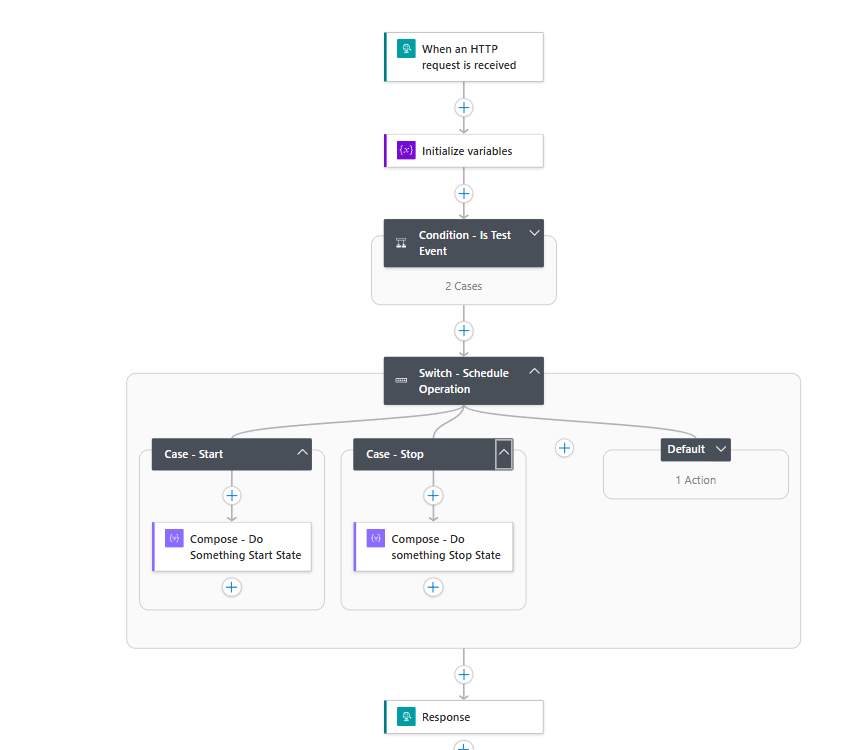
Sample Logic App template
Paste the following JSON into a Logic App Consumption workflow to get started quickly. Replace the action placeholders with your own integration logic.
{
    "definition": {
        "$schema": "https://schema.management.azure.com/providers/Microsoft.Logic/schemas/2016-06-01/workflowdefinition.json#",
        "contentVersion": "1.0.0.0",
        "triggers": {
            "When_an_HTTP_request_is_received": {
                "type": "Request",
                "kind": "Http"
            }
        },
        "actions": {
            "Response": {
                "type": "Response",
                "kind": "Http",
                "inputs": { "statusCode": 200 },
                "runAfter": { "Switch_-_Schedule_Operation": ["Succeeded"] }
            },
            "Initialize_variables": {
                "type": "InitializeVariable",
                "inputs": {
                    "variables": [
                        { "name": "executionType", "type": "string", "value": "@{triggerOutputs()?['headers']?['Execution-Type']}" },
                        { "name": "scheduleOperation", "type": "string", "value": "@{triggerOutputs()?['headers']?['Schedule-Operation']}" }
                    ]
                },
                "runAfter": {}
            },
            "Condition_-_Is_Test_Event": {
                "type": "If",
                "expression": { "and": [{ "equals": ["@variables('executionType')", "Test"] }] },
                "actions": {
                    "Response_-_Ack_-_Test": { "type": "Response", "kind": "Http", "inputs": { "statusCode": 200 } },
                    "Terminate_-_Ack": { "type": "Terminate", "inputs": { "runStatus": "Succeeded" }, "runAfter": { "Response_-_Ack_-_Test": ["Succeeded"] } }
                },
                "else": { "actions": {} },
                "runAfter": { "Initialize_variables": ["Succeeded"] }
            },
            "Switch_-_Schedule_Operation": {
                "type": "Switch",
                "expression": "@variables('scheduleOperation')",
                "default": { "actions": { "Compose_-_Do_nothing": { "type": "Compose", "inputs": "You would do nothing here because the schedule is not going to the start or stop state" } } },
                "cases": {
                    "Case_-_Start": { "actions": { "Compose_-_Do_Something_Start_State": { "type": "Compose", "inputs": "The schedule is about to run to move the resources to the start state.  Do something here before the resources are acted upon" } }, "case": "Start" },
                    "Case_-_Stop": { "actions": { "Compose_-_Do_something_Stop_State": { "type": "Compose", "inputs": "The schedule is going to the stopped or scaled down state.\n\nYou can do something here to before the schedule is actioned" } }, "case": "Stop" }
                },
                "runAfter": { "Condition_-_Is_Test_Event": ["Succeeded"] }
            }
        },
        "outputs": {},
        "parameters": { "$connections": { "type": "Object", "defaultValue": {} } }
    },
    "parameters": { "$connections": { "type": "Object", "value": {} } }
}
Troubleshooting
- The Logic App is not triggered when the schedule runs.
Cause: The before-schedule action URL may not be saved correctly, or the Logic App HTTP trigger endpoint has changed.
Fix: Re-open the schedule's Actions tab, verify the endpoint URL, and use the Validate button to confirm the trigger fires successfully. - The schedule does not proceed after triggering the Logic App.
Cause: The Logic App is returning a non-200 response or timing out.
Fix: Check the Logic App run history in the Azure portal for errors. Ensure the workflow always returns HTTP 200, including in error branches. - Test events trigger real actions in the external system.
Cause: The Logic App is not checking theExecution-Typeheader before performing actions.
Fix: Add a condition at the start of the workflow that checks forExecution-Type: Testand returns an HTTP 200 immediately without executing downstream actions. - The Logic App receives the trigger but the
Schedule-Operationheader is empty.
Cause: The header variable expression may be malformed.
Fix: Verify the expression@{triggerOutputs()?['headers']?['Schedule-Operation']}is correctly set in the Initialize variables action. - Actions run for both Start and Stop when only Stop actions are expected.
Cause: The Switch action is not correctly branching on thescheduleOperationvariable.
Fix: Confirm the Switch expression references@variables('scheduleOperation')and that the case values are exactlyStartandStop(case-sensitive).